Using Zapier to connect Microsoft To Do and Excel is a reliable way to automate your task logs or create tasks from spreadsheet rows.
- Go to zapier.com and sign in (or sign up for free).
- Click Create > Zaps in the left panel to start a new Zap.
- Click Trigger to define what kicks off this workflow.
- Search for and select Microsoft To Do as your trigger application.
- Click Sign in to connect your Microsoft To Do account.
- Under Trigger event, choose from the dropdown list.
- Click Continue with selected record to proceed with this setup.
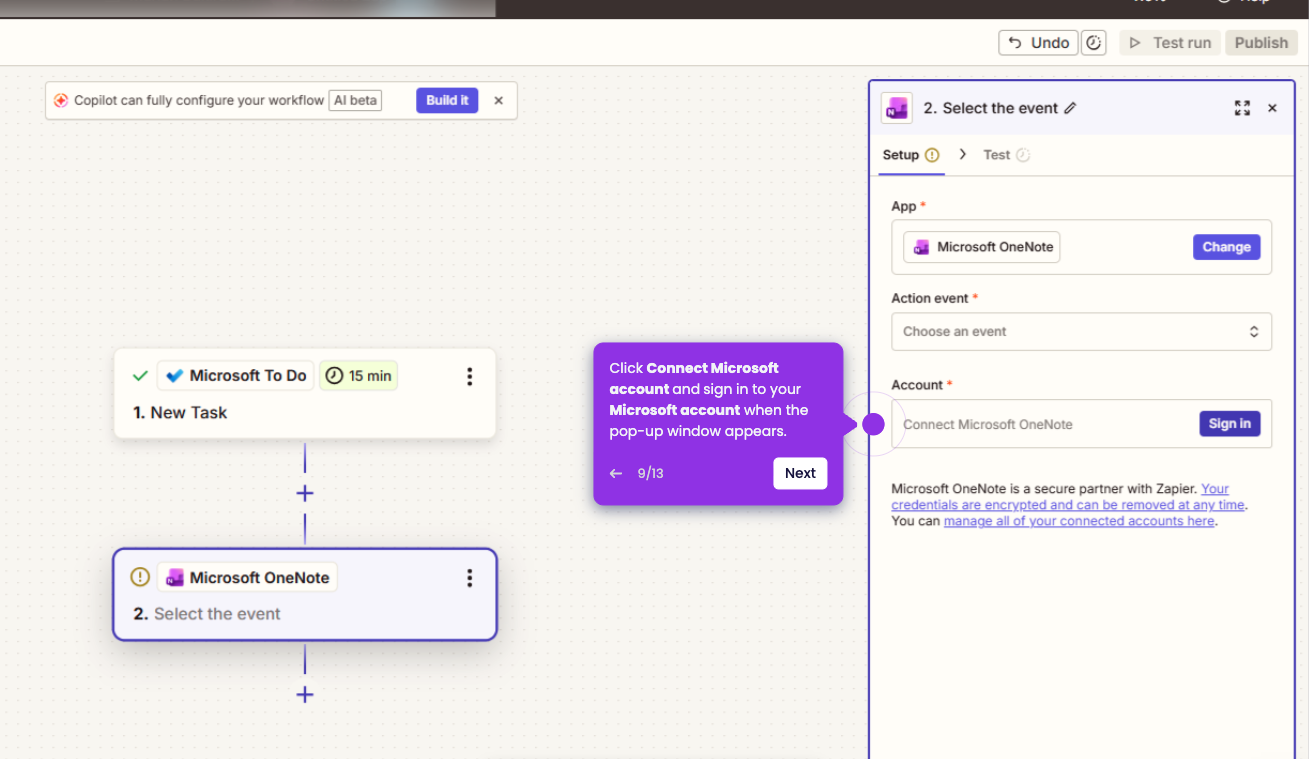
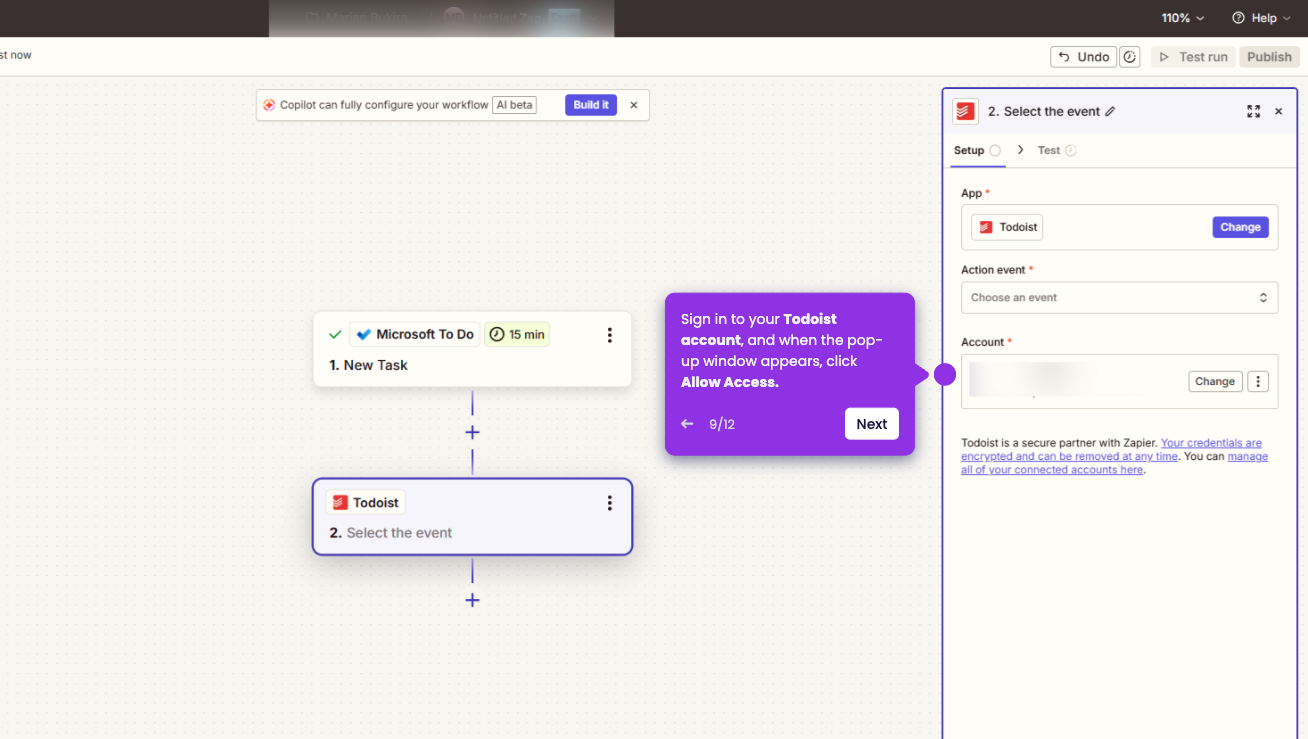
- Search for Microsoft Excel as your "Action" app.
- Click Select or Sign in to connect your Excel account.
- Select your Action Event, such as Add Row to Table.
- Click Continue to configure your action settings.
- Start mapping your fields by matching the available data from the trigger to the corresponding columns in your spreadsheet.
- Click Publish to activate your Zap and start automating.