Quick summary
This tutorial shows how to export Coda tables to Excel automatically using a Zapier automation that triggers on new or updated rows and pushes data directly into an Excel worksheet. No manual downloads are needed — once the Zap is published, your Coda data stays in sync with Excel in real time.
Steps
- Log in to Zapier, click "Create", and select "Zaps" to begin building your automation.
- Choose Coda as your trigger app to monitor for new data.
- Select a trigger event, such as "New Row" or "Updated Row", to define when the Zap fires.
- Select the Coda account you want to connect to your automation workflow.
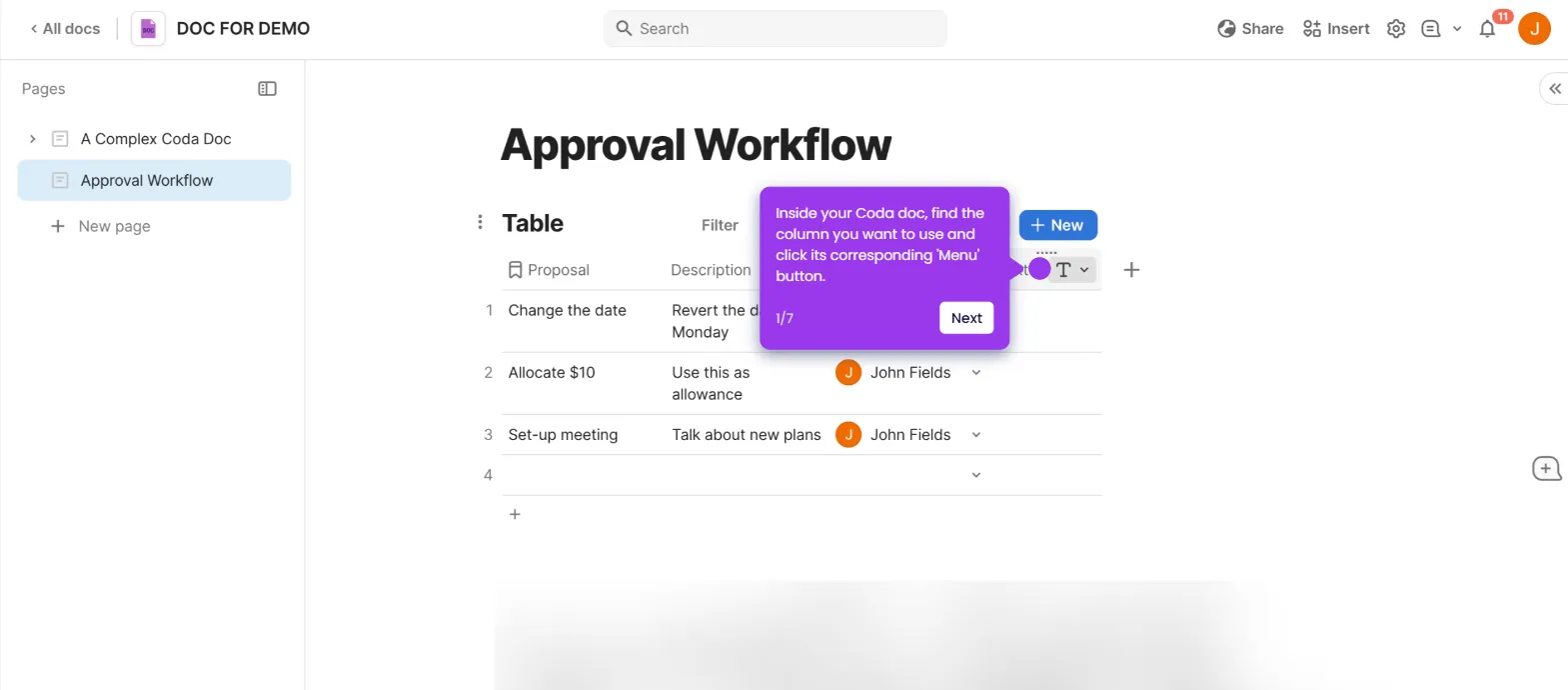
- Configure any additional settings for your Coda trigger, such as specifying the doc and table to watch.
- Click "Test trigger" to verify that Zapier can detect sample data from your Coda table.
- Add Microsoft Excel as the Action App in your Zap.
- Select an action event, such as "Add Row" or "Update Row", to define what happens in Excel.
- Connect your Excel account to authorize Zapier to write to your spreadsheets.
- Map your Coda fields to the corresponding Excel columns to ensure data lands in the right place.
- Run a test to confirm the data flows correctly from Coda into Excel.
- Click "Publish" to activate your Zap and start the live automation.