Quick summary
This tutorial shows you how to create a task management system in Coda by setting up a blank doc, adding structured tables with custom columns, and configuring multiple views and automations to track and manage tasks efficiently. Coda's flexible doc structure lets teams combine tables, calendar views, Kanban boards, and automated rules in a single workspace to keep projects on track.
Steps
- Click + Blank doc to create a new document in Coda.
- Provide a name for your task management system.
- Click the add icon to insert a new content block.
- Type /table and select Table to add a new table for your tasks.
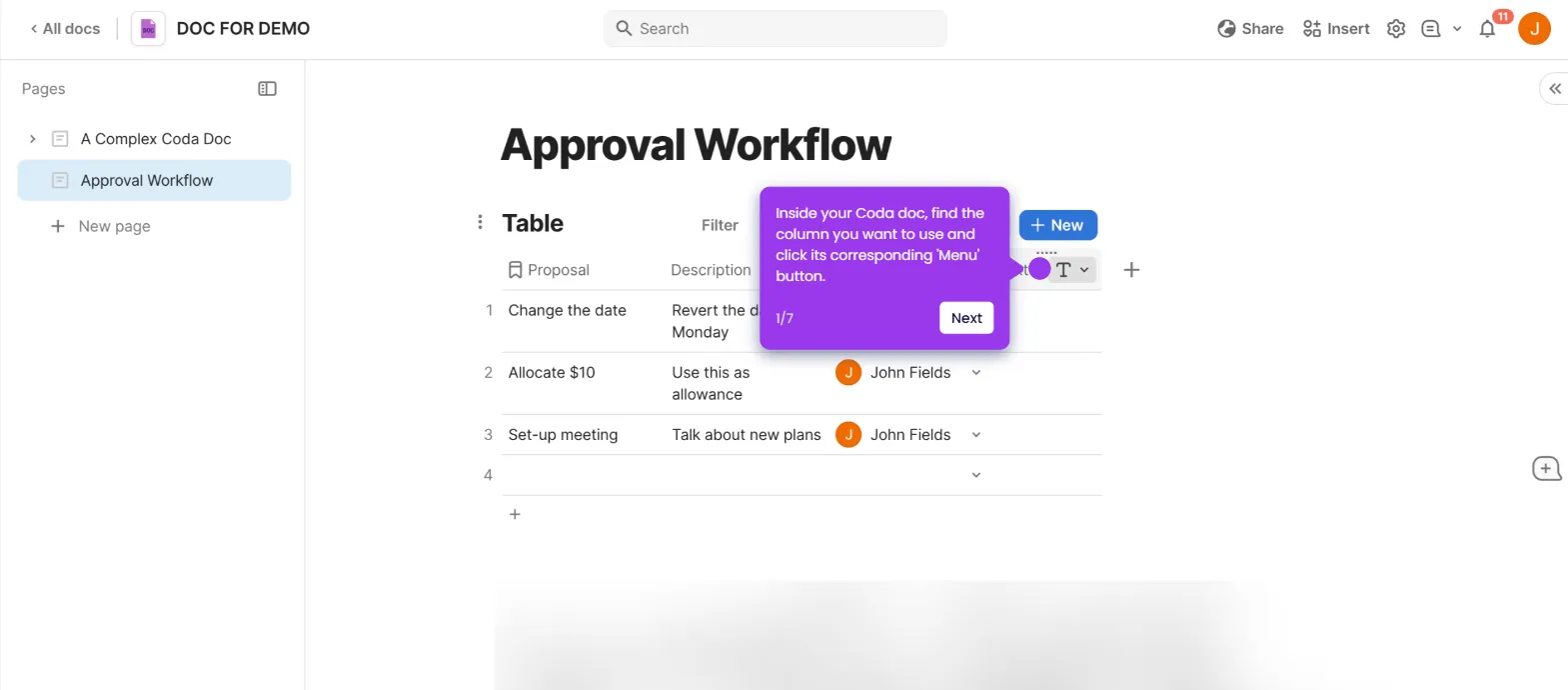
- Add the relevant columns to your task table to continue building the structure.
- Click Column type to change each column's data type based on your needs.
- Add a People column to track who is responsible for each task.
- Add a Date column to set deadlines for each task.
- Click Select list to add a Priority column so your team knows what to focus on first.
- Add a Status column to visually indicate whether tasks are pending, in progress, or complete.
- Add a Note column to capture additional task details and data.
- Add a second table for a status overview to monitor overall task progress.
- Type /Calendar to add a Calendar view and see tasks organized by deadline.
- Create different views of your tasks to match different team or workflow needs.
- Type /Board to add a Kanban board view for a card-based visual workflow.
- Use the card-based format to make task management more intuitive for visual teams.
- Click the Settings icon to access the automations panel.
- Select Automations to add a rule that automates routine task updates and notifications.
- Configure the automation rule to handle task updates and notifications without manual work.
- Review your completed system — your tables, views, and automations now provide a clear picture of all tasks and progress.