Quick summary
Connecting Coda with Twitter lets you pull live Twitter data directly into your documents using the Twitter Pack. This step-by-step walkthrough shows you exactly how to install the Pack, authenticate your Twitter account, and start using Twitter features inside Coda.
Steps
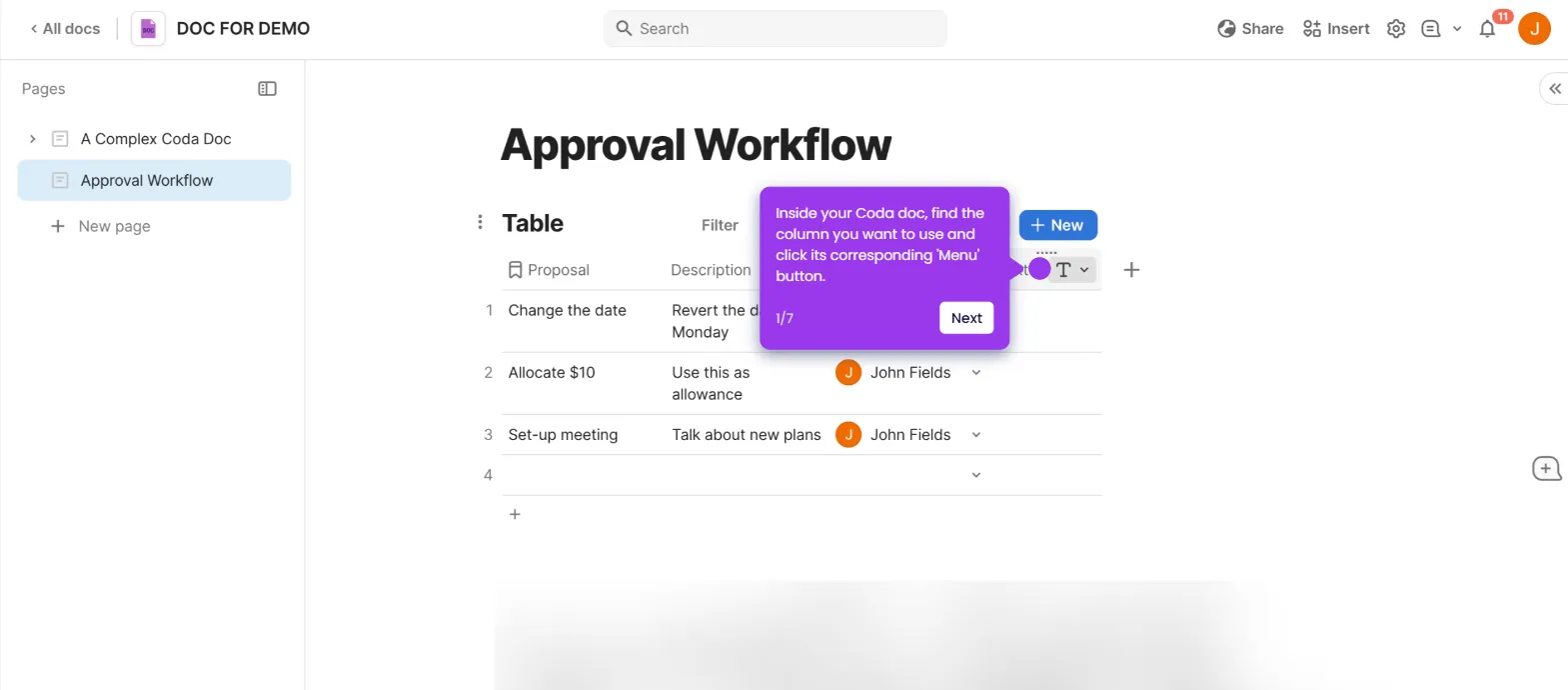
- Open your Coda document to get started.
- Click "Insert" in the top menu to access content options.
- Click "Packs" from the Insert menu to open the Packs panel.
- Search for Twitter in the Packs library and click on it to open the Pack details.
- Click "Add to doc for free" to install the Twitter Pack into your document.
- Select a Twitter feature and drag it into your document.
- Click "Connect an account" to begin linking your Twitter profile.
- Click "Sign in with Twitter" to initiate the OAuth authentication flow.
- Sign in with your Twitter account credentials on the Twitter login screen.
- Click "Authorize app" to grant Coda permission to access your Twitter data.