This is a step-by-step guide on how to sync contacts from CRM to Softr:
- in the Apps editor, navigate to the left sidebar and click 'Apps.'
- Access and select the template where you want to sync your CRM contacts.
- Click 'Data' in the upper part of the workspace.
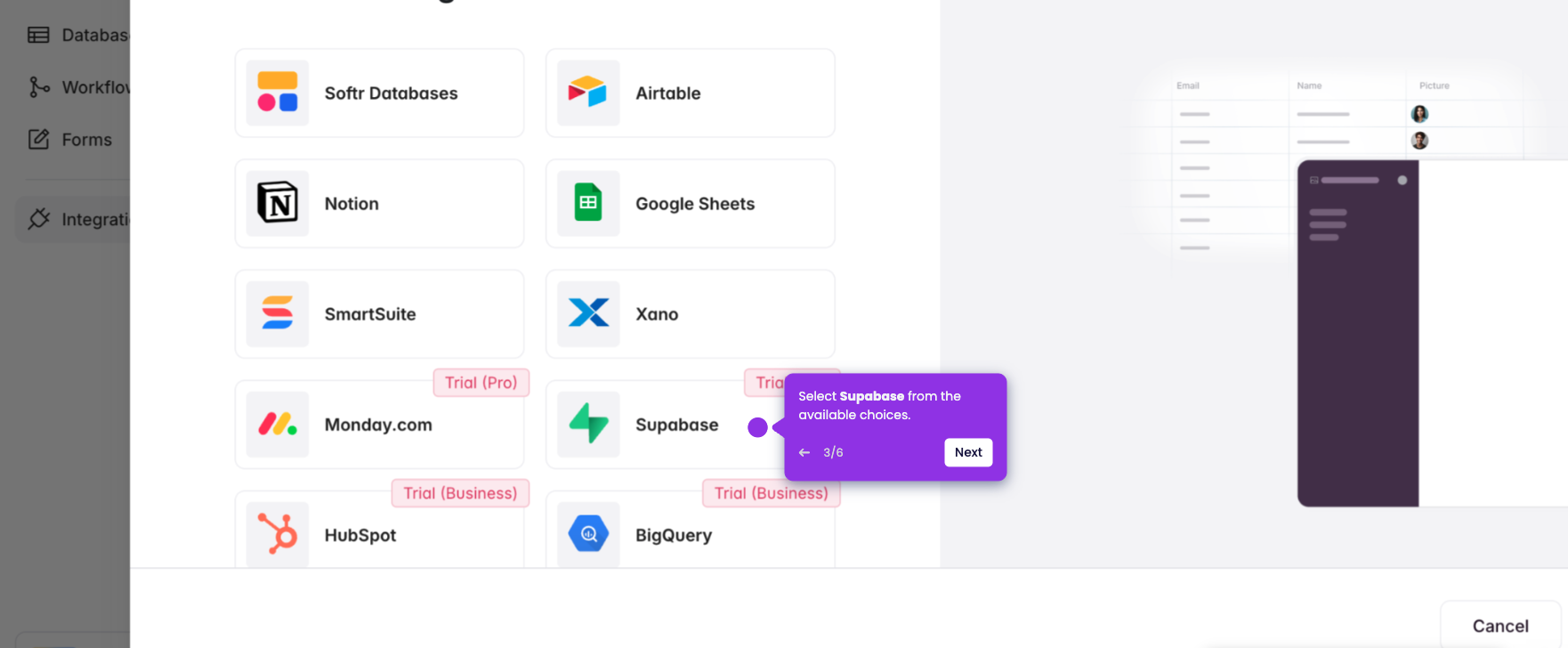
- Connect your data sources with this integration hub by clicking the '+' button.
- Select 'HubSpot' to unlock CRM integration with your web app.
- Click 'Continue' to proceed.
- Select your HubSpot account to sync your contacts.
- Click 'Choose account.'
- Click your newly integrated HubSpot account.
- Select 'Contacts' form the available choices.
- Your CRM contacts has now been sync to your Softr account.