This is a step-by-step guide on how to integrate Softr with Zapier:
- Navigate to Zapier’s left sidebar and click the 'Create' button to start the automation workflow.
- Click 'Zaps' to connect your apps and automate tasks.
- Click 'Trigger' to define the event of your automation workflow.
- Choose Softr as your Trigger app.
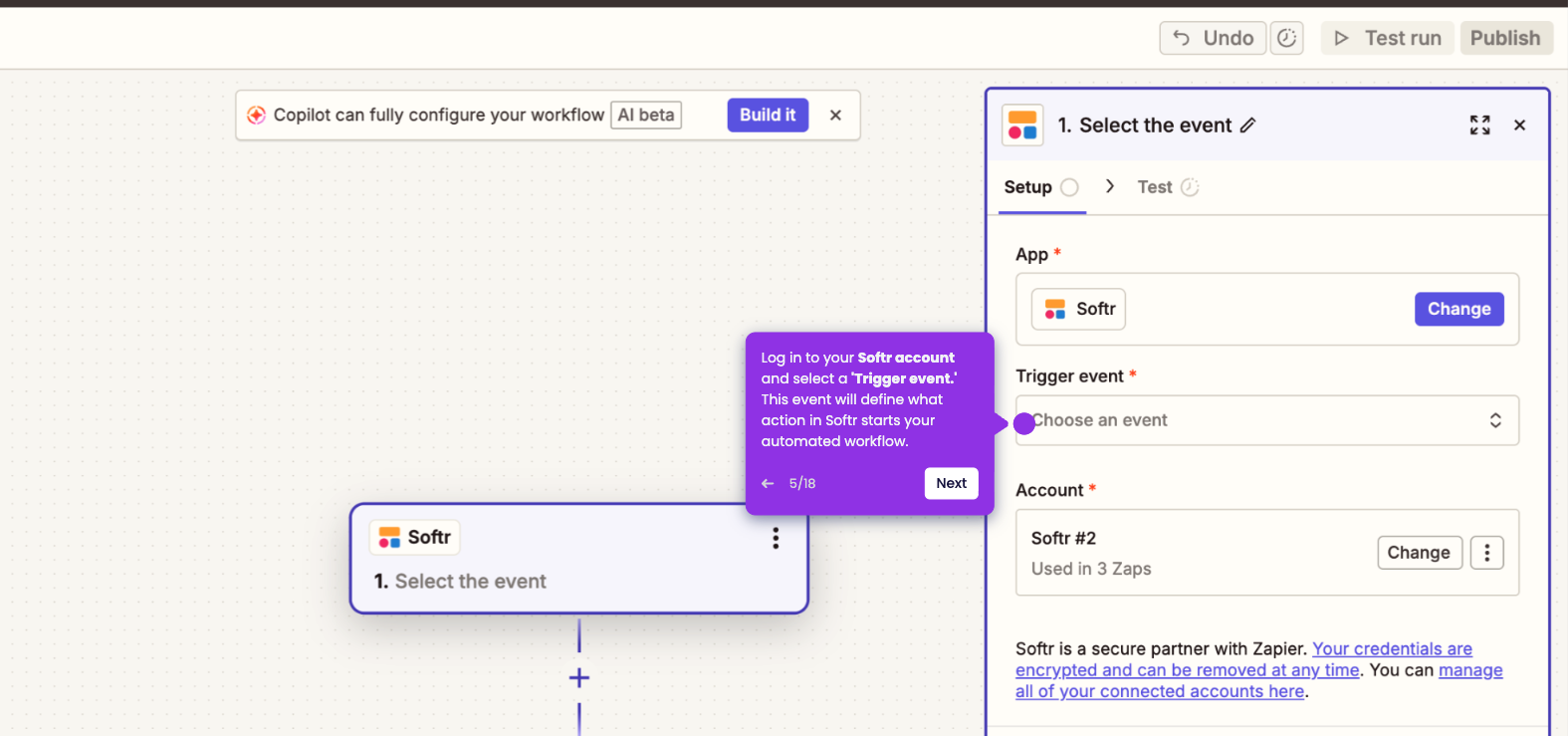
- Sign in to your Softr account and choose a trigger event.
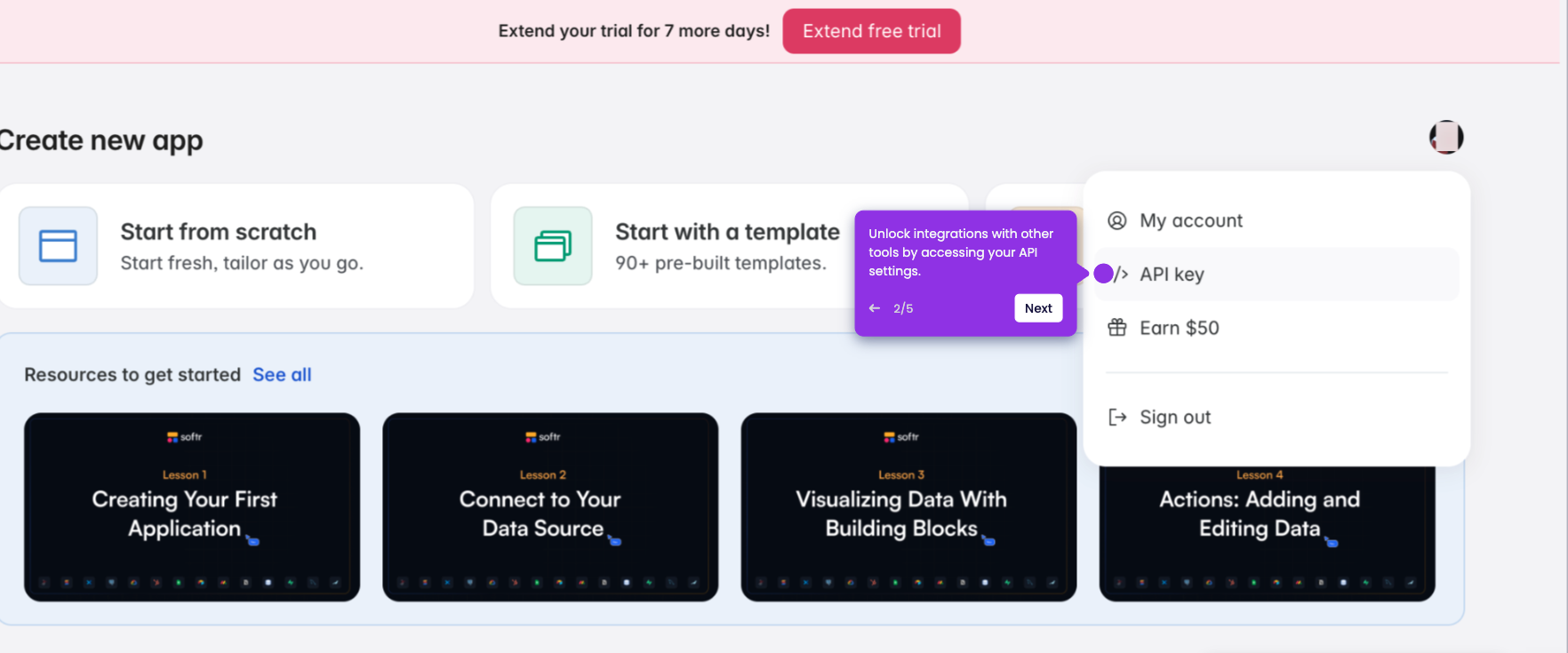
- Enter your Softr API Key.
- Once filled, click 'Yes, Continue to Softr.'
- Click 'Continue' to proceed.
- Configure your data by specifying which database and table to monitor.
- Once database and table selections are confirmed, click 'Continue.'
- Click 'Test trigger' to verify if your trigger works.
- Choose your record and click 'Continue with selected record' to proceed.
- Now, choose your preferred third-party app.
- Sign in to your account and choose an action event.
- Allow Zapier permission to access your data to connect your automation workflow.
- Once done, click 'Continue' to proceed.
- Fill in the required data.
- Click 'Continue' to proceed.
- Review how data flows between your connected apps, then click 'Publish' once finalized.
- Softr is now integrated with your preferred program using Zapier.