In this tutorial, you’ll learn how to crop an image in Adobe Acrobat
- Open the image in Adobe Acrobat. (It opens as a PDF page.)
- On the right-side pane, click Edit PDF.
- In the top toolbar, click Crop Pages.
- Drag to draw a rectangle around the area you want to keep, then press Enter.
- In the dialog box, adjust the margin setting to your cropping preference, then click OK.
- Click Close to exit the editing tools.
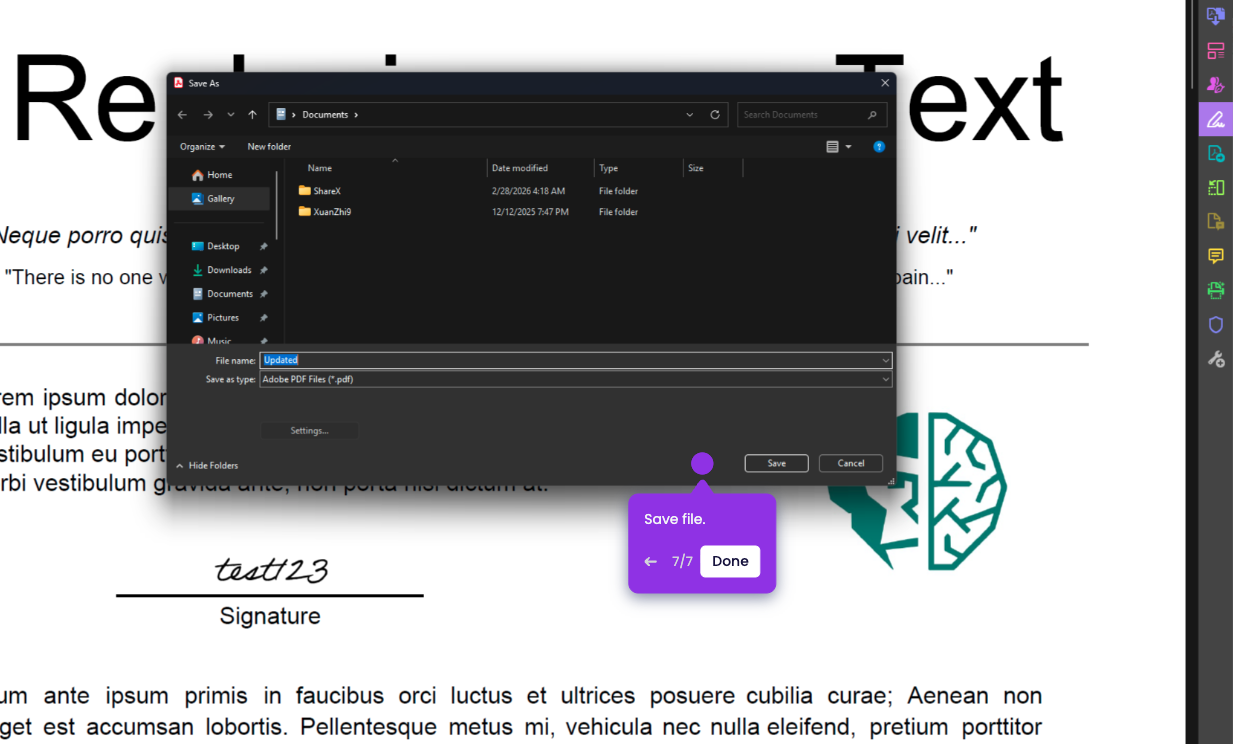
- Click File > Save As.
- Choose a folder, type a file name, then click Save.