In this tutorial, you’ll learn how to digitally sign multiple pdf pages at once adobe:
Note: Acrobat can’t duplicate one digital signature appearance across all pages. You need one signature field per page, and you must sign each field separately.
- Open the PDF in Adobe Acrobat.
- On the right-side pane, click More tools.
- Click Certificates.
- Click Digitally Sign.
- When prompted, click OK.
- Click and drag to draw the signature box on the page.
- Select your Digital ID (create one if needed), then click Continue.
- Enter your Digital ID password, then click Review.
- Click Sign.
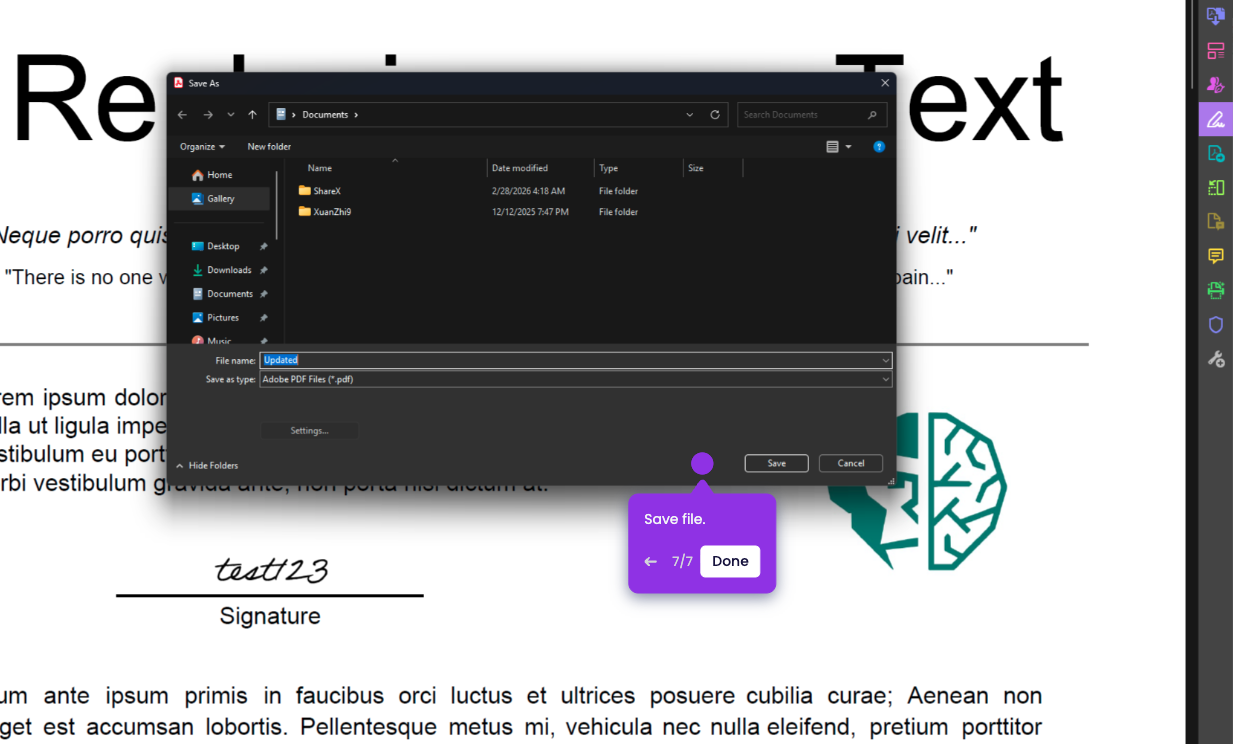
- Save the PDF when prompted.
- Go to the next page and repeat Steps 3–10 for each page you want to sign.