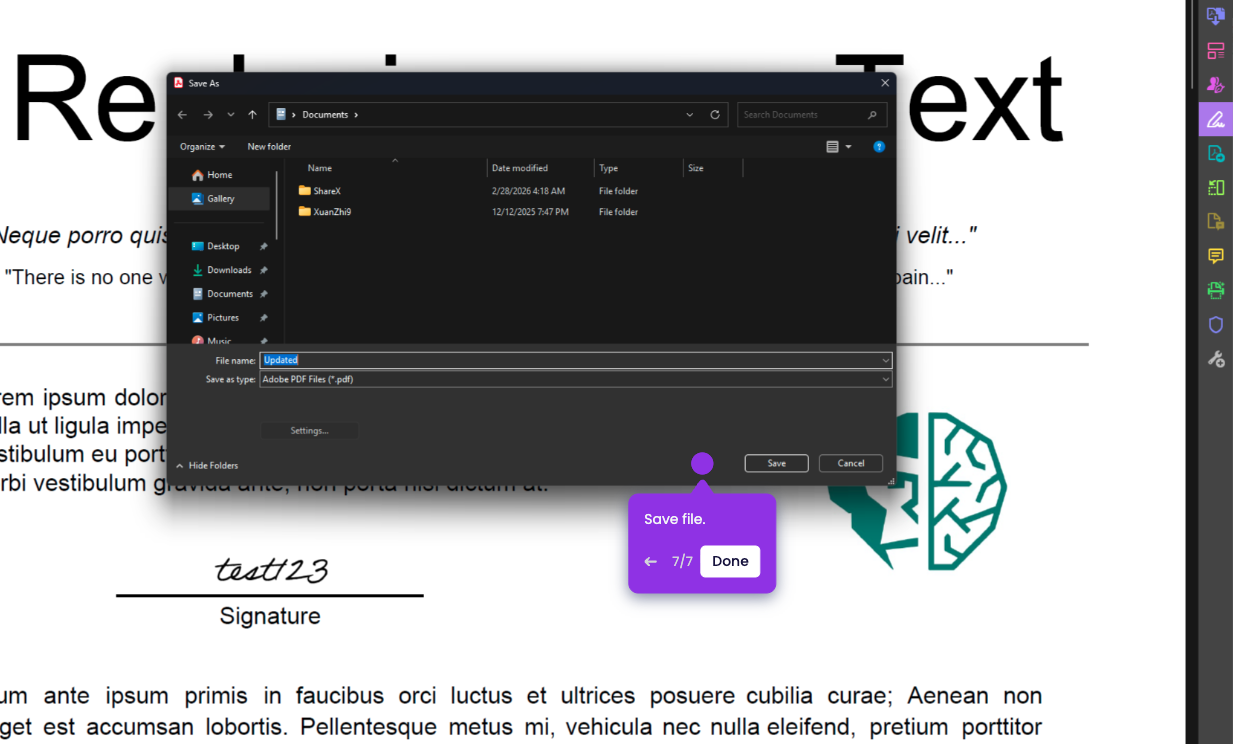
In this tutorial, you’ll learn how to sign multiple pages in a PDF in Adobe Acrobat:
Note: Acrobat doesn’t automatically place your signature on all pages at once. You need to place it on each page, but you only create the signature one time.
- Open your PDF in Adobe Acrobat.
- On the right-side pane, click Fill & Sign.
- Click Sign yourself.
- Select your Signature (or add your signature)
- Click on where you want to add your signature.
- Go to the next page and click again Sign Yourself and place your signature.
- Repeat as many times as you need.
- Click Close to exit Fill & Sign options.