This is a step-by-step guide on how to create an approval process in Softr using a prompt:
- In the Apps Editor, click 'Start from Scratch.'
- Click ‘Connect Later’ to focus on creating your approval process system.
- Click and explore Softr's AI capabilities.
- Click 'Vibe coding blocks' to proceed.
- Create a prompt that outlines the features and details you want in your approval process system.
- After generation, click ‘Connect Data Source’ to link your external data.
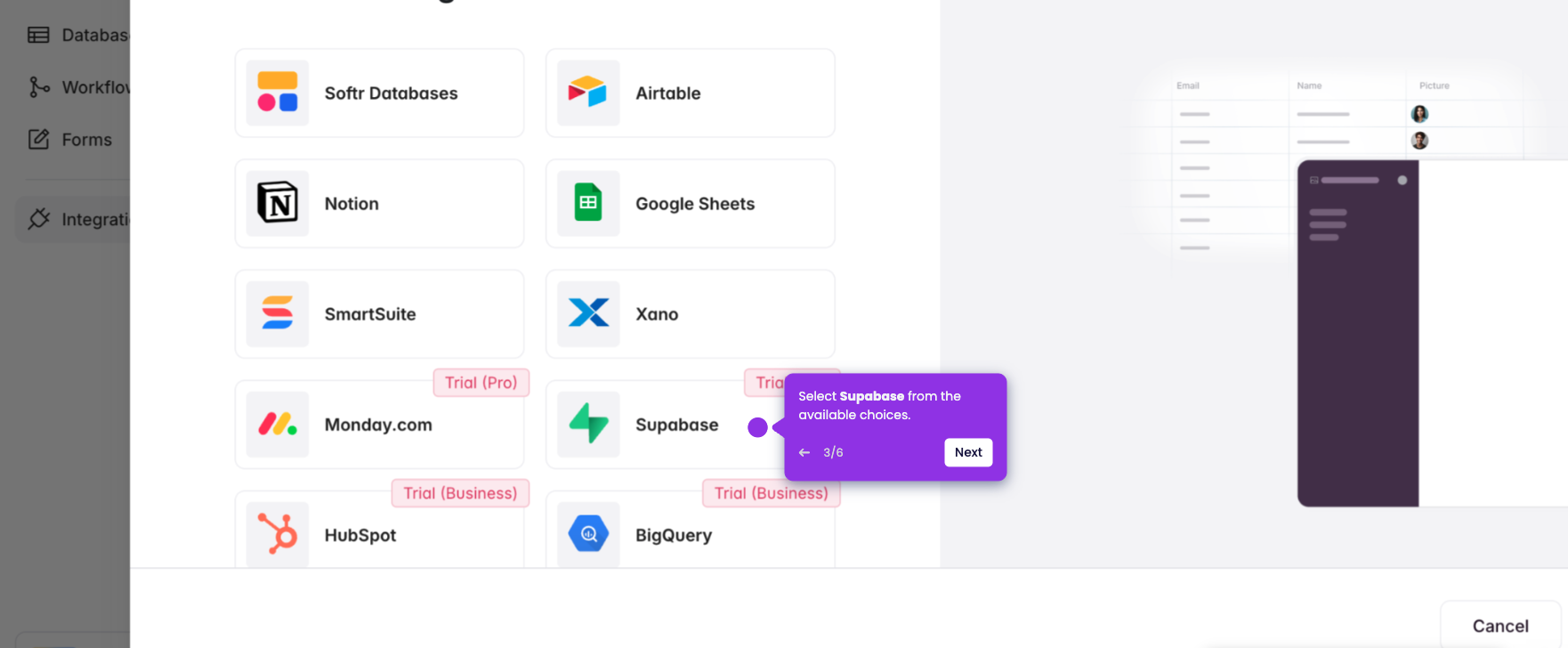
- Pick your external data source to link your real records to Softr.
- After linking your data, select the ‘Eye’ icon to preview how your system looks.
- This is a preview of your system. Verify that the linked records are correct and display what you expect.
- Click ‘Kanban’ or ‘Table’ view to see how your data is displayed.
- Type your changes in the AI chatbox and let it generate the updates. Once satisfied, click ‘Publish’ to make your system live.