Quick summary
A Gallery View in Coda lets you display table data as visual cards, making it ideal for showcasing image-rich content like product catalogs or portfolios. This guide walks you through creating a Coda document, building a table, and switching to the Cards view to produce a polished, image-forward gallery layout.
Steps
- Click '+ Blank doc' to start a new document.
- Give your document a descriptive name.
- Click the '+' icon in your document to add content.
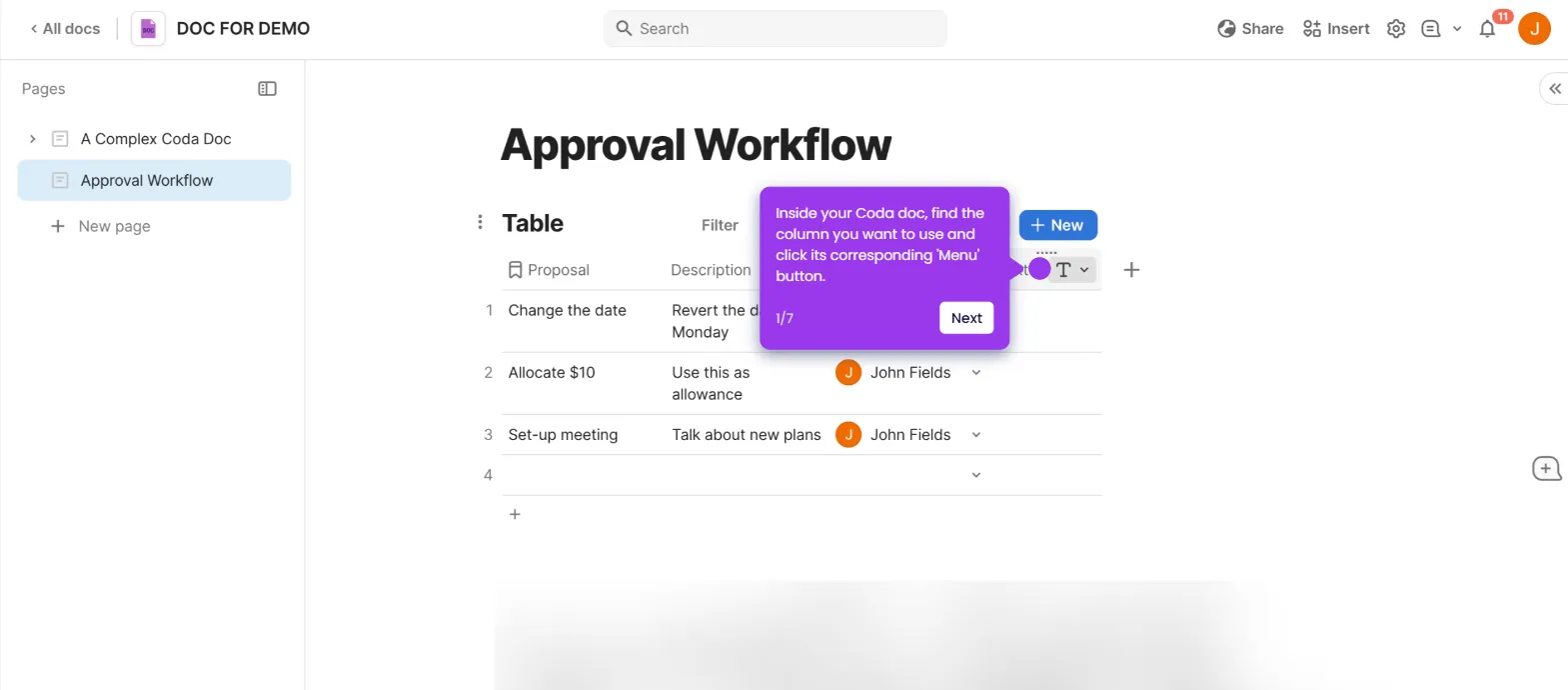
- Select 'Table' from the menu to create a new table.
- Enter your data in the table columns and rows.
- Add columns that will display well in Gallery View, such as titles, descriptions, and images.
- Select your table and click the 'Options' button in the top-right corner of the table.
- For columns containing visuals, select 'Image' as the column type to enhance your gallery.
- From the view options, select 'Cards' to transform your table into a visual gallery format.
- Adjust the image display settings to optimize how your visuals appear in the gallery.
- Click on a specific card to edit its contents.
- Click 'Add image' to include visuals in your gallery cards.
- Select 'Upload image' to import visuals from your local files.
- Your table is now displayed as a Gallery View, showing all records as visual cards.