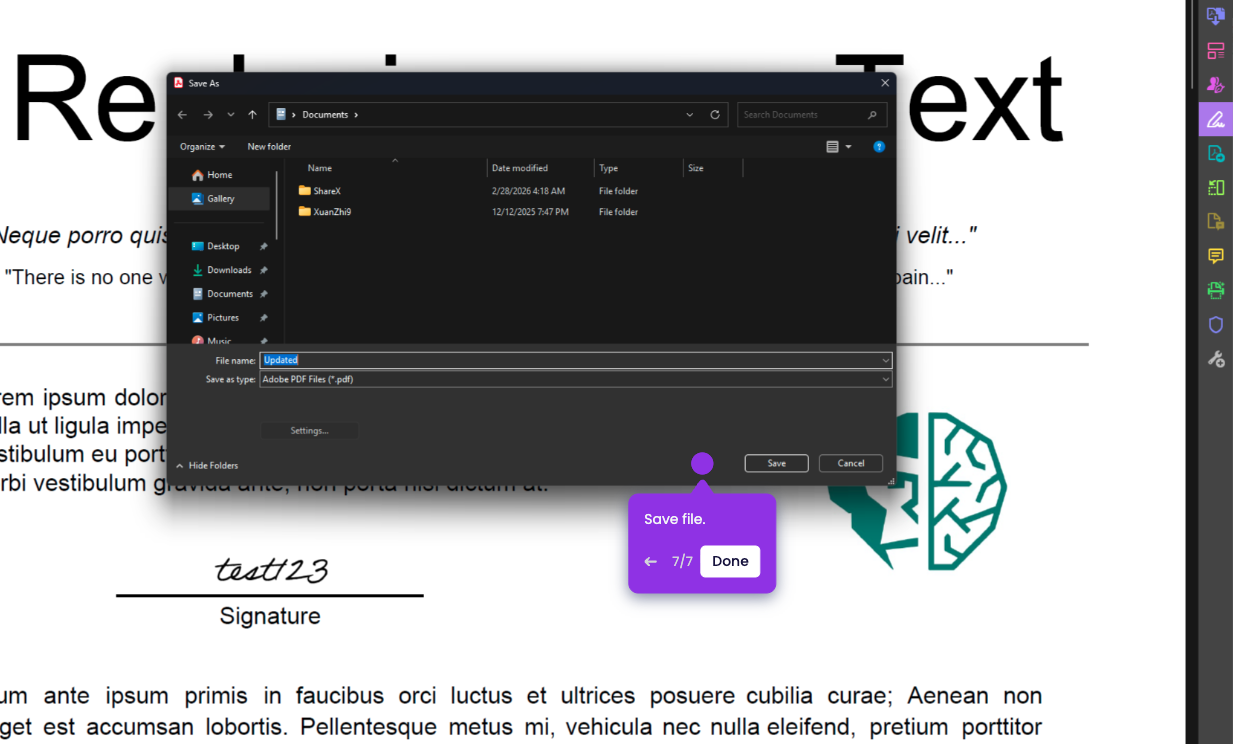
In this tutorial, you’ll learn how to convert image to text in Adobe Acrobat.
- Open Adobe Acrobat.
- On the top menu, click File, then click Open.
- Select the Image you want to convert to text, and click Open.
If you don’t see image files in the file picker, click the file type drop-down next to File name, then select All Files.
- On the right side pane, click Edit PDF.
- Acrobat will automatically run OCR (Optical Character Recognition) to make the text selectable and editable.
- Edit or copy the text as needed, then click Close when you’re done.