These are the step-by-step instructions on how to bulk import data into Softr:
- Navigate and click 'Databases' from the left sidebar of the Apps editor.
- Select 'Import your data' to proceed.
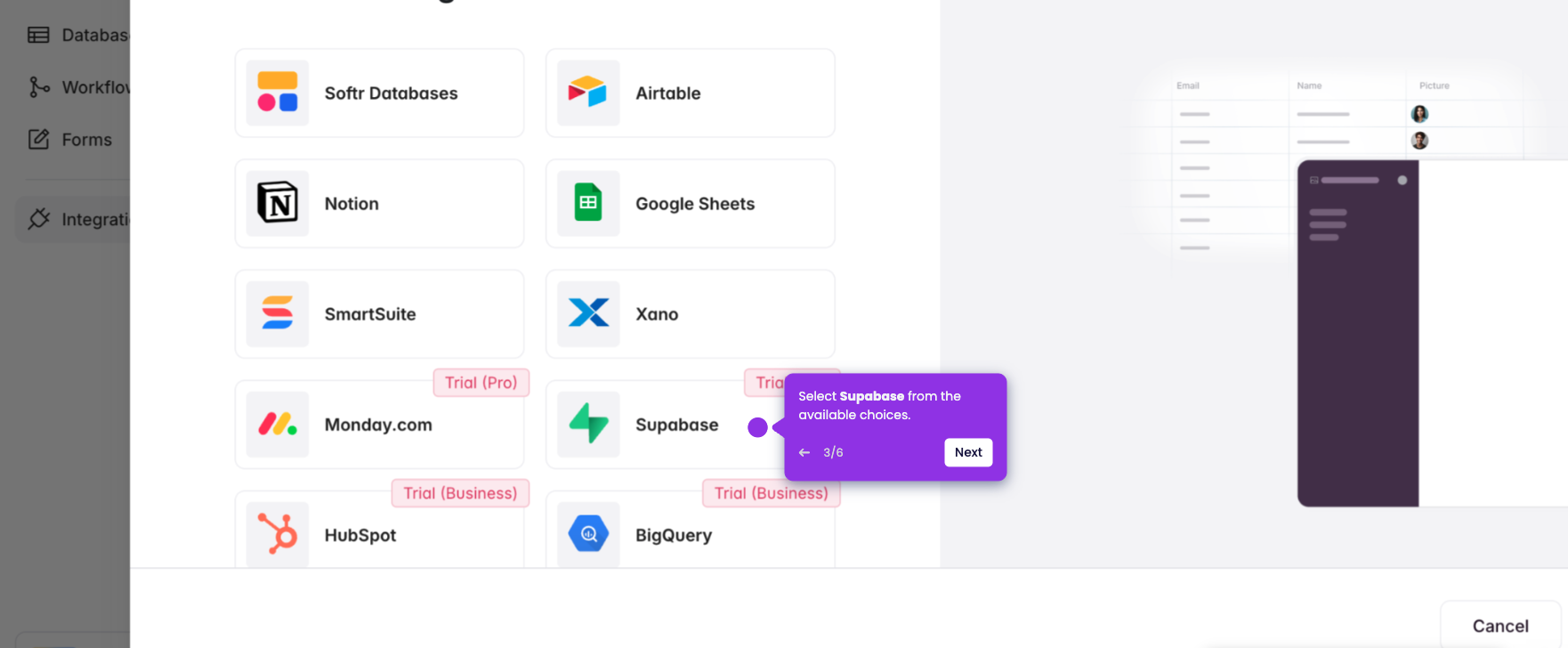
- Choose the external source from which to import data that your Softr app is connected to.
- Once chosen, click the external data source.
- Click 'Continue' to proceed.
- Click the 'Drag your file here' button to start importing.
- Select your file and click 'Import data.'
- Softr handles the heavy lifting of data processing while you prepare for the next steps.
- View your newly imported data in Softr.