This interactive demo was created free with Storylane in 2 minutes. Create your own demo
Start free
All Tutorials /Coda

How to Automate Data Entry in Coda with Integromat

Updated on:
May 12, 2026
By:
Madhav Bhandari
Use this interactive demo to learn how to build an automated data entry scenario from Google Sheets into Coda.

Quick summary

This tutorial shows how to automate data entry into Coda using Make (formerly Integromat) by connecting a Google Sheets trigger to a Coda action module. Once configured, the scenario runs on a schedule and transfers data from your spreadsheet to Coda without any manual input.


Steps

  1. On Make's main dashboard, click 'Create a New Scenario' at the top-right corner.
  2. Choose your preferred data source from the list of apps — for example, Google Sheets.
  3. Select your preferred Trigger — such as triggering when a new row is added.
  4. Tap 'Create a Connection' to link your data source app to Make.
  5. Since Google Sheets is selected, click 'Sign In With Google' and log into your account.
  6. Click 'Allow' to agree to the terms and grant the necessary permissions.
  7. Provide the information needed to set up the Trigger, including the Search Method and related fields.
  8. Once done, tap 'Save' to confirm the trigger configuration.
  9. Select your preferred starting point and click 'Save'.
  10. Click the 'Add Another Module' button to add a destination app.
  11. Find and select 'Coda' from the list of available modules.
  12. Pick your preferred Action — ensure it supports data entry from the configured source.
  13. Click 'Create a Connection' to link your Coda account.
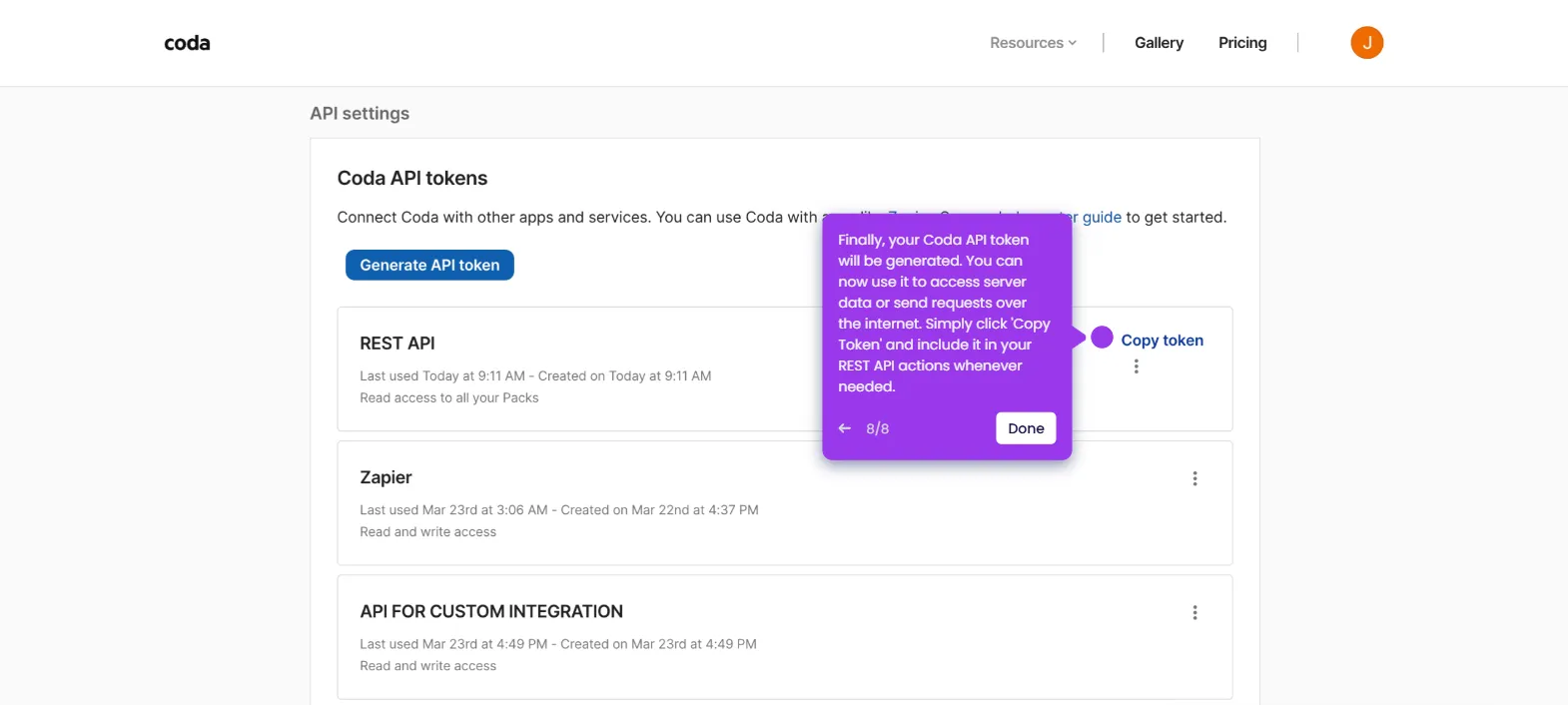
  14. Enter your Coda API Token into the input field and click 'Save'.
  15. Fill out the required input fields one by one, including the Doc ID and other parameters.
  16. For specific fields, select dynamic items from the trigger app to map and transfer exact data into Coda.
  17. Once done, click 'Save' to confirm the action module settings.
  18. Review the integration details and click 'Save'.
  19. Switch on the toggle beside 'Every 15 Minutes' to schedule automated data entry from the source to Coda.
  20. The automation scenario is now saved and enabled based on your custom configuration.
📌 Why this matters

Automating data entry from Google Sheets into Coda using Make eliminates repetitive manual work and reduces the risk of human error across connected workflows. Teams that rely on Coda as a central doc and database tool can ensure their content stays up to date in real time without any manual copy-pasting. Make's no-code scenario builder makes it accessible to non-technical users, enabling faster setup of cross-app automation in minutes. This integration is especially valuable for operations, project management, and data teams looking to keep Google Sheets and Coda synchronized automatically on a recurring schedule.
Your product deserves an interactive demo
Start free
Similar Articles
Coda

How to Set Up Team Billing in Coda

Madhav Bhandari
Director of Marketing @ Storylane
Coda

How to Use Coda’s REST API

Madhav Bhandari
Director of Marketing @ Storylane
Coda

How to Create Approval Workflows in Coda

Madhav Bhandari
Director of Marketing @ Storylane
No items found.
Platform
Interactive Demos
Sandbox Demos
Buyer Hub
RepX
Integrations
Solutions
Product Marketers
Growth & Demand Gen
Sales Reps & AEs
Presales & SEs
Customer Success
Product Managers
Customers
Demo Showcase
Customer Stories
Finer Demos Club
Features
Demo Signals
Personalization
Deal Intelligence
Resources
Blog
The Plot
Tutorials
Help Docs
What’s New
Demo Dundies
Company
Careers
Pricing
Partners
Contact
Trust Center
Backed by
Chrome Extension Icon
Chrome extension
Download
Desktop app
Download
Built in San Francisco Bay Area - ©2026 Storylane
Privacy PolicyTerms & Conditions
X Corp (formerly Twitter)LinkedIn
This website uses cookies to ensure you get the best experience on our website. Learn More
Got it
This website uses cookies to ensure you get the best experience on our website. Learn More
Got it