Here is the step-by-step guide on how to add images and logos to Softr:
- Navigate to the left sidebar of the app editor and click ‘Apps.’
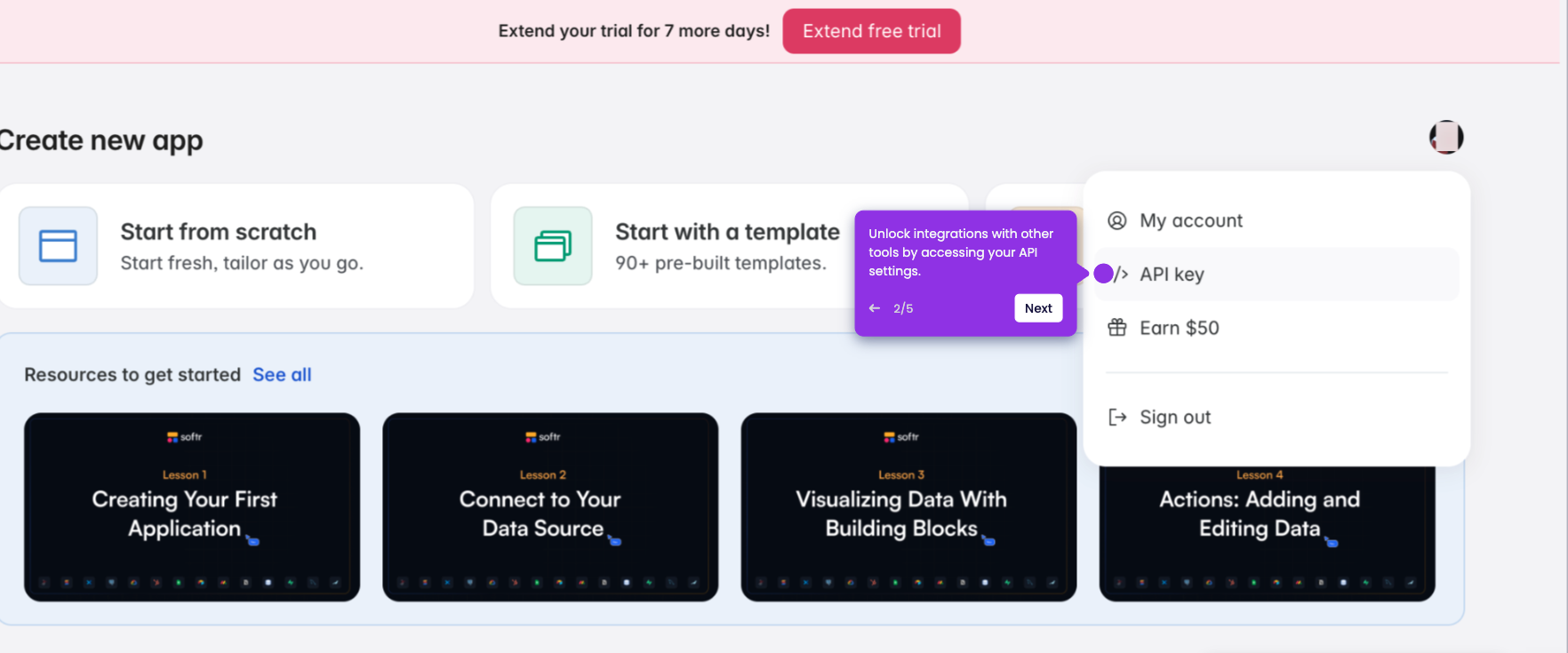
- Click the ‘Create new app’ button located on the right side of the workspace.
- To upload an image, choose either ‘Start from scratch’ or ‘Start with a template’ from the available options.
- Tap the ‘Connect me later’ button.
- Click the 'Add block' button to browse available block features.
- Select 'Gallery' from the list of options.
- Select the block style where you want to upload an image or logo and click the 'Add' button.
- Next, scroll down to find the Image section, then click ‘Update Image.’
- Click ‘Upload Asset’ to import your image or logo from an external source.
- Once uploaded, click ‘Use Asset’ to see the image in your block.
- The image or logo is now successfully uploaded to your block.