Quick summary
Adding an outline in Google Slides lets you apply a custom border color, border weight, and line style to any shape, image, or text box in just a few toolbar clicks. This guide walks you through every step so you can create polished, professional slide designs without guesswork.
Steps
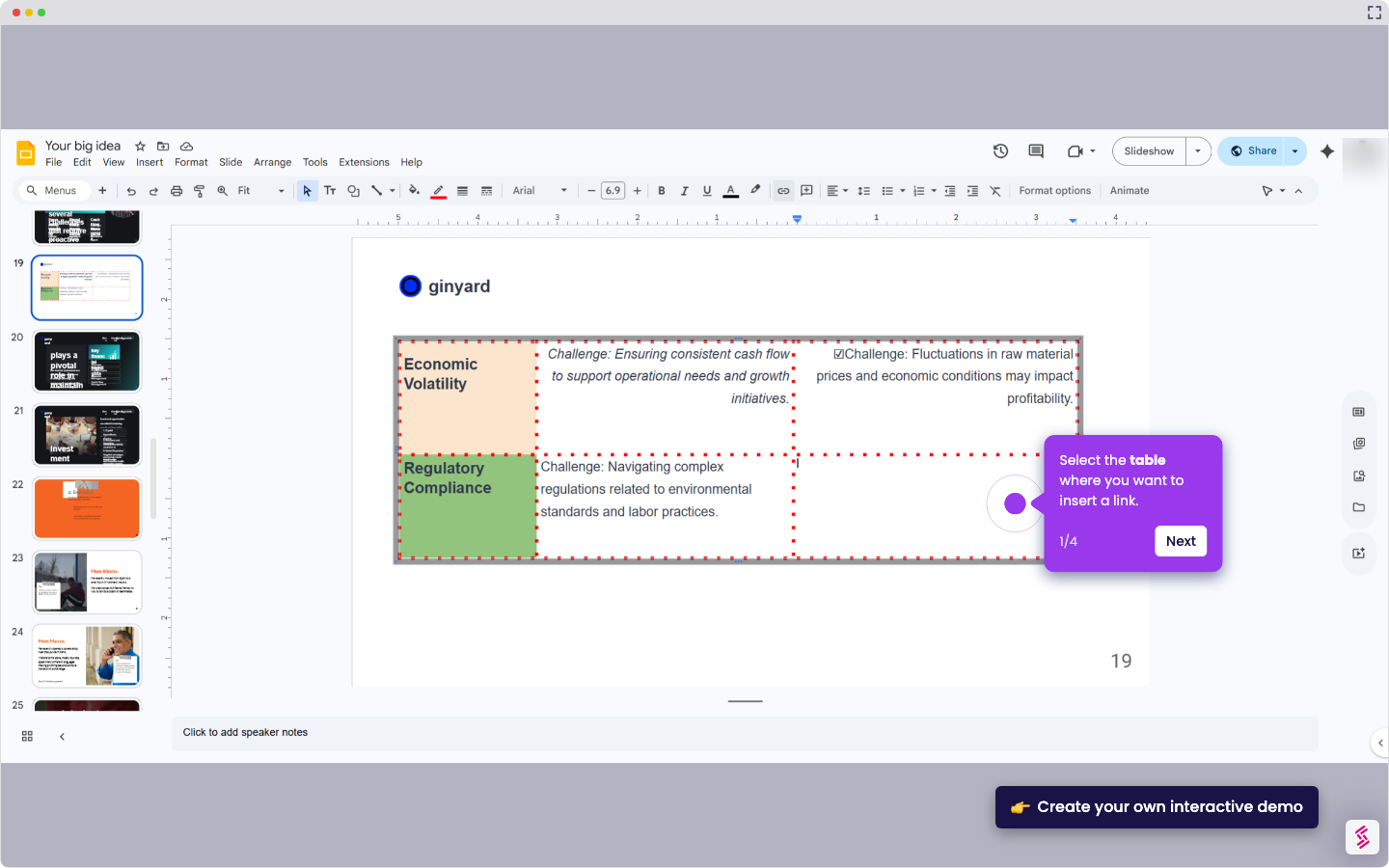
- Select the shape, image, or text box you'd like to outline.
- Click the Border color tool (pencil icon) in the toolbar and choose your preferred color.
- Adjust the border thickness by clicking the border weight button and selecting your desired width.
- Click the border dash button to browse different line styles for your outline.
- Choose a style that works for you—solid, dashed, or dotted.
- Your object now has a crisp, customized outline applied.