Quick summary
Locking an image in Google Slides is done via the Master Slide editor, which pins elements so they appear on every slide and cannot be moved by presenters. This method is ideal for adding a locked logo, watermark, or branded graphic that stays consistent throughout your presentation.
Steps
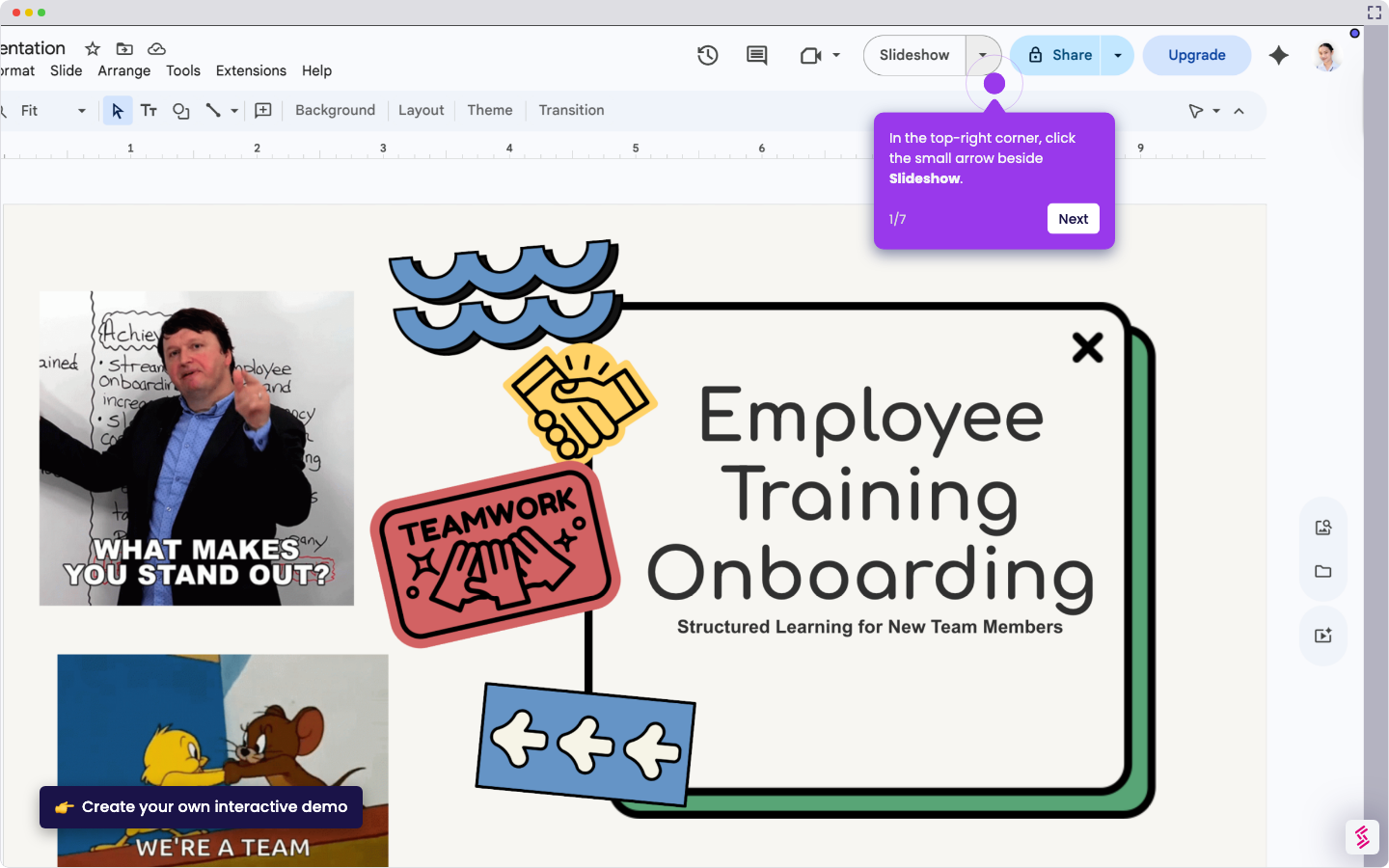
- Click Slide in the top menu to access the Master Slide options.
- Select Edit theme from the dropdown to open the Master Slide editor.
- Review the Master Slide view — elements added here appear on every slide.
- Click the image icon in the toolbar to insert an image.
- Choose from the available image sources such as Upload, Stock and web, Drive, or By URL.
- Position and resize your image exactly where you want it to appear on all slides.
- Click the X in the top right to close the Master Slide editor and return to normal view.
- Your locked image now appears on all slides and cannot be accidentally moved.