Quick summary
This demo walks you through integrating Notion with Jira so that Jira issues can be previewed and synced directly inside a Notion workspace. By connecting the two platforms, teams can manage project data in one place without switching between tools.
Steps
- Click the link icon in Jira to open sharing options for your Jira project.
- Select 'Copy link' to copy the Jira URL to your clipboard.
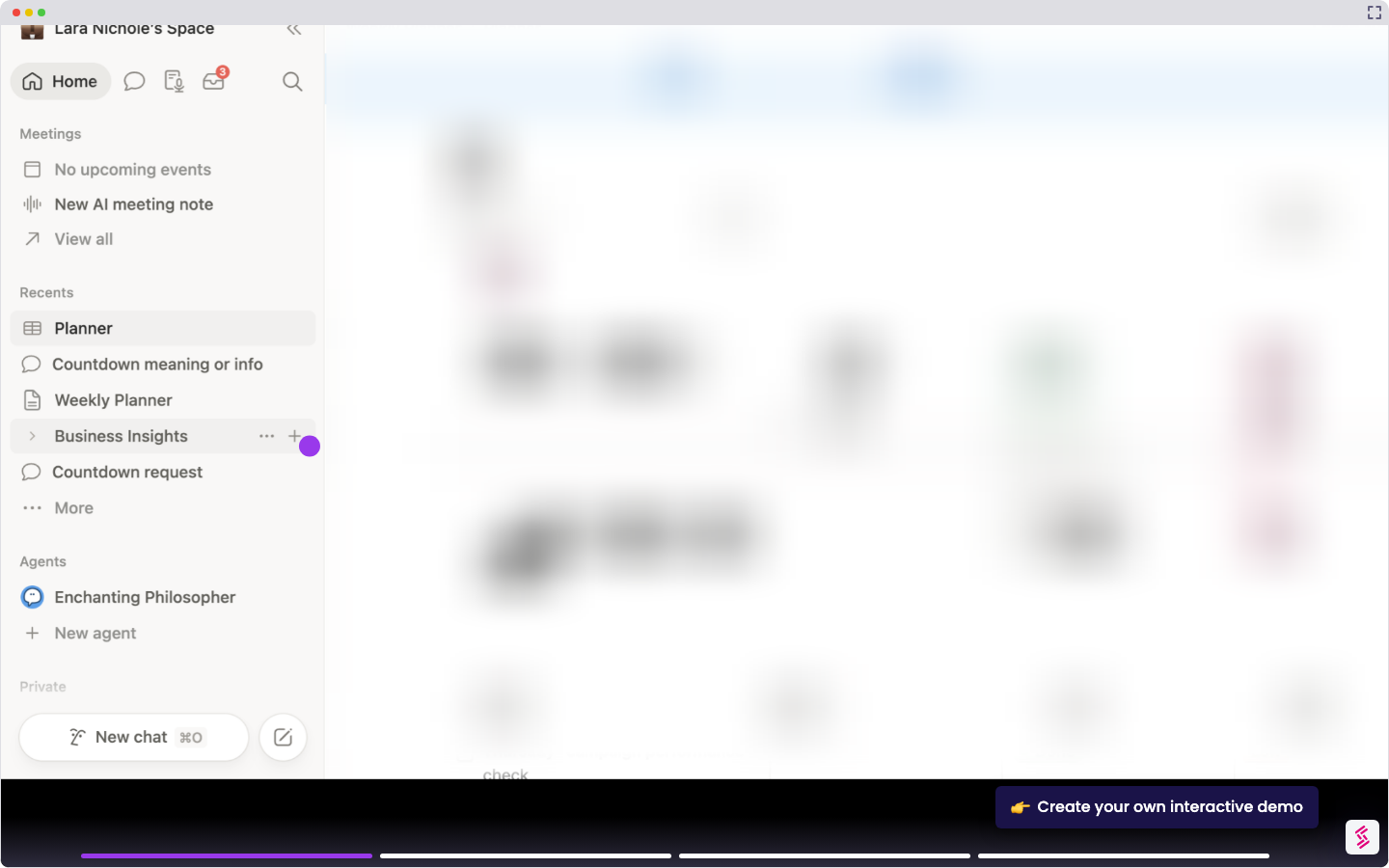
- Click the plus icon in Notion to add a new page.
- Paste the Jira link into Notion, then select 'Paste as preview' to create a live Jira content preview.
- Select 'Connect to Jira update' to enable live data syncing between Notion and Jira.
- Click 'Accept' to grant Notion the required permissions to access your Jira account.
- Click 'Settings and members' in your Notion workspace to manage connection settings.
- Click 'My Connections' to review and confirm the active Jira integration.
- Your Notion–Jira integration is now complete, enabling seamless project management across both platforms.