This interactive demo was created free with Storylane in 2 minutes. Create your own demo
Start free
All Tutorials /Microsoft Copilot

How to Integrate Microsoft Copilot with Excel

Updated on:
May 13, 2026
By:
Madhav Bhandari
Use this interactive demo to learn how to activate Microsoft Copilot inside your Excel spreadsheet.

Quick summary

Microsoft Copilot in Excel is an AI-powered assistant you can launch directly from the ribbon to analyze data, answer questions, and automate tasks using natural language prompts. Integrating Copilot with Excel takes just a few clicks and opens a dedicated chat panel where you can interact with your spreadsheet data in real time.


Steps

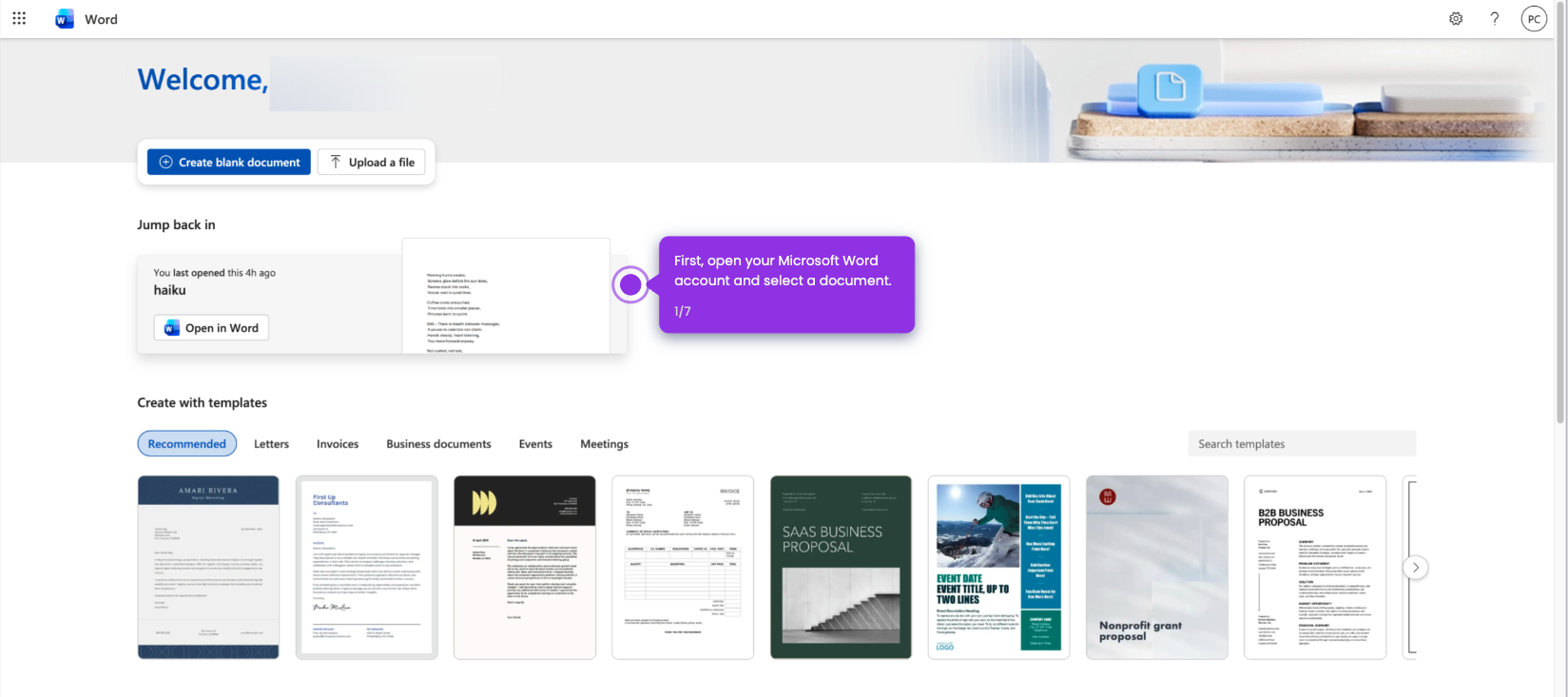
  1. Open Excel by clicking the 'Open Excel' button to access your Microsoft Excel environment.
  2. Select a sheet you want to edit from your available workbooks.
  3. Navigate to the 'Home' tab in the Excel ribbon.
  4. Click the Copilot button in the ribbon, located in the top right area.
  5. A Copilot chat panel opens on the right side of your spreadsheet.
  6. Enter prompts and ask questions directly in the Copilot chat panel to get AI-powered assistance.

📌 Why this matters

Integrating Microsoft Copilot with Excel brings AI-powered natural language processing directly into your spreadsheet workflow, allowing users to analyze data, generate formulas, and surface insights without leaving the app. Copilot in Excel reduces the time spent on manual data tasks by letting users ask questions and receive instant, context-aware answers through a built-in chat interface. This integration is especially valuable for business users who want to maximize productivity within Microsoft 365 without requiring advanced technical skills. As AI becomes central to modern workplace tools, enabling Copilot in Excel positions teams to work faster and make more informed, data-driven decisions.
Your product deserves an interactive demo
Start free
Similar Articles
Microsoft Copilot

How to Use Microsoft Copilot for Powerpoint

Madhav Bhandari
Director of Marketing @ Storylane
Microsoft Copilot

How to Integrate Microsoft Copilot with ChatGPT

Madhav Bhandari
Director of Marketing @ Storylane
Microsoft Copilot

How to Integrate Microsoft Copilot with Gmail

Madhav Bhandari
Director of Marketing @ Storylane
No items found.
Platform
Interactive Demos
Sandbox Demos
Buyer Hub
RepX
Integrations
Solutions
Product Marketers
Growth & Demand Gen
Sales Reps & AEs
Presales & SEs
Customer Success
Product Managers
Customers
Demo Showcase
Customer Stories
Finer Demos Club
Features
Demo Signals
Personalization
Deal Intelligence
Resources
Blog
The Plot
Tutorials
Events & webinars
Help Docs
What’s New
Demo Dundies
Company
Careers
Pricing
Partners
Contact
Trust Center
Backed by
Chrome Extension Icon
Chrome extension
Download
Desktop app
Download
Built in San Francisco Bay Area - ©2026 Storylane
Privacy PolicyTerms & Conditions
X Corp (formerly Twitter)LinkedIn
This website uses cookies to ensure you get the best experience on our website. Learn More
Got it
This website uses cookies to ensure you get the best experience on our website. Learn More
Got it