Integrating Apollo.io with Make allows you to build complex automation scenarios, such as automatically sending leads to Google Sheets or triggering custom Slack alerts whenever a new prospect is found. Here’s a quick guide on how to do it in simple steps:
- On your Make Account's main dashboard, click on the 'Create a new scenario' button on the upper-right corner.
- Click the big '+' icon in the center of the edito
- Search for 'Apollo' and click on the first one that appears.
- Select the specific module you want to use (for example, 'Search People' or 'Create a Contact').
- Inside the module settings, click the 'Create a connection' button.
- Assign a 'Name' for this connection for easy identification.
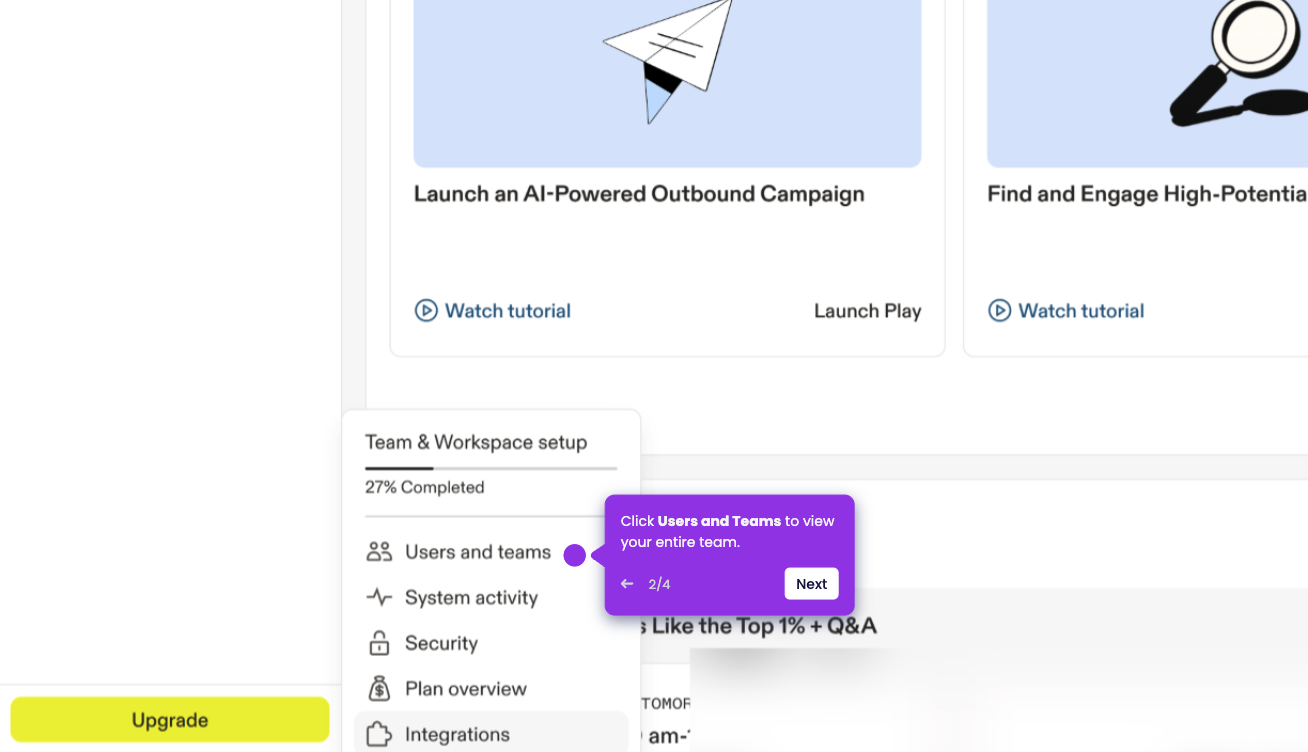
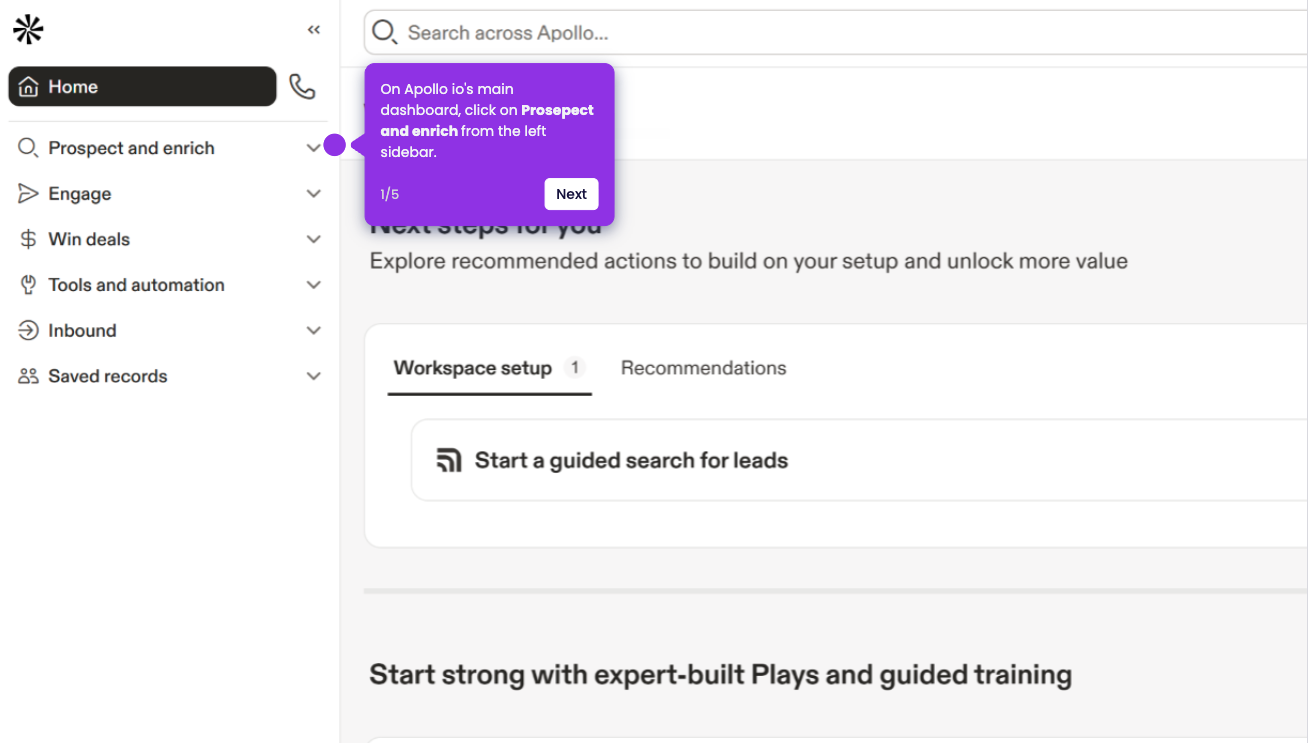
- Now, go to your Apollo main dashboard in a new tab and click the 'Admin Settings' icon (gear icon) on the bottom-left panel.
- Select 'Integrations' from the list of options.
- Scroll down to the 'API' section and click 'Connect' or 'View Keys'.
- Click 'Create New Key', give it a name like "Make Integration," and click 'Save'.
- Finalize your new API key creation by clicking the 'Create API Key' button.
- Copy the API Key immediately, then go back to your Make window.
- Paste the API Key into the provided field and click 'Save' to authorize the connection.
- Finish configuring your module by mapping your data fields and clicking the 'Save' button.
- You're all set! Your Make scenario is now live and connected to Apollo.