Quick summary
Confluence does not have a direct font size control, but you can increase font size by applying heading styles through the Text style dropdown in the editor. Selecting a heading like Heading 1 is the fastest way to make text visually larger in a Confluence page.
Steps
- Select your text on the Confluence page you want to format.
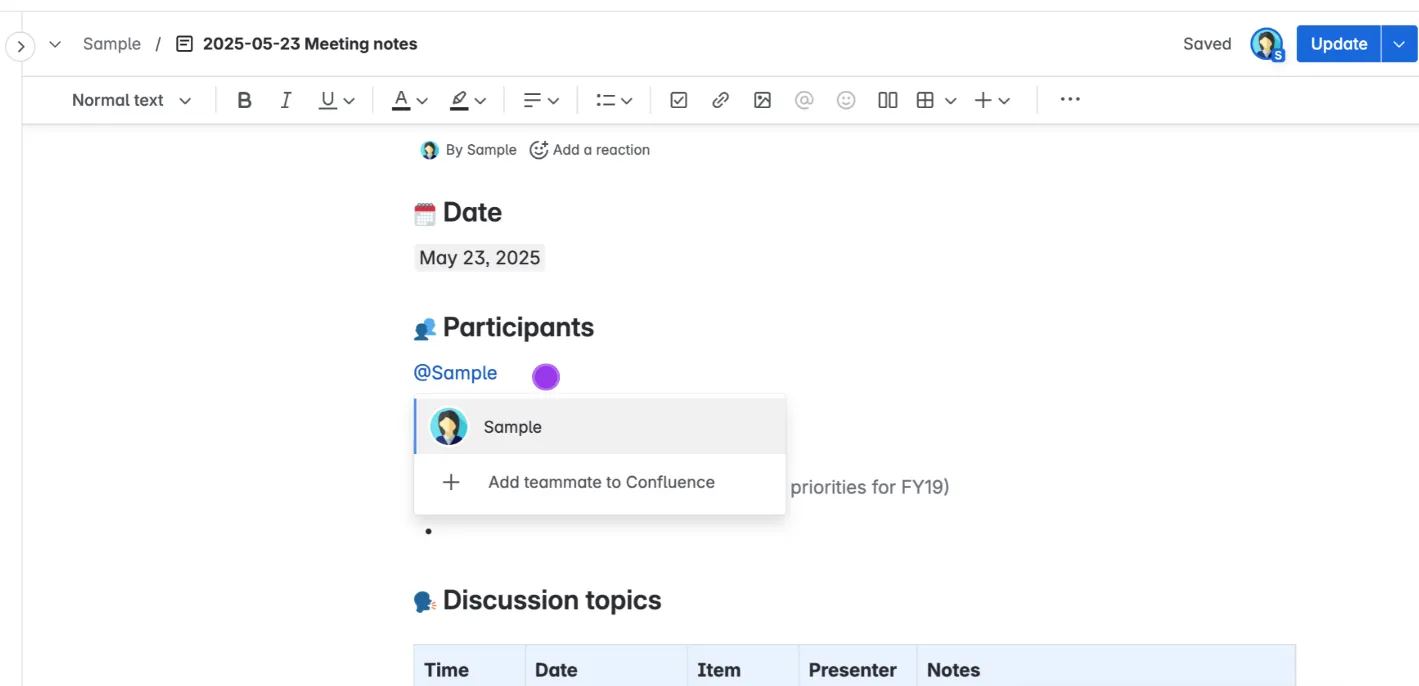
- Click the Text style dropdown in the toolbar (it typically displays Normal text by default).
- Choose a Heading style from the dropdown — for example, Heading 1 applies the largest available font size.