.svg)
.svg)
.gif)


Quick summary
This demo shows how to add subtitles and captions to any Synthesia video in just a few clicks, from selecting a caption style to rendering the final output. You can fully customize caption appearance to match your brand before generating the video in as little as 15 minutes.
Steps
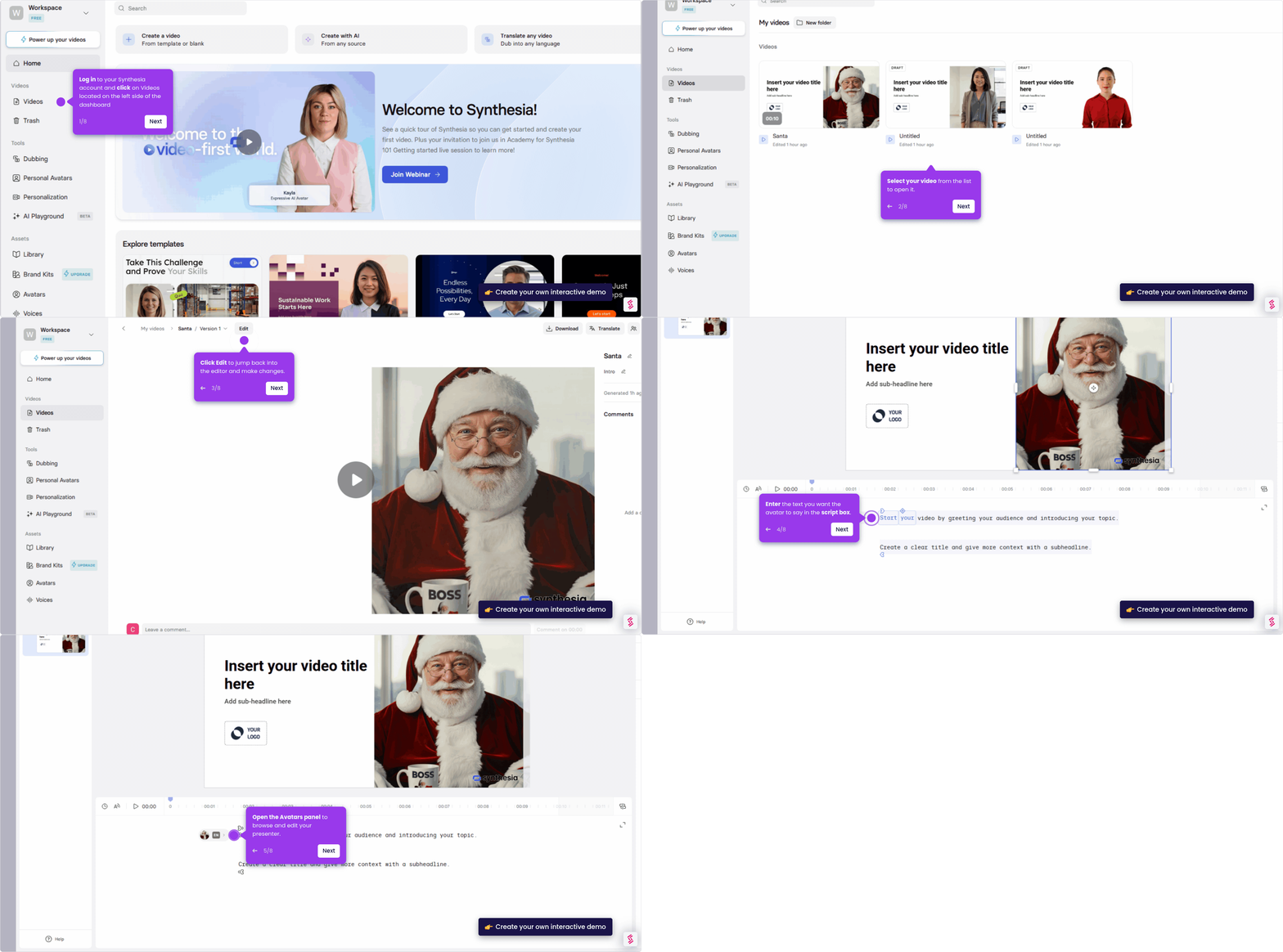
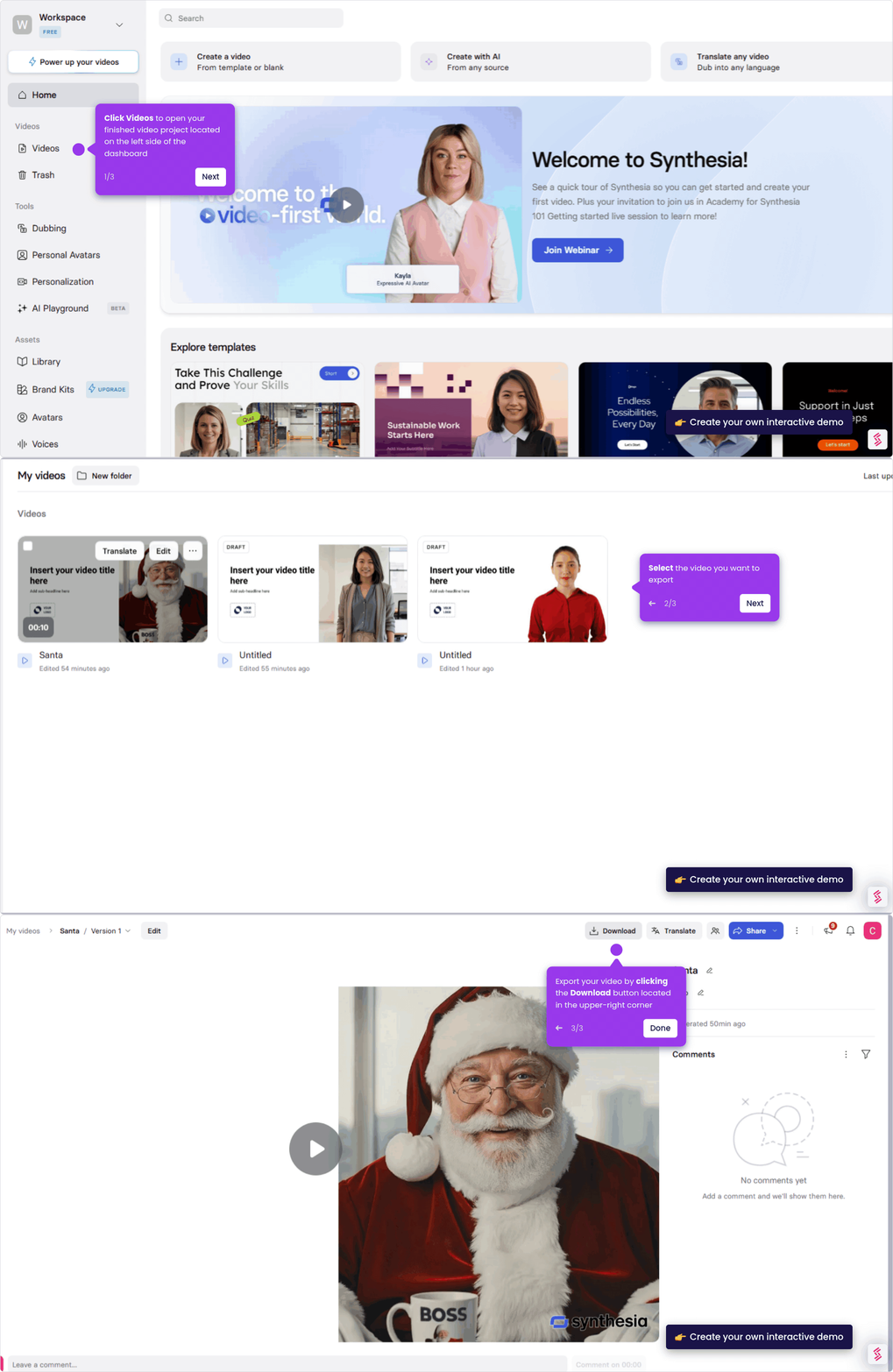
- Log in to your Synthesia account and click Videos on the left side of your dashboard.
- Select the video you want to add captions or subtitles to.
- Click Captions in the top toolbar to open the captions panel.
- Choose a caption style for your video from the available options.
- Customize visual elements — including Appearance, Colors, Motion, and Style — to align captions with your brand identity.
- Click the Generate button after finalizing your visual elements.
- Finalize your video title and description before rendering.
- Click Generate in 15 minutes to render your completed video with subtitles.