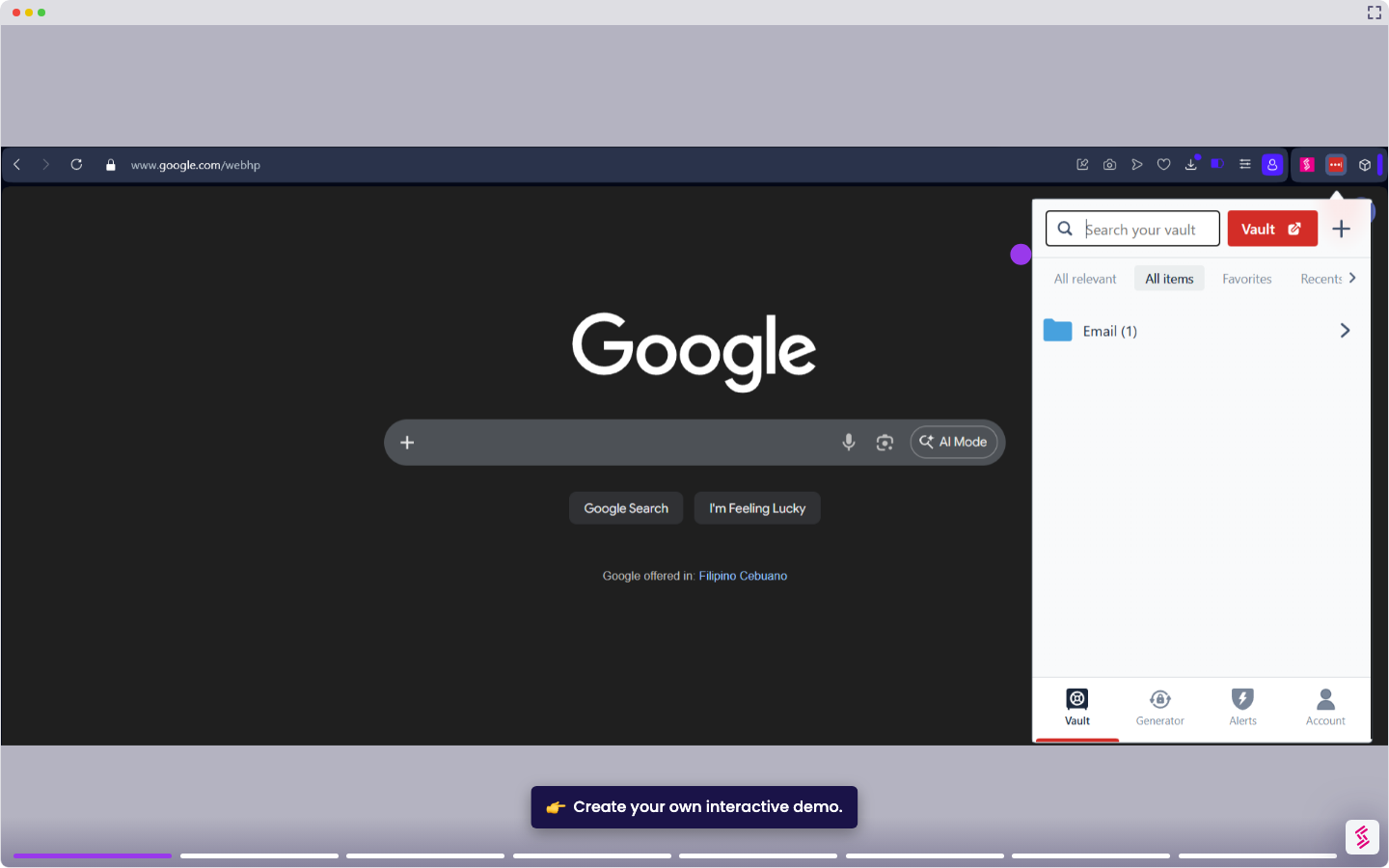
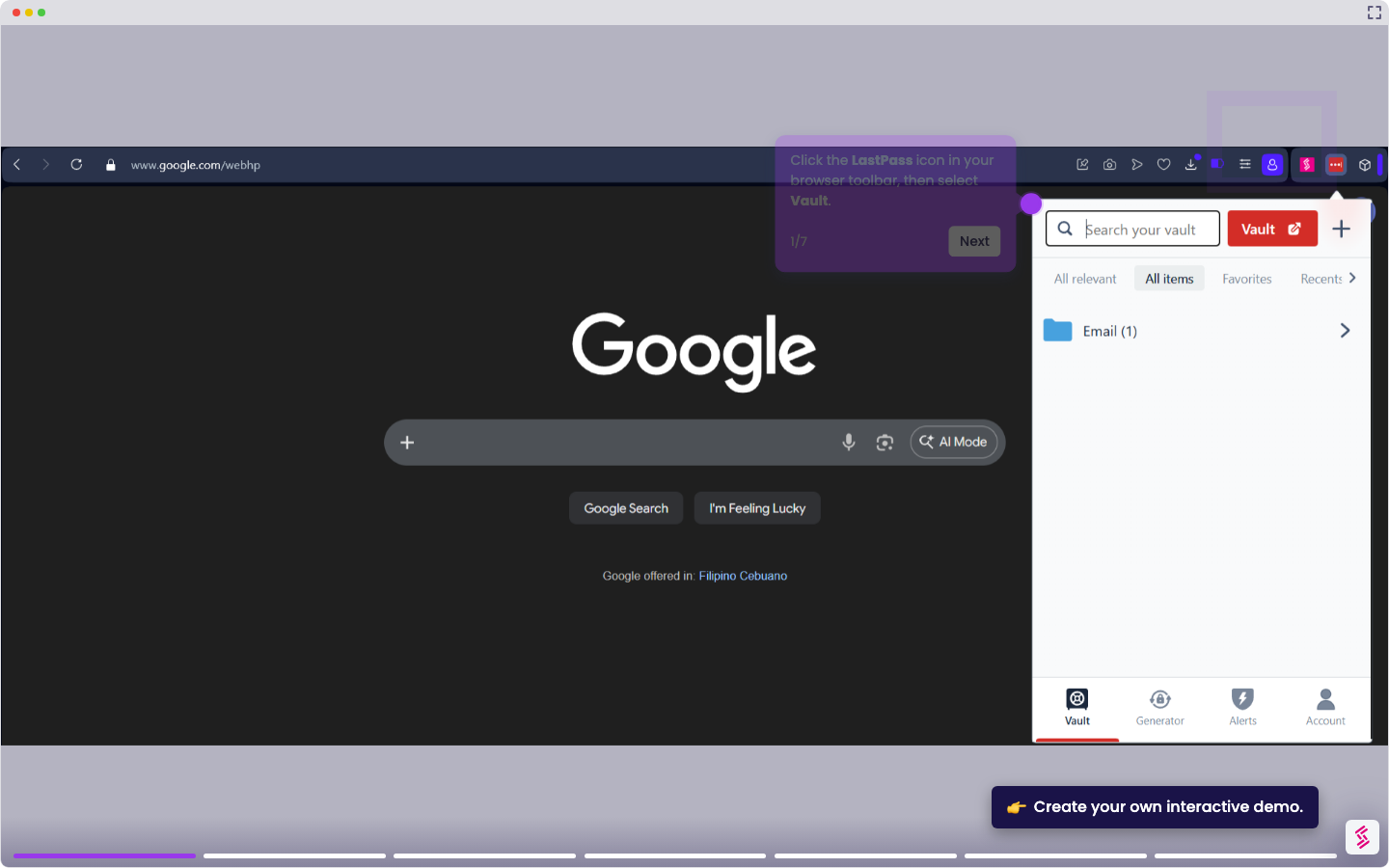
This tutorial shows you how to install the LastPass app on your Android device, log in to your account, and navigate your vault on the go.
Note: If your organization uses an identity provider such as Okta, Microsoft Entra ID, or Google Workspace, follow your company's federated login process instead.
- Open the Google Play Store on your Android device and search for LastPass Password Manager, tap Install. When prompted, review the required app permissions and tap Accept.
- Once installed, open the LastPass app. Enter your email address and master password, then tap Log In. If you don't have an account yet, tap Create Account.
- Once logged in, your vault opens to the All Items view. Tap any entry to view or copy its credentials.
- To find a specific entry, tap the Search icon at the top of the screen and type the site or app name. Upon selecting the item, you can launch, view, copy, edit, or delete the entry.
- To add a new password, tap + New, select the item category, and fill in the URL, Username, and Password. To generate a secure password, use the password generator option. Tap ✓ Save when done.