This interactive demo was created free with Storylane in 2 minutes. Create your own demo
Start free
All Tutorials /Confluence

How to Use Anchor in Confluence

Updated on:
May 13, 2026
By:
Madhav Bhandari
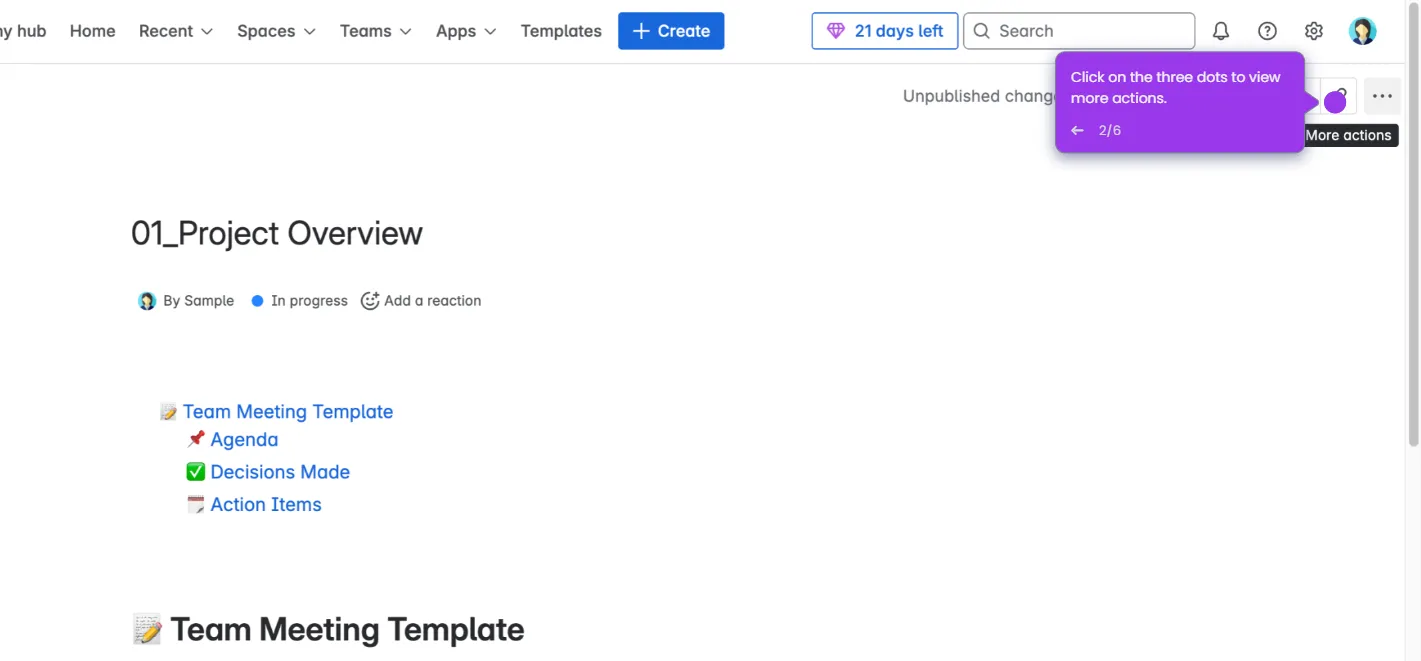
Use this interactive demo to learn how to insert and link anchors in a Confluence page.

Quick summary

The Confluence anchor feature lets you create invisible in-page navigation links that jump readers directly to a specific section. Using the /anchor command and a hashtag URL, teams can build structured, easy-to-navigate Confluence pages without any add-ons.


Steps

  1. Type /anchor in the Confluence editor and select Anchor from the dropdown menu.
  2. Give your anchor a unique name — no spaces are allowed in the name.
  3. Confirm the anchor is placed — it will be invisible on the published page.
  4. Highlight the text you want to turn into a link, then press Ctrl+K (or Cmd+K on Mac) to open the link dialog.
  5. Enter #anchorname in the URL field — starting with a hashtag followed by your anchor's exact name — then click Insert.
  6. Click Publish to save your changes to the page.
  7. Test the anchor link by clicking it — it will jump directly to the anchored section.

📌 Why this matters

Confluence anchors solve a critical usability problem on long wiki pages by enabling precise in-page navigation without any third-party tools. Teams that document complex projects, runbooks, or onboarding guides can use anchor links to help readers jump instantly to the section they need, reducing time spent scrolling and searching. This built-in Confluence feature improves knowledge-base readability and makes internal documentation more actionable for distributed teams. Understanding how to create and link anchors is an essential Confluence skill for anyone managing structured team wikis or technical documentation.
Your product deserves an interactive demo
Start free
Similar Articles
Confluence

How to Navigate From Jira to Confluence

Madhav Bhandari
Director of Marketing @ Storylane
Confluence

How to Embed a Jira Dashboard in Confluence

Madhav Bhandari
Director of Marketing @ Storylane
Confluence

How to Track Changes in Confluence

Madhav Bhandari
Director of Marketing @ Storylane
No items found.
Platform
Interactive Demos
Sandbox Demos
Buyer Hub
RepX
Integrations
Solutions
Product Marketers
Growth & Demand Gen
Sales Reps & AEs
Presales & SEs
Customer Success
Product Managers
Customers
Demo Showcase
Customer Stories
Finer Demos Club
Features
Demo Signals
Personalization
Deal Intelligence
Resources
Blog
The Plot
Tutorials
Help Docs
What’s New
Demo Dundies
Company
Careers
Pricing
Partners
Contact
Trust Center
Backed by
Chrome Extension Icon
Chrome extension
Download
Desktop app
Download
Built in San Francisco Bay Area - ©2026 Storylane
Privacy PolicyTerms & Conditions
X Corp (formerly Twitter)LinkedIn
This website uses cookies to ensure you get the best experience on our website. Learn More
Got it
This website uses cookies to ensure you get the best experience on our website. Learn More
Got it