This tutorial shows how to check your current LastPass version and force an update on your browser extension and mobile app.
Note: LastPass updates automatically in most cases. Use these steps if LastPass is behaving unexpectedly, a new version was recently released, or you want to confirm you're running the latest version.
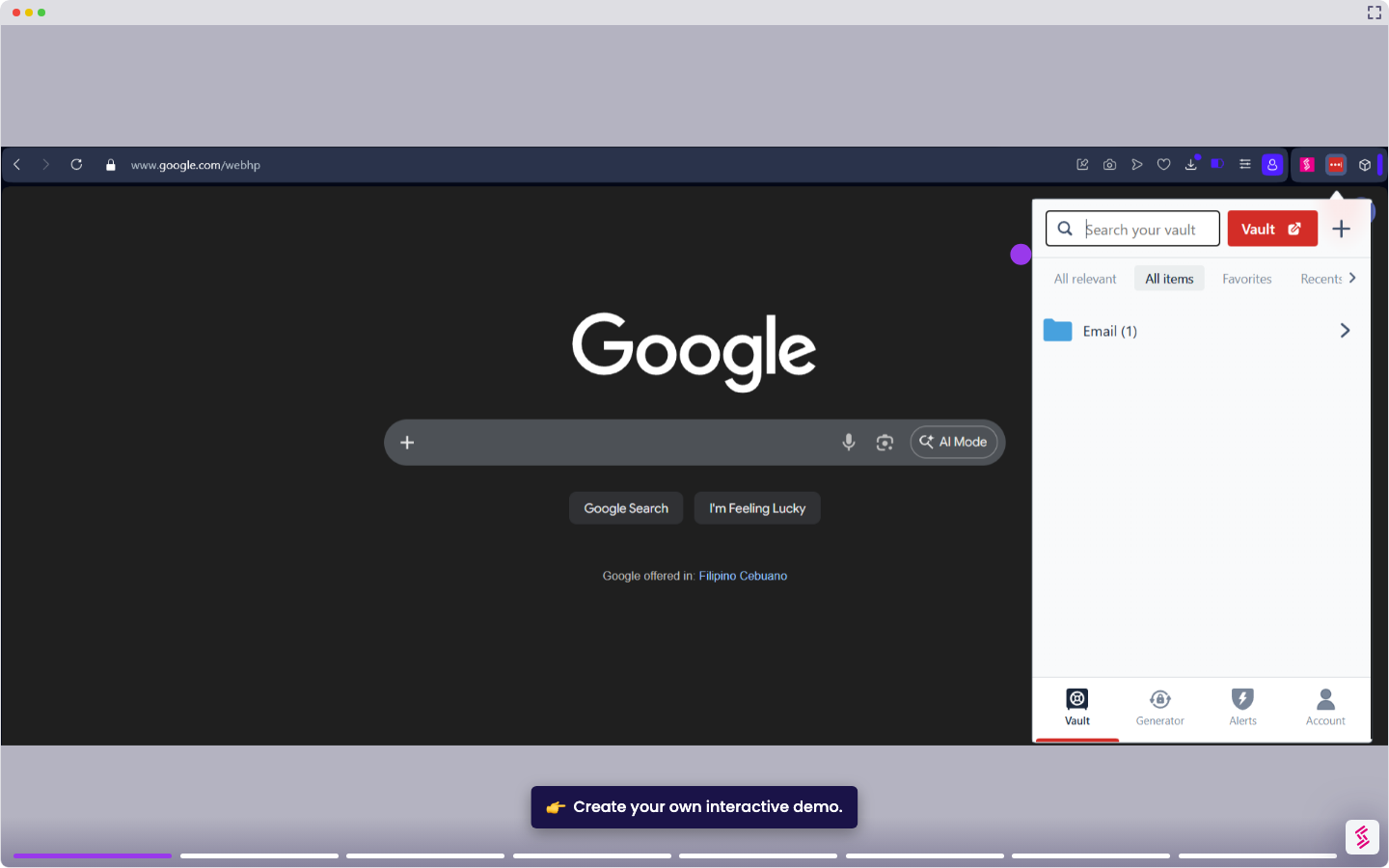
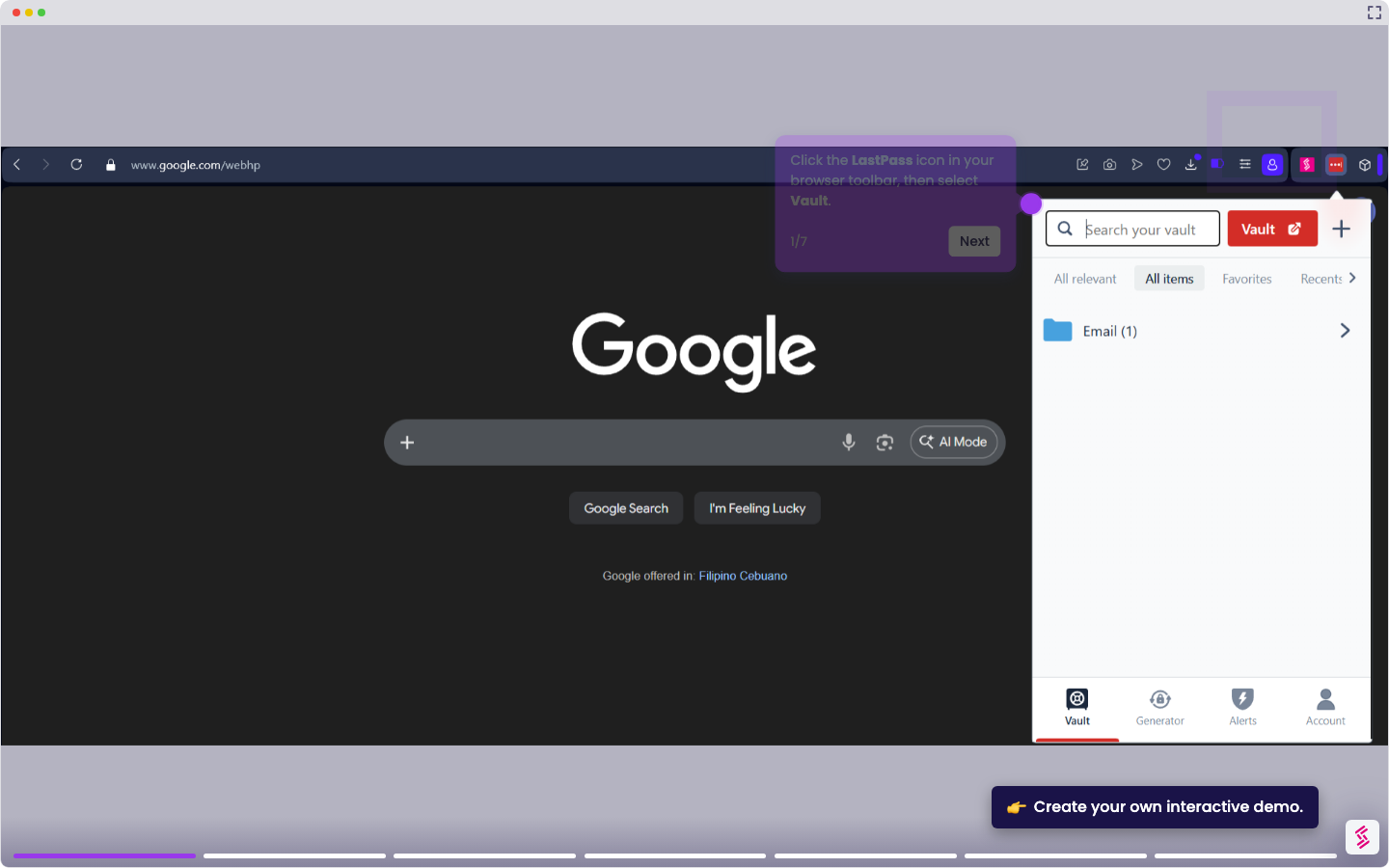
- Go to your browser's extensions page in the address bar - for example, chrome://extensions in Chrome and press Enter, or click the LastPass icon in your browser toolbar, then select the Manage extensions tab. Look for LastPass and click Details to see your current version number.
- Compare it with the latest version in their Chrome Web Store or LastPass Release Notes (https://lastpass.com/releasenotes.php) to check if an update is available.
- To force an update, enable Developer Mode using the toggle in the top-right corner of the extensions page.
- Click Update to force all extensions to update immediately, including LastPass.
- Once the update completes, turn Developer Mode back off. Click the LastPass icon in your toolbar to confirm it loads correctly.
To update LastPass on mobile:
6.Open the App Store (iPhone) or Google Play (Android) on your phone and search for LastPass Password Manager. If an update is available, tap Update to install the latest version.