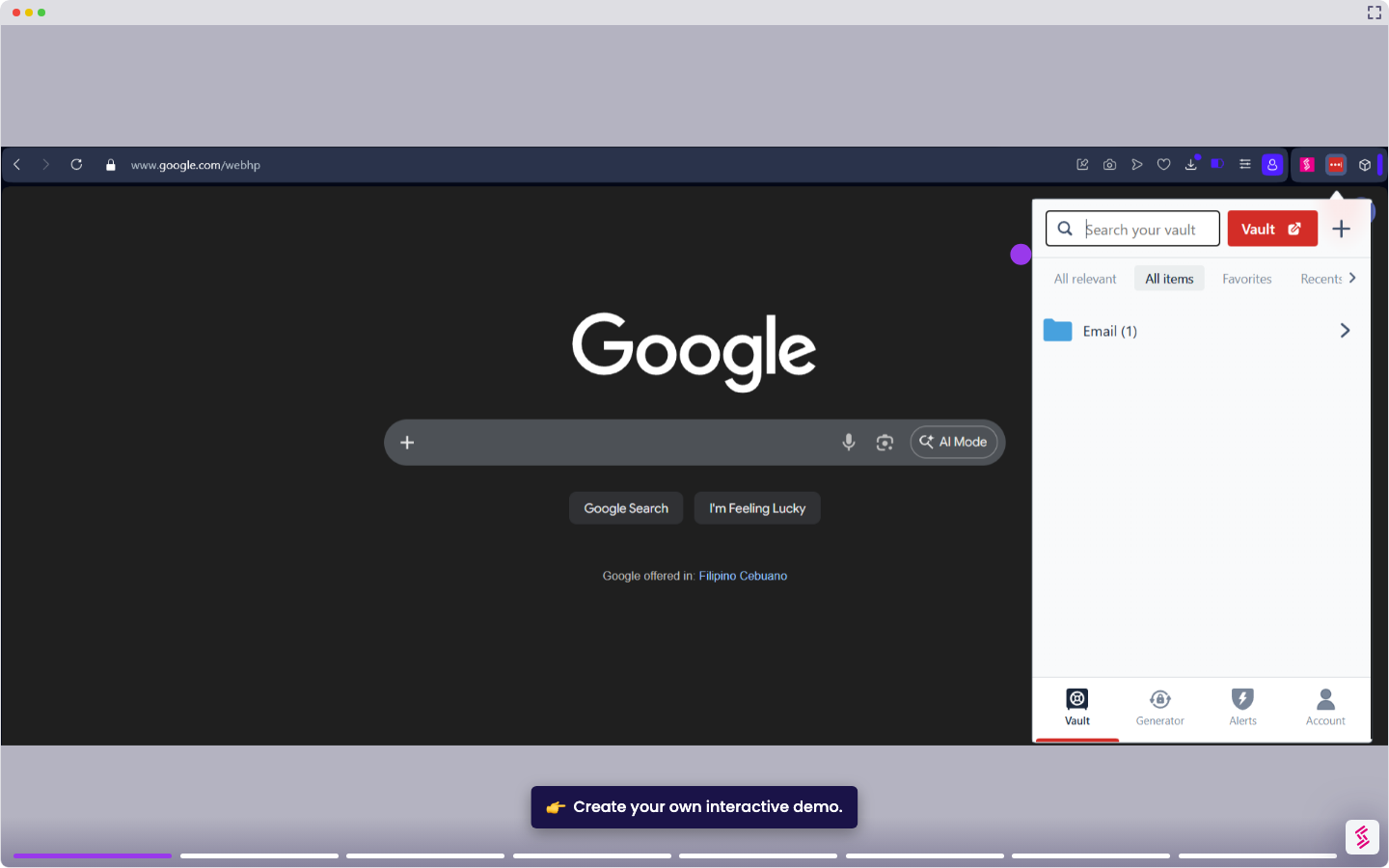
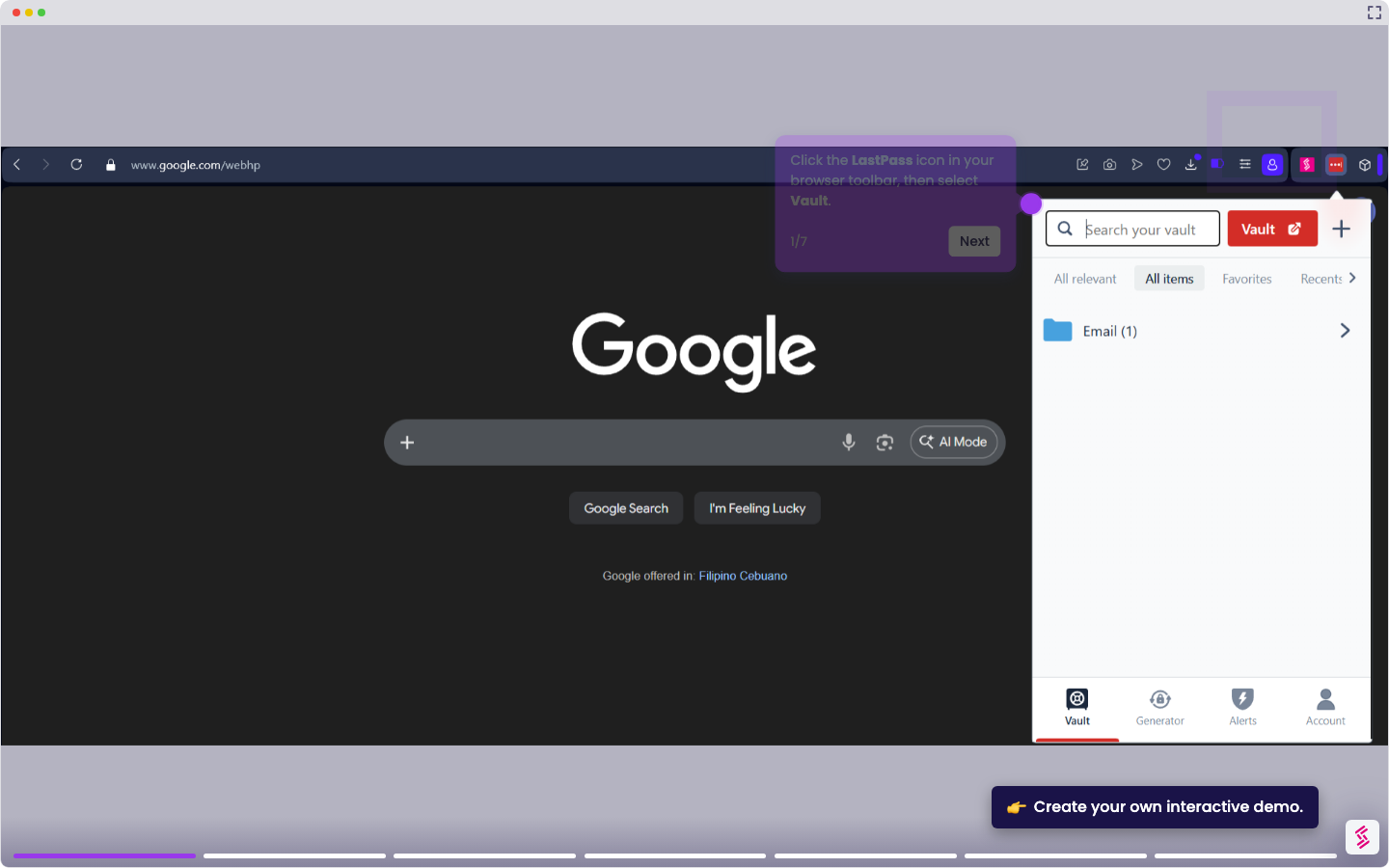
This tutorial shows how to fully uninstall the LastPass app from a Mac.
Note: Removing LastPass from your Mac does not delete your LastPass account or vault data. To permanently remove your data, delete your account at lastpass.com/delete_account.php separately. Export your vault before uninstalling if you plan to stop using LastPass entirely.
- Quit LastPass before removing it. Right-click the LastPass icon in the Dock and select Quit, or click the LastPass icon in the Menu Bar and select Quit LastPass.
- Open Finder and click Applications in the sidebar. Locate LastPass, right-click it, and select Move to Trash.
- Press Cmd+Shift+G in Finder to open the Go to Folder dialog. Type ~/Library and press Enter.
- Check the following subfolders for any LastPass-related files and delete them:
- Application Scripts
- Caches
- Containers
- Application Support
- Cookies
- Logs
- Preferences
5.Close everything, empty the Trash to permanently remove all LastPass files and restart your Mac.