It is very easy to sync CRM data with Google Sheets via n8n. Here’s a short tutorial on how to do it:
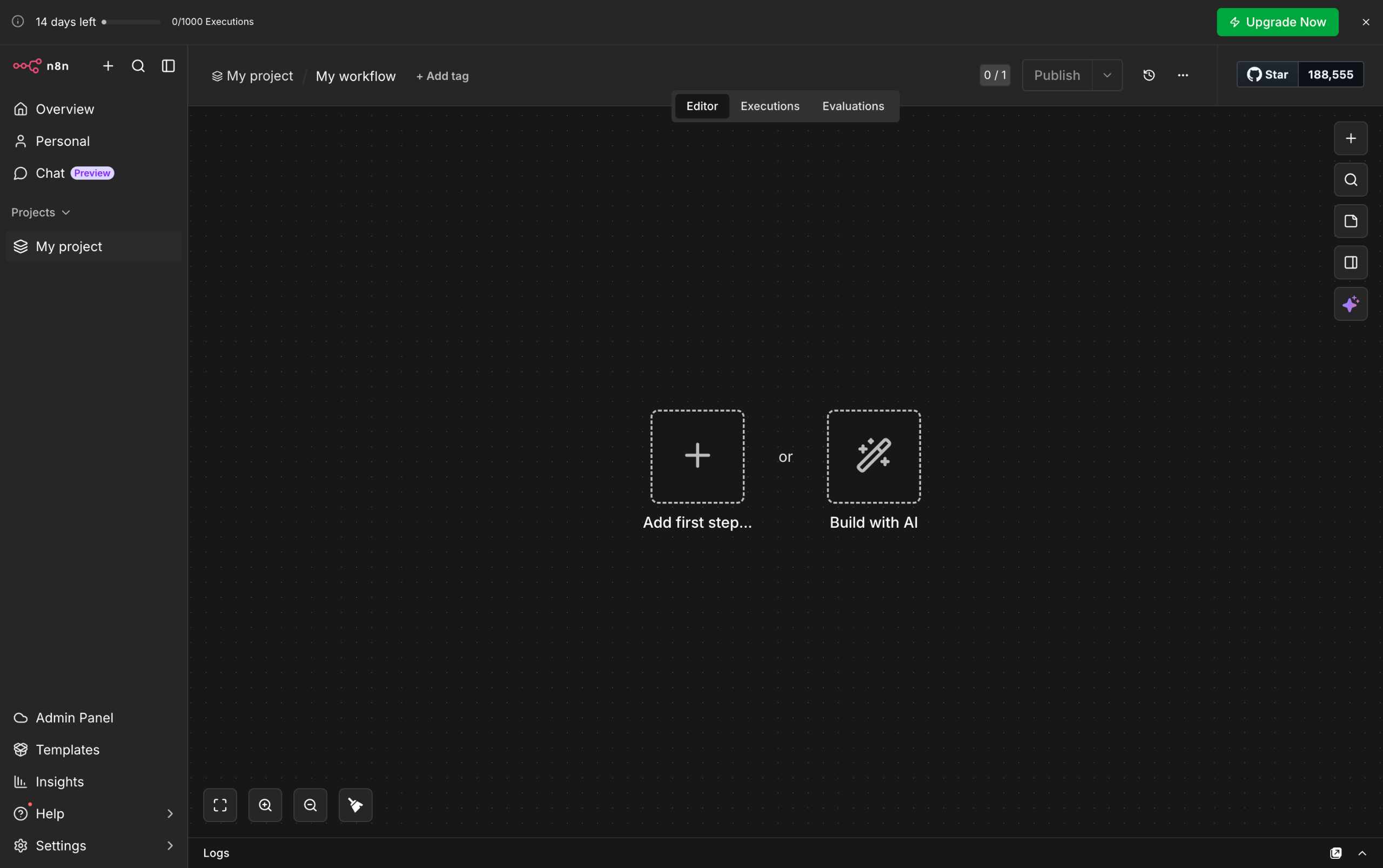
- Inside your n8n workflow, tap the 'Add' button to create a new step.
- After that, head over to the right-hand panel and click 'Action in an App'.
- Browse the list, then select the CRM tool you want to use.
- Subsequently, select the specific Action Event you want to implement. Make sure that it is connected to the data you wish to sync.
- Now, it's time to set up the selected node. To get started, tap the 'Credentials' menu and choose the HubSpot account you want to use.
- As for the Resource and Operation, make sure that the default configurations reflect the selected Action Event.
- Following that, configure the corresponding settings according to your liking.
- If you wish to personalize the node further, tap the 'Add Field' button and make use of the available options to make additional configurations.
- Once done, click 'Execute Step' to run your setup.
- Tap the 'Close' button afterwards to continue.
- Now, it's time to set up the Google Sheets node. To do that, click the 'Add' button next to HubSpot.
- Head over to the right-hand panel once again and tap 'Action in an App'.
- Subsequently, find and select 'Google Sheets'.
- Choose the Action Event you prefer to use. Make sure that it is associated with the synchronization of data.
- Now, set up the node accordingly. Start by clicking the 'Credential' menu and then choosing the Google account you want to use.
- As for Resource and Operation, ensure that the default configurations reflect the selected Action Event.
- Click the 'Document' menu afterwards and then select the file you want to use.
- Subsequently, click the 'Sheet' menu and specify your preferred sheet for this integration.
- Configure the column mapping settings based on your preference. Specify the mode and the column you wish to use.
- At this point, it's time to set up the value you want to sync. To get started, go to the left-side panel and select the data you want to sync.
- Drag it afterwards into the input field that matches your preferred Google Sheets column.
- If you need to sync more data, tap 'Add Column to Send' and then repeat the same process.
- Once done, click 'Execute Step' to check and run your configuration.
- Check your n8n workflow and then tap 'Execute Workflow' to run it.
- Finally, your CRM data will be synced with Google Sheets according to the configuration of your n8n workflow.