Here is a simple step-by-step guide on how to set up Python in VS Code:
- To set up Python in VS Code, first download and install Python from python.org.
- You can check the progress of the installation in your browser’s download history.
- Open the Python installer and follow the steps, such as agreeing to the license terms, until you reach and click the Install button.
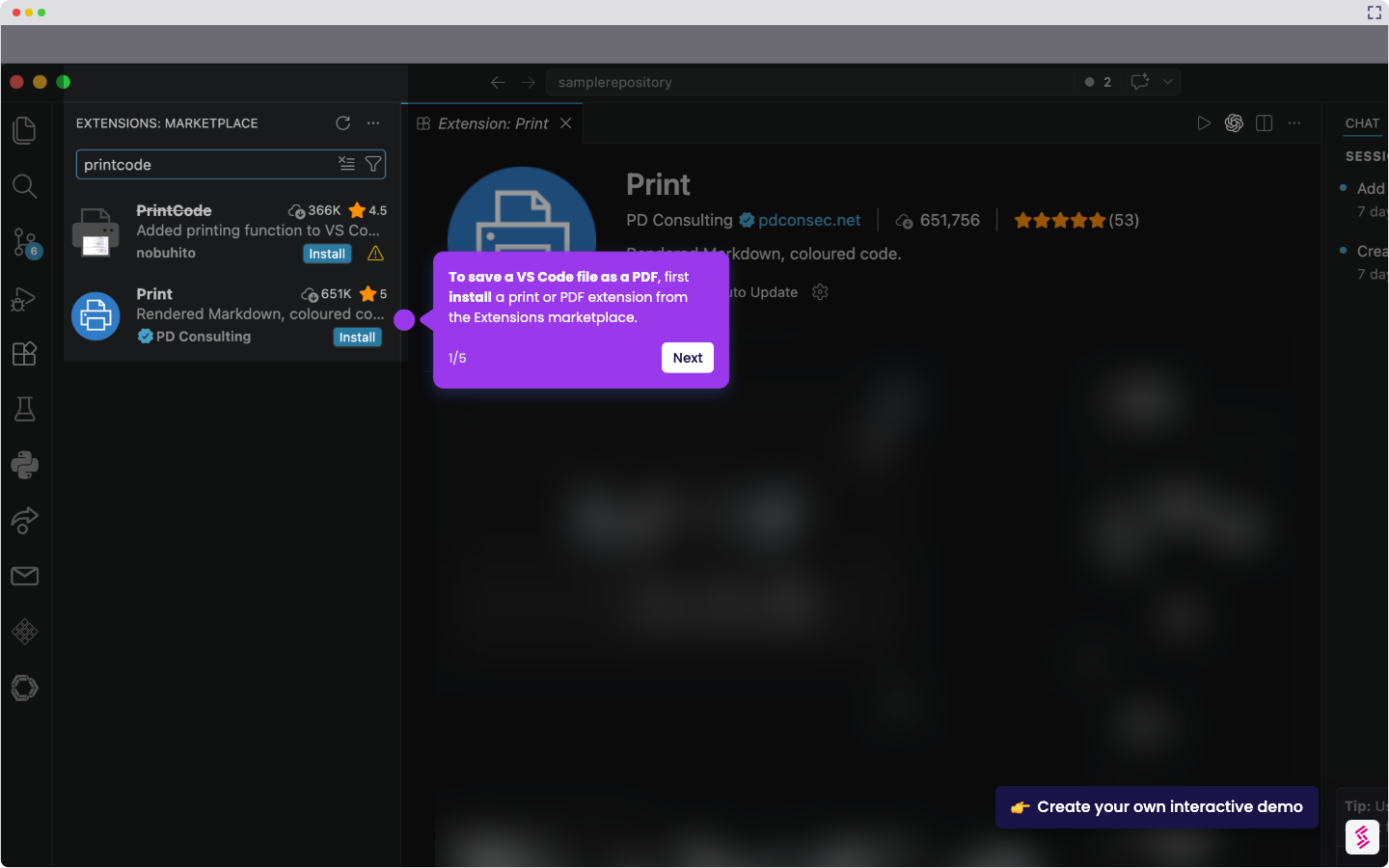
- Launch VS Code and click the Extensions icon on the left sidebar.
- Type and select Python (by Microsoft), then click 'Install.'
- Open the Command Palette search bar by pressing Cmd + Shift + P on Mac or Ctrl + Shift + P on Windows.
- Type 'Python: Select Interpreter' in the Command Palette search bar and select it.
- Choose venv or Quick Create, and VS Code will create the environment and select it automatically.
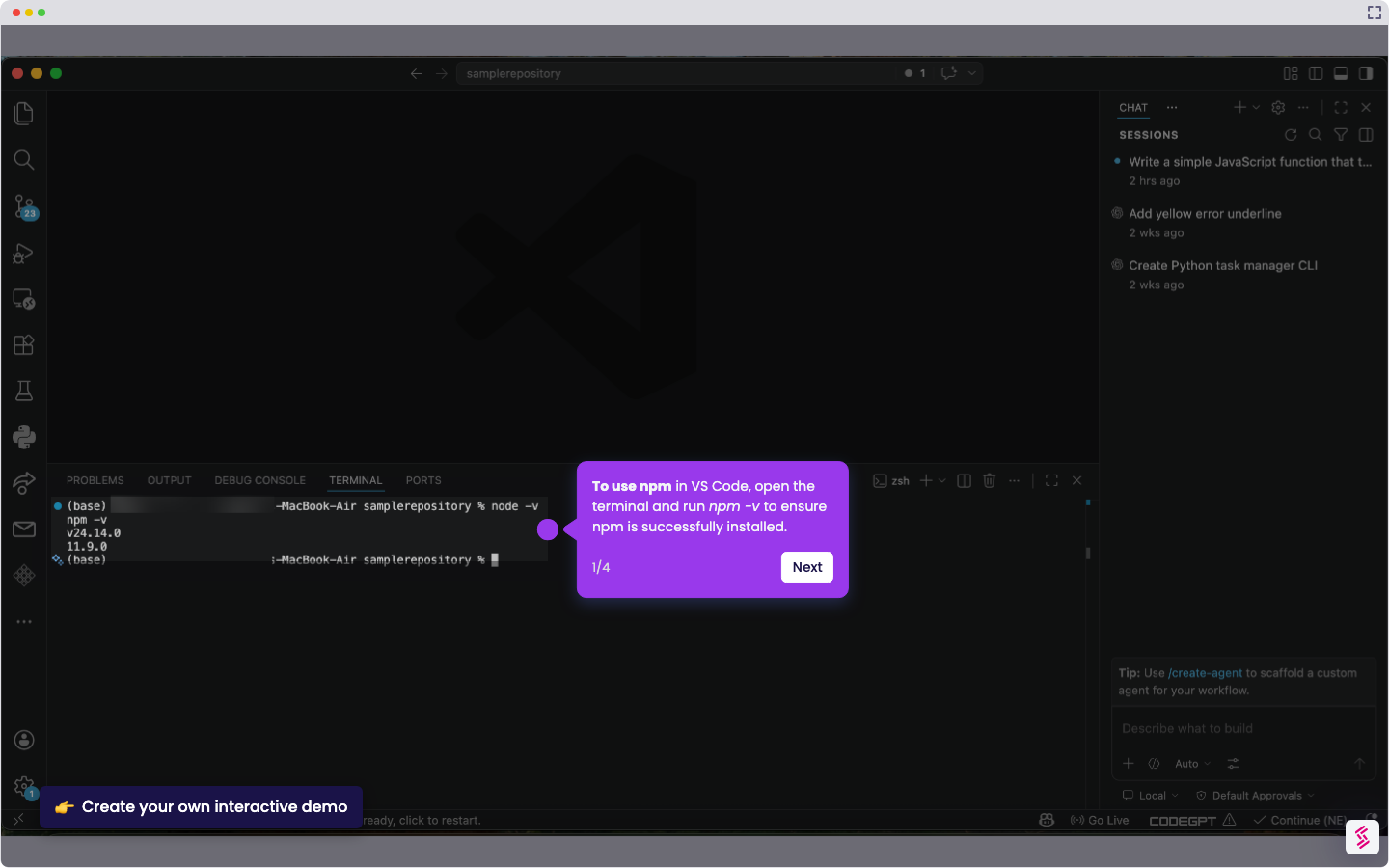
- A successful Python setup in VS Code shows the selected Python interpreter in the bottom-left corner, and running python --version in the terminal displays the correct Python version.