This interactive demo was created free with Storylane in 2 minutes. Create your own demo
Start free
All Tutorials /Google

How To Set Up Events in Google Analytics

Updated on:
May 8, 2026
By:
Madhav Bhandari
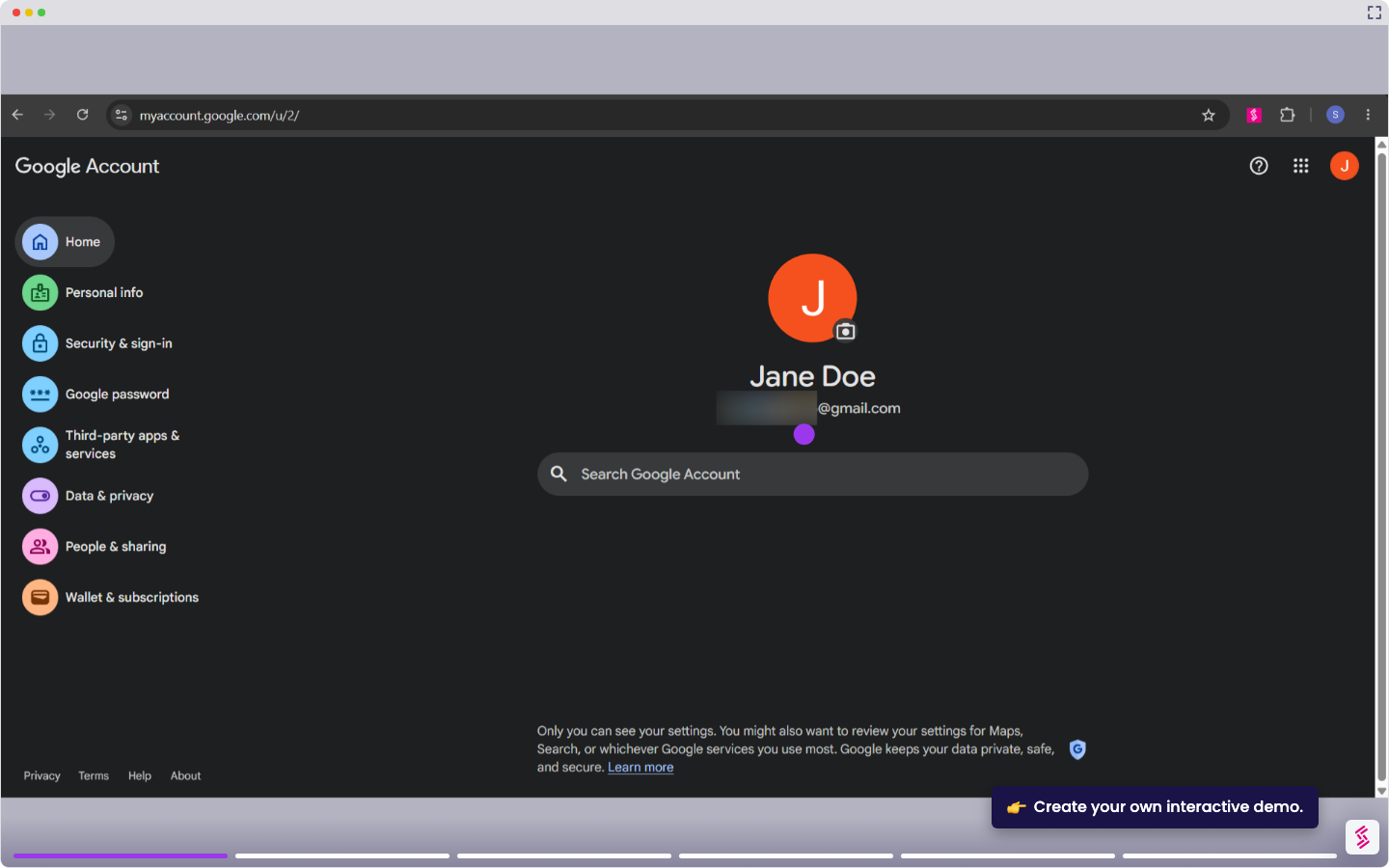
Use this interactive demo to learn how to set up custom events in Google Analytics 4.

Quick summary

Creating a custom event in Google Analytics 4 lets you track specific user actions — such as visiting a thank-you page — and mark them as conversions. This step-by-step walkthrough covers the full setup process, from the Admin panel to defining matching conditions and saving your event.


Steps

  1. Click on Admin in the left pane to open property settings.
  2. Find and select Events in the Admin menu.
  3. Click Create event to begin building a new custom event.
  4. Choose the relevant Data Stream for your property.
  5. Hit Create to proceed to the event configuration screen.
  6. Enter a custom event name and define the matching conditions that determine when the event fires.
  7. Set the Value field to the URL of the page you want to track as a conversion, such as a thank-you page.
  8. Ensure the Copy parameters checkbox is checked to inherit parameters from the source event.
  9. Hit Create to save your new custom event.
  10. Note: the custom event will not appear in the events list until it is triggered — visit the target page to perform a test trigger.
  11. Once the event has been triggered, you can return to the Events section and mark it as a conversion.
📌 Why this matters

Setting up custom events in Google Analytics 4 is essential for accurately measuring user behavior and identifying which actions drive business results. By creating custom events tied to specific URLs — such as form submission confirmation pages — marketers and analysts can track conversions without relying on additional code changes. This capability enables teams to move from generic pageview data to granular, goal-oriented analytics that directly inform campaign optimization and ROI reporting. Mastering GA4 custom event creation gives organizations full control over their conversion tracking strategy inside a single, powerful analytics platform.
Your product deserves an interactive demo
Start free
Similar Articles
Google

How to Tell When You Subscribed to a YouTube Channel

Madhav Bhandari
Director of Marketing @ Storylane
Google

How to Unblock YouTube on Chrome

Madhav Bhandari
Director of Marketing @ Storylane
Google

How to Link a Chart from Google Sheets to Google Slides

Madhav Bhandari
Director of Marketing @ Storylane
No items found.
Platform
Interactive Demos
Sandbox Demos
Buyer Hub
RepX
Integrations
Solutions
Product Marketers
Growth & Demand Gen
Sales Reps & AEs
Presales & SEs
Customer Success
Product Managers
Customers
Demo Showcase
Customer Stories
Finer Demos Club
Features
Demo Signals
Personalization
Deal Intelligence
Resources
Blog
The Plot
Tutorials
Help Docs
What’s New
Demo Dundies
Company
Careers
Pricing
Partners
Contact
Trust Center
Backed by
Chrome Extension Icon
Chrome extension
Download
Desktop app
Download
Built in San Francisco Bay Area - ©2026 Storylane
Privacy PolicyTerms & Conditions
X Corp (formerly Twitter)LinkedIn
This website uses cookies to ensure you get the best experience on our website. Learn More
Got it
This website uses cookies to ensure you get the best experience on our website. Learn More
Got it