This is a step-by-step guide on how to send automated emails from Softr:
- Navigate to the left sidebar of the Apps editor and click 'Workflows.'
- Click 'Start with Template' from the available options.
- Find the perfect workflow template for your specific needs.
- After selecting a template, click the 'Preview' button to begin your email automation workflow.
- Click 'Use Template' to customize it.
- Click each steps and customize according to your needs.
- Once each step has been customized, click 'Continue' to proceed.
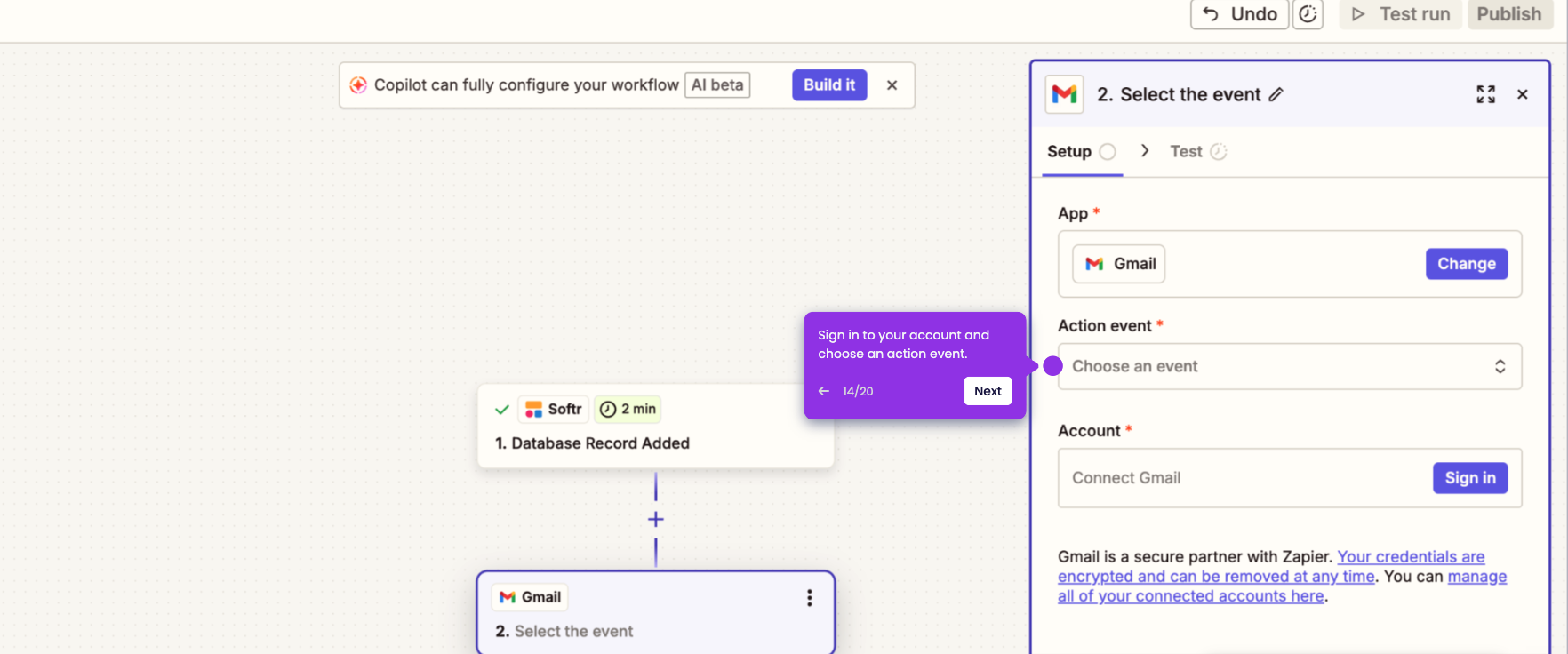
- Additionally, sign in to your Softr account to integrate your database and gain access to your valuable business data.
- Click 'Test' to ensure everything works flawlessly by testing each step of your workflow.
- Once all steps, including the final step, have been completed and finalized, click the 'Turn on' button located in the upper-right corner of the workspace.
- Click 'Publish' to complete the final step.
- Your automated email workflow is now published.