It is very easy to send a message in Slack in n8n. Here’s a short tutorial on how to do it in simple steps:
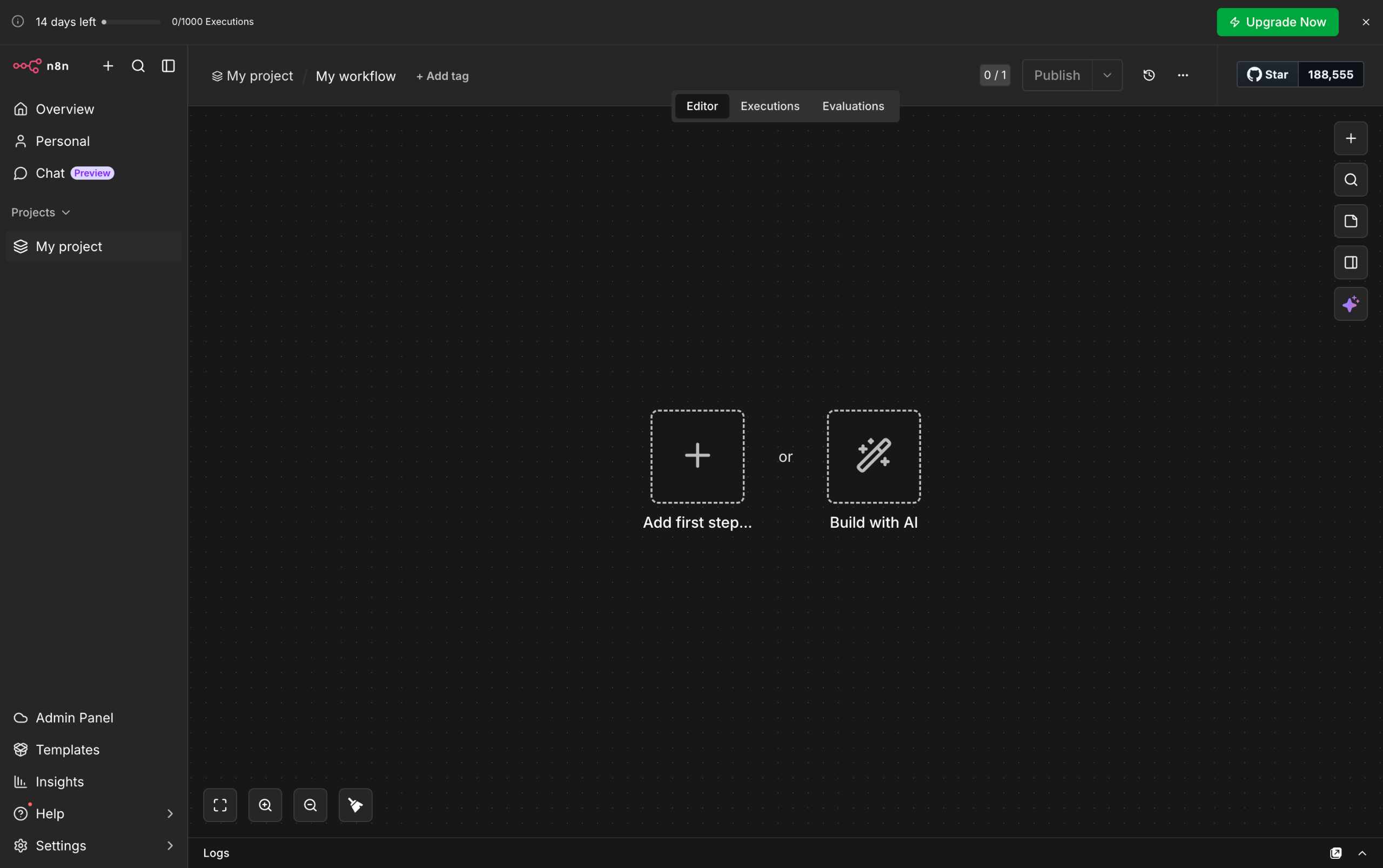
- Inside your n8n workflow, click the 'Add' button to create a new step.
- Choose 'Action in an App' to proceed.
- Following that, tap the search bar and type 'Slack'.
- Subsequently, select 'Slack' from the suggested results.
- Under the Message Actions section, find and select 'Send a Message'.
- Now, it's time to configure the selected node. To get started, tap the 'Credential' menu and choose the Slack account you want to use.
- As for the Resource and Operation, make sure that 'Message' and 'Send' are selected respectively.
- Click the 'Send Message To' menu to specify the type of intended recipient. You can set it to 'User' or 'Channel' according to your liking.
- Following that, tap the 'Channel' or 'User' menu and select the recipient of the message.
- Subsequently, select the type of message you want to send.
- Prepare your message, then type it into the 'Message Text' input field.
- Once done, click 'Execute Step' to proceed.
- Finally, your Slack message will be sent using your n8n workflow.