This tutorial shows how saving works in Replit and how to use checkpoints to preserve specific versions of your project.
Note: Replit automatically saves your code; there's no manual save button. Checkpoints are separate snapshots you can roll back to at any time.
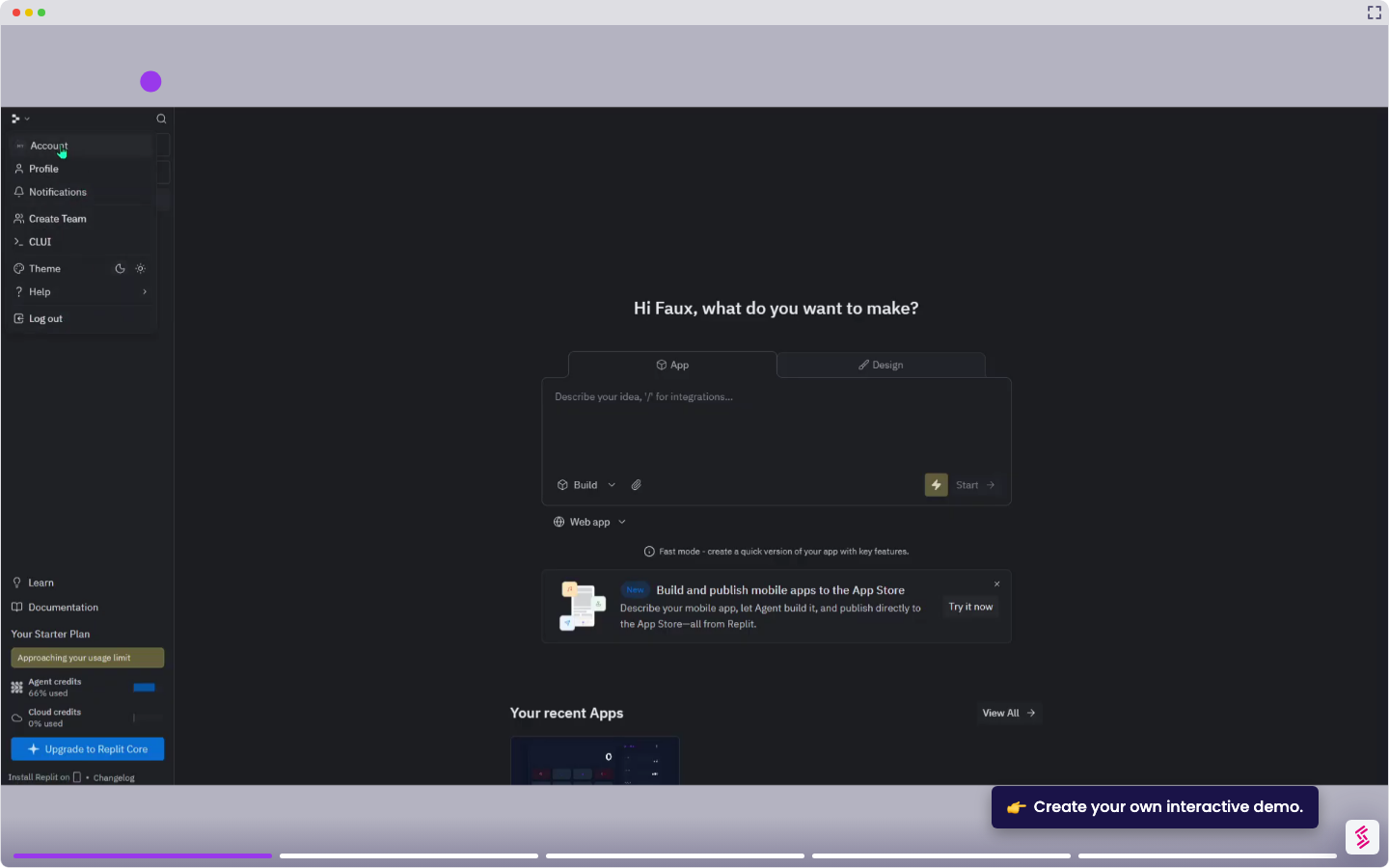
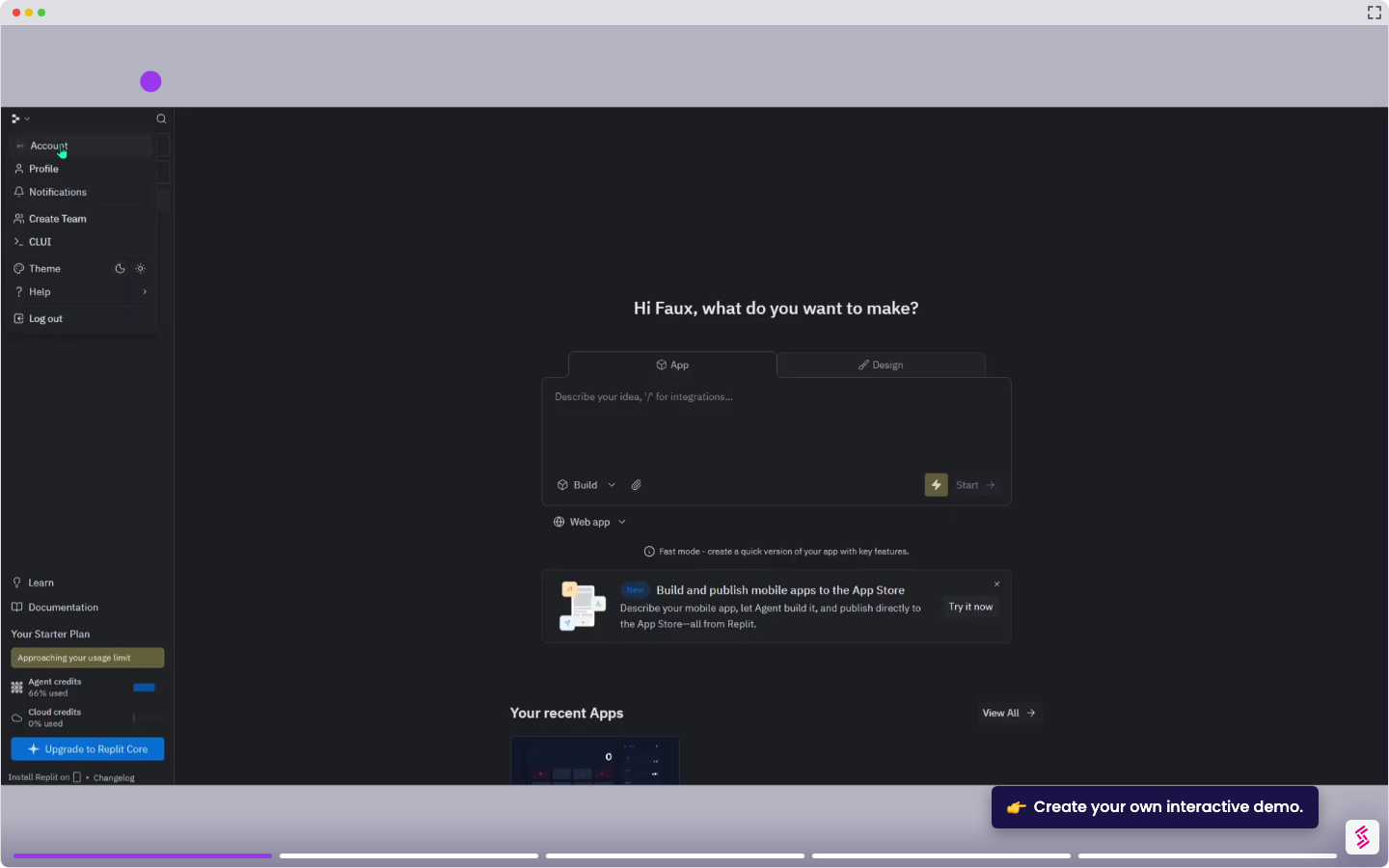
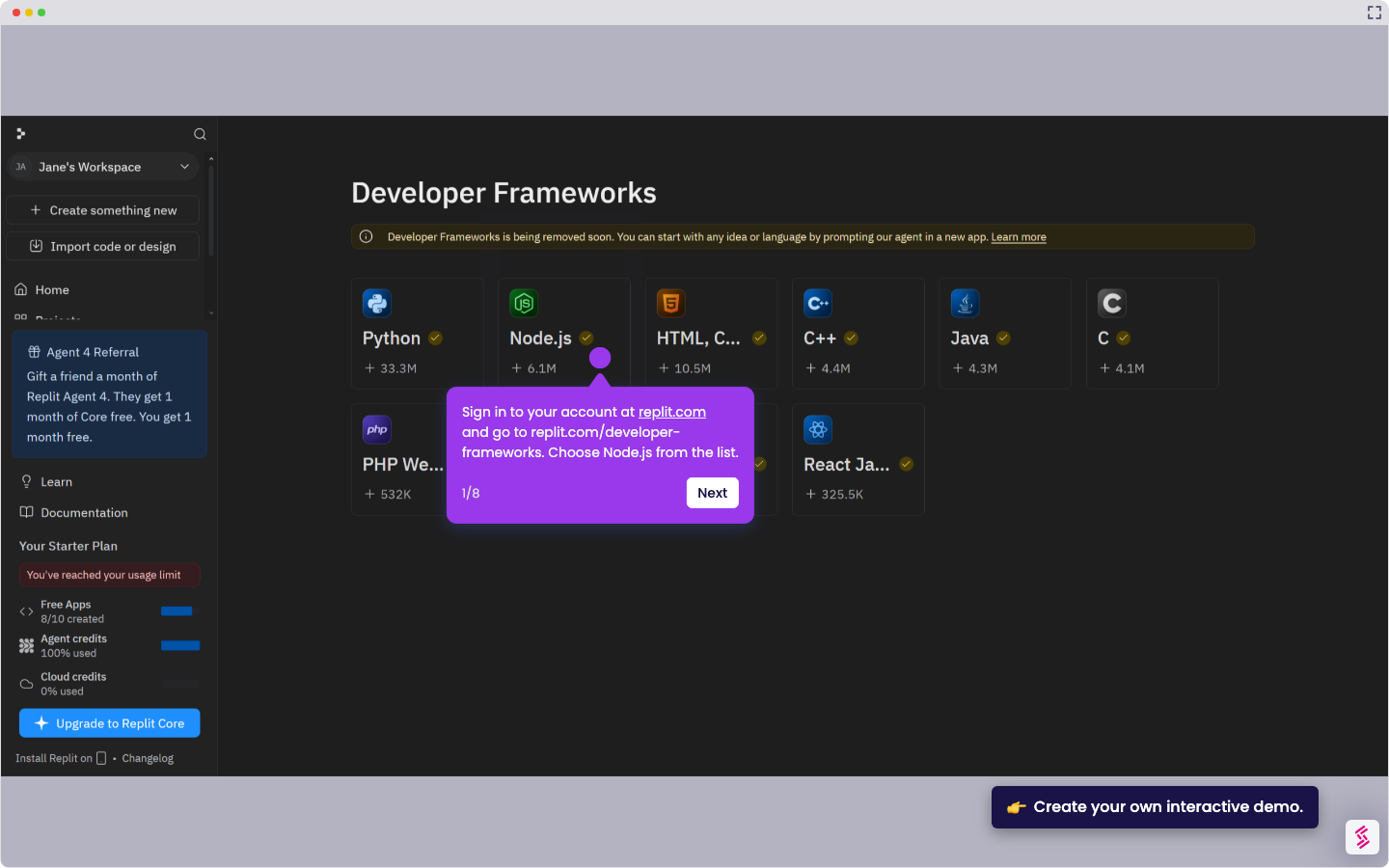
- Sign in to your account at replit.com and open an existing project or create a new one.
- Wait for Replit to set up the environment, then click the Open Files icon in the top-right corner, click File tree, and select the file you want to edit.
- Make a change to your code in the editor - for example, update the output format in your Python script. Your changes save automatically in the background. For manual saving, Ctrl+S (or Cmd+S on Mac).
- To revisit a previous version, click the history icon in the Agent tab, find the checkpoint you want, and select Rollback here.
- Confirm by clicking Rollback to this checkpoint to finalize the restore.