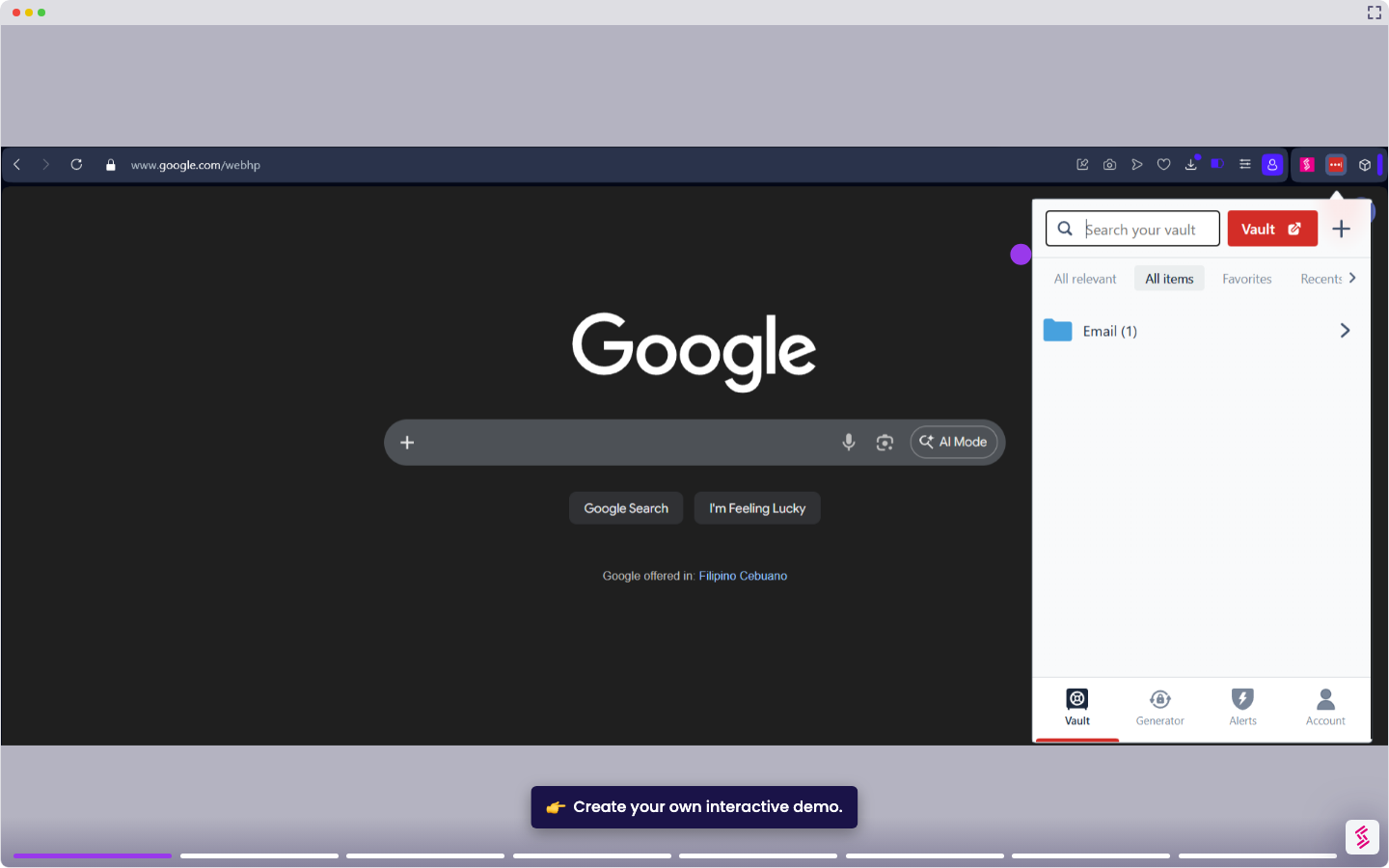
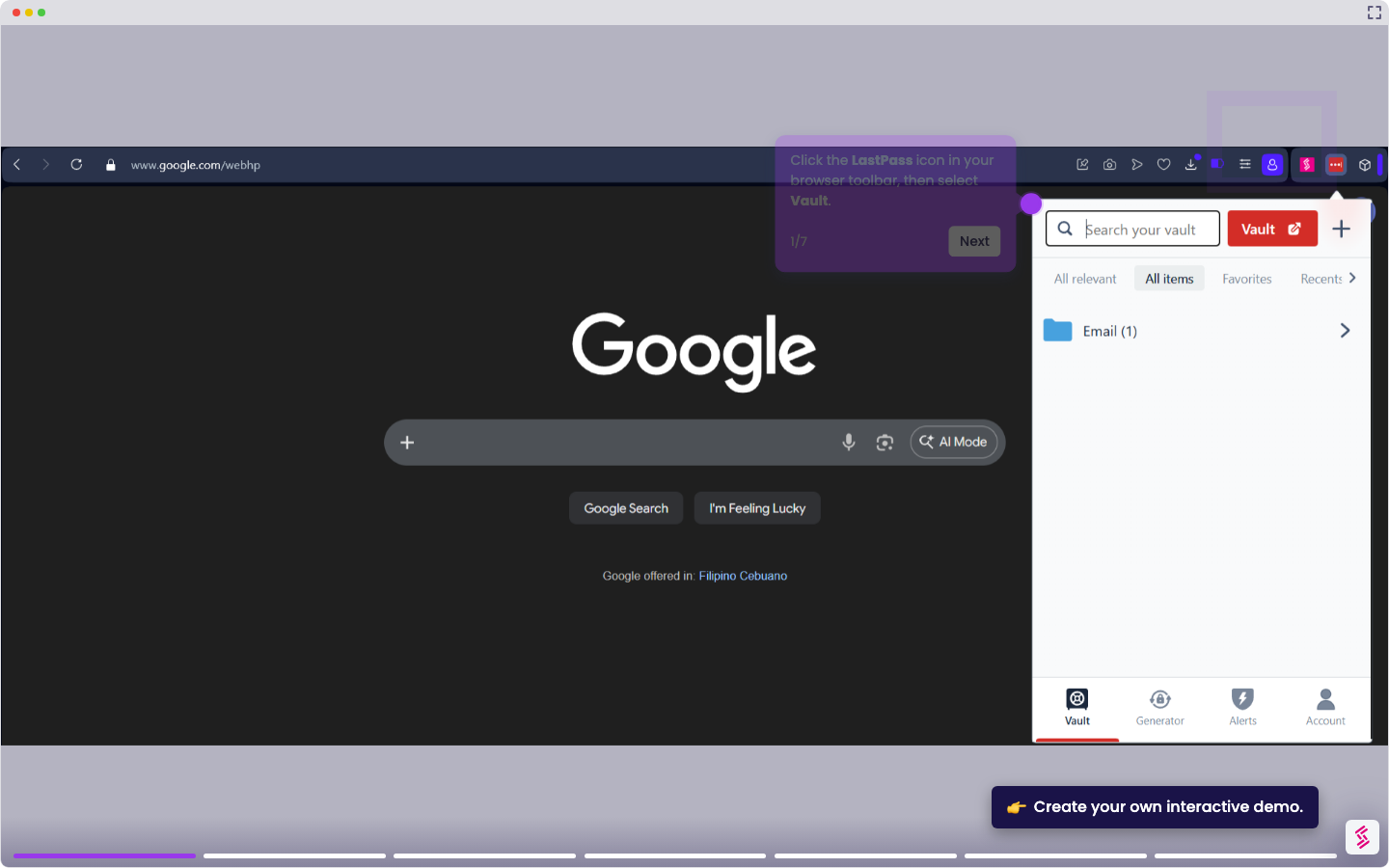
This tutorial shows how to remove the LastPass extension from Google Chrome.
Note: Removing the LastPass extension from Chrome does not delete your LastPass account or vault data. Your passwords remain stored in LastPass and are accessible via other browsers or the LastPass website. To permanently remove your data, delete your LastPass account separately.
- Open Google Chrome, and click the Extensions icon (puzzle piece) in the top-right corner of the toolbar.
- In the extensions panel, locate LastPass. Click the three-dot menu (⋯) to the right of LastPass. Select Remove from Chrome.
- If it does not appear or shows as inactive, it may be disabled. Type chrome://extensions in the address bar and press Enter.
- Find LastPass: Free Password Manager in the list and click Remove. When prompted in the confirmation dialog, click Remove again to complete the removal.
The LastPass icon disappears from your toolbar, and the extension is no longer active in Chrome.