Quick summary
Moving a page in Confluence lets you reorganize your wiki by reassigning it to a different parent page or space in just a few clicks. Use the built-in Move option from the page menu to keep your knowledge base structured without losing any content or history.
Steps
- Open the page you want to move in Confluence.
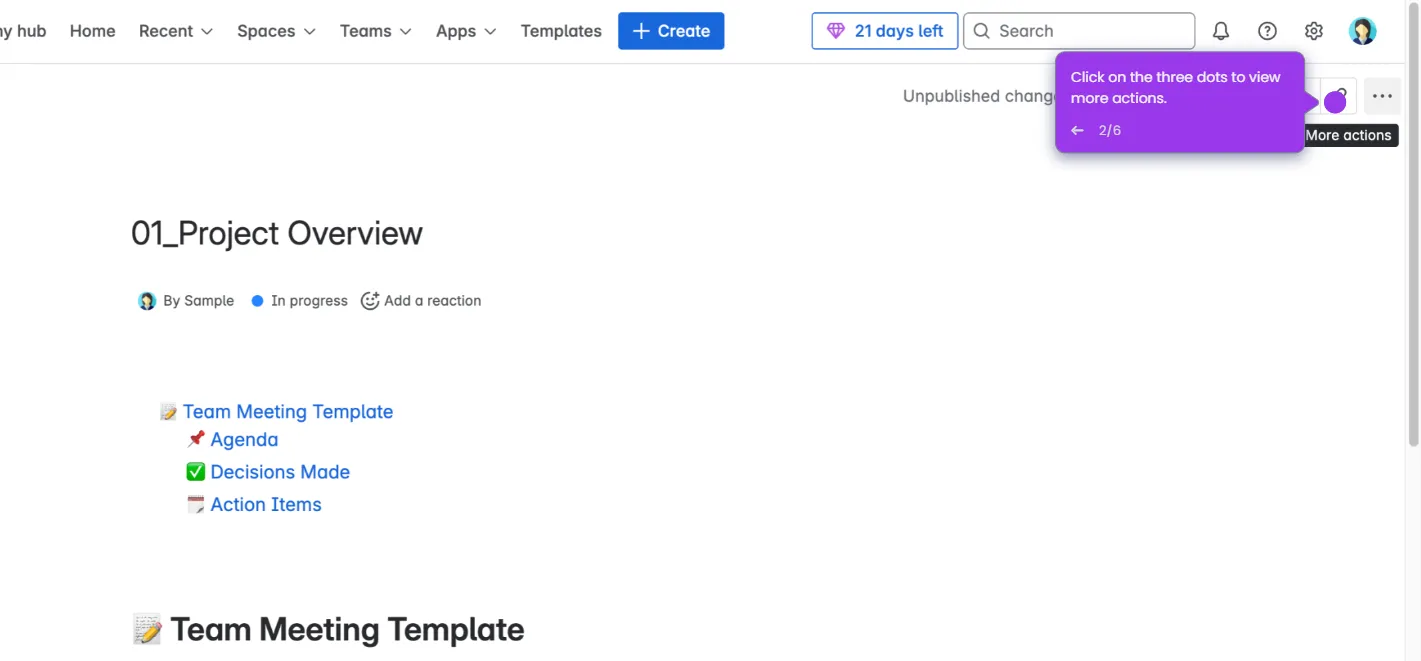
- Click the three-dot menu (•••) and select "Move" from the options.
- Choose the new parent page or space where the page should be relocated.
- Click "Move" to confirm and complete the page relocation.