To make your Microsoft Form public, you need to adjust the permission settings so that people outside of your organization (like potential customers or external leads) can access and submit it without needing to sign in. Follow these steps to set it up:
- On your Microsoft 365 main dashboard, click the App launcher (grid icon) in the upper-left corner.
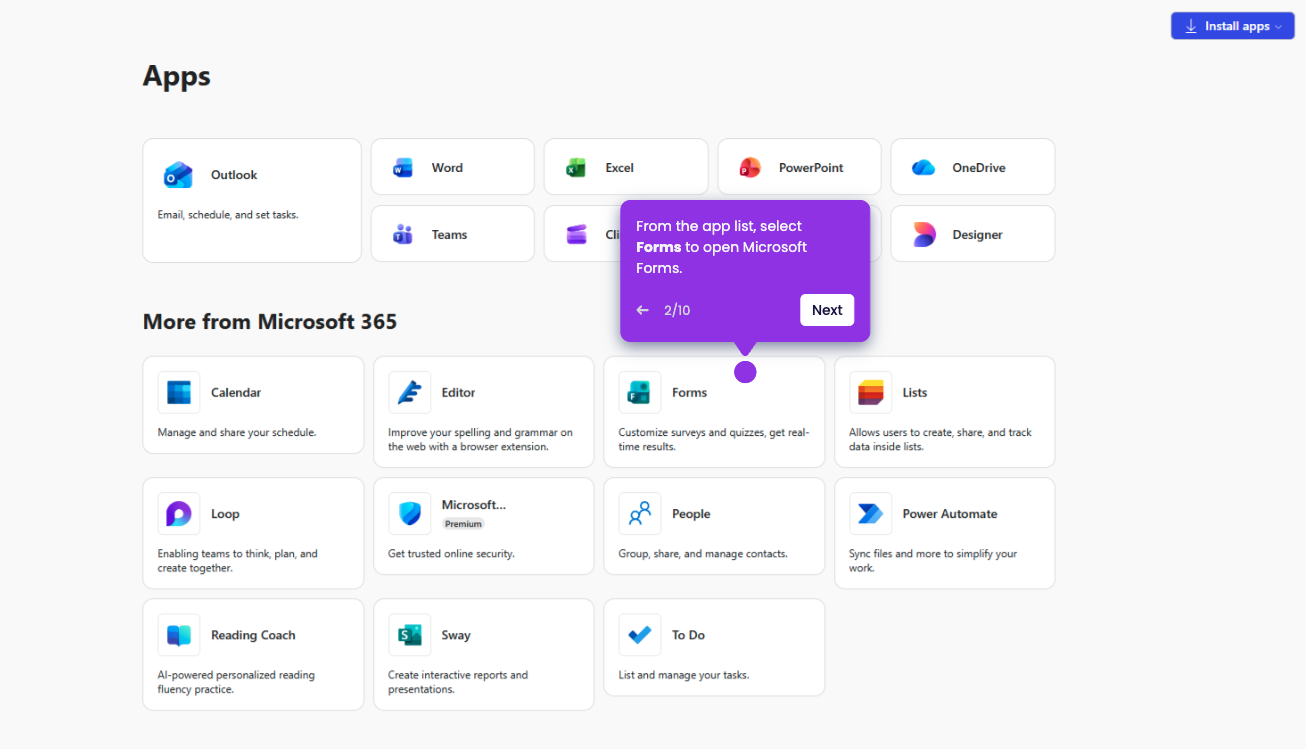
- From the app list, select Forms to open Microsoft Forms.
- Click New Form button to create a new one, or open an existing form.
- Click the Collect responses button in the top-right corner.
- Toggle Anyone can respond for full public access.
- Before sharing, ensure the Shorten URL box is checked to make the link look more professional for public sharing.