Making a form anonymous is essential for SaaS companies when collecting unbiased employee feedback or sensitive user bug reports. By default, Microsoft Forms records names, but you can disable this in the settings.
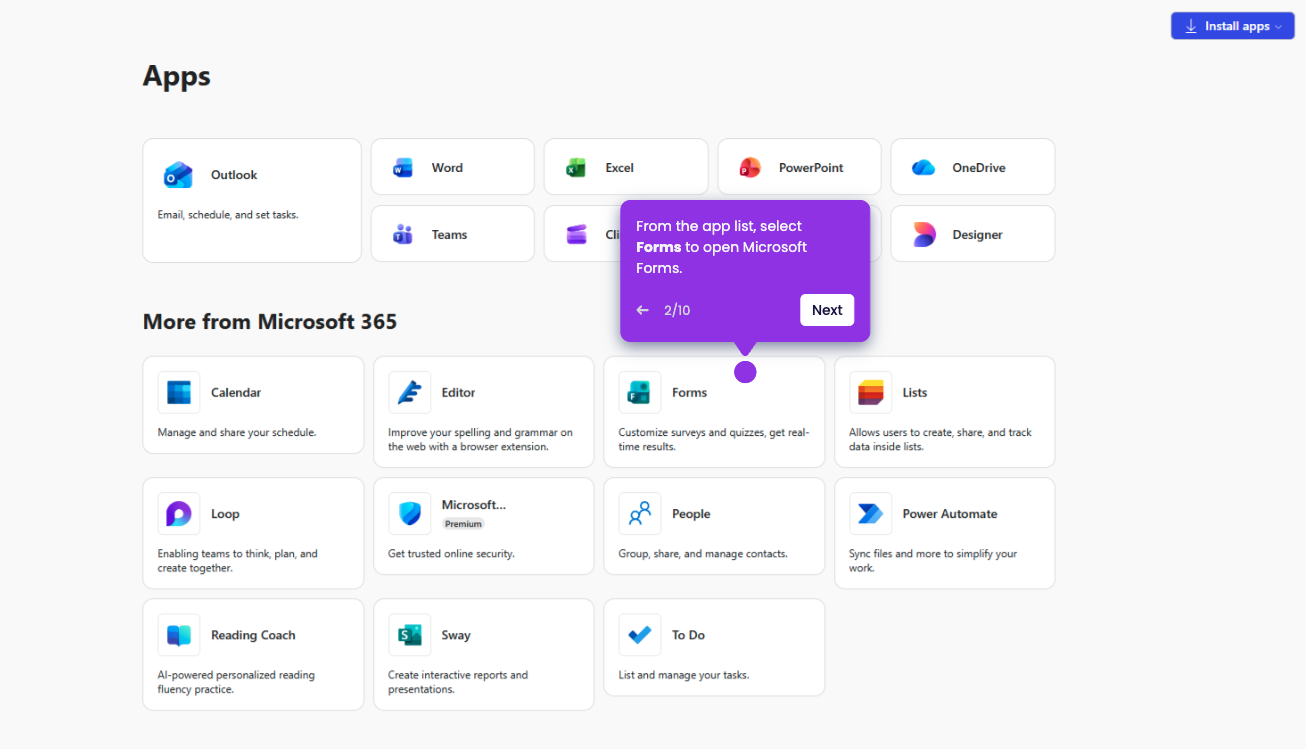
- On your Microsoft 365 main dashboard, click Apps to see all apps.
- Click on Forms to open Microsoft Forms.
- Open the specific form you wish to make anonymous.
- Click the Settings (gear icon) in the top right to open the panel.
- Note that there is no "Record Name" box—this confirms that no identity data is being captured automatically.
- Click Collect responses and ensure the link is set to "Anyone can respond."
- To be 100% sure, click Preview and check the top of the form; if it doesn't say "Hi, [Your Name]," then your respondents won't see it either.
- Click Collect responses to share your sign-up sheet via link, QR code, email, or embed code.