This interactive demo was created free with Storylane in 2 minutes. Create your own demo
Start free
All Tutorials /Canva

How to Make a Digital Planner on Canva

Updated on:
May 11, 2026
By:
Madhav Bhandari
Use this interactive demo to learn how to build and customize a digital planner in Canva.

Quick summary

Canva's digital planner builder lets you design, customize, and share a fully personalized planner using drag-and-drop tools, pre-built templates, and flexible styling options. From choosing a template to editing fonts, colors, and graphics, the entire workflow can be completed inside Canva without any design experience.


Steps

  1. Click on the 'Create a design' button in the top right corner and type 'Digital Planner' in the search bar.
  2. Choose a digital planner template from the search results.
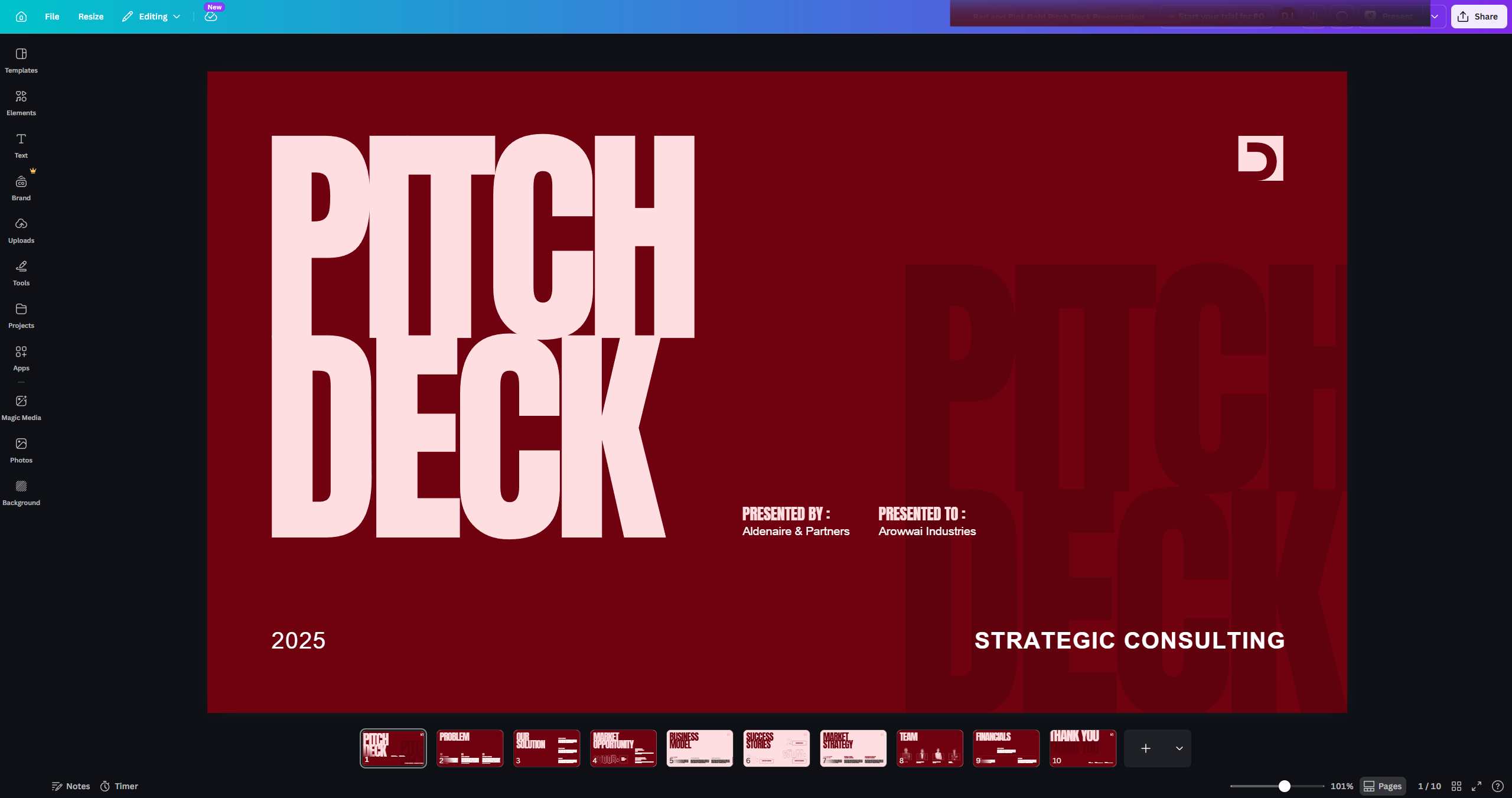
  3. Begin with a cover page for your planner — use Canva's tools to add elements like your title, images, and decorative graphics.
  4. Customize each page to match your brand or personal style by changing fonts and adding your own graphics or elements.
  5. For consistency, duplicate pages that share the same layout, such as weekly pages, by clicking the duplicate icon.
  6. Modify your planner further by changing colours across pages.
  7. Add your own graphics or additional elements to personalize each page.
  8. Click on any text element to change the wording, font type, and font size.
  9. Once all pages are designed, click the 'Share' button in the top right corner to export or distribute your planner.
📌 Why this matters

Creating a digital planner in Canva gives individuals, educators, and small business owners a fast, no-code way to produce professional, fully branded planning tools. Canva's drag-and-drop editor, extensive template library, and intuitive customization features — including font editing, color changes, and element duplication — eliminate the need for expensive design software. A finished digital planner can be exported as a PDF and sold, gifted, or used personally, making Canva one of the most accessible digital planner creation platforms available. This workflow is ideal for anyone searching for how to make a digital planner to sell or use on GoodNotes, Notability, or similar apps.
Your product deserves an interactive demo
Start free
Similar Articles
Canva

How to Add Canva to PowerPoint

Madhav Bhandari
Director of Marketing @ Storylane
How to Import Canva Slides into Google SlidesHow to Import Canva Slides into Google Slides
Canva

How to Copy and Paste Canva to Google Slides

Ekshika Raj
Social Media
Copy Canva Images to Google Slides FastCopy Canva Images to Google Slides Fast
Canva

How to Copy Canva Images to Google Slides

Akshaya Chandramouli
Head of Brand at Storylane
No items found.
Platform
Interactive Demos
Sandbox Demos
Buyer Hub
RepX
Integrations
Solutions
Product Marketers
Growth & Demand Gen
Sales Reps & AEs
Presales & SEs
Customer Success
Product Managers
Customers
Demo Showcase
Customer Stories
Finer Demos Club
Features
Demo Signals
Personalization
Deal Intelligence
Resources
Blog
The Plot
Tutorials
Events & webinars
Help Docs
What’s New
Demo Dundies
Company
Careers
Pricing
Partners
Contact
Trust Center
Backed by
Chrome Extension Icon
Chrome extension
Download
Desktop app
Download
Built in San Francisco Bay Area - ©2026 Storylane
Privacy PolicyTerms & Conditions
X Corp (formerly Twitter)LinkedIn
This website uses cookies to ensure you get the best experience on our website. Learn More
Got it
This website uses cookies to ensure you get the best experience on our website. Learn More
Got it