Quick summary
This demo walks you through integrating Softr with Zoom via Zapier by building a Zap that automatically triggers a Zoom action whenever a new database record is added in Softr. No coding is required — you configure the trigger, connect both accounts, map your data, and publish the automation in minutes.
Steps
- Click the '+' button in the left sidebar of the Zapier workspace to start a new integration.
- Select 'Zaps' from the available options to begin building your custom automation.
- Tap the 'Trigger' button to define the event that will start your automation workflow.
- Select 'Softr' as your trigger app.
- Tap and choose your preferred 'Trigger event' from the dropdown.
- Log in or switch to your Softr account to connect it.
- Click 'Continue' to proceed after connecting your account.
- Specify which database and table Softr should monitor for new records.
- Once the trigger is configured, click 'Continue' to advance to the next step.
- Tap 'Test trigger' to check and verify that data is flowing correctly from Softr.
- Choose your record and click 'Continue with selected record' to proceed with the test data.
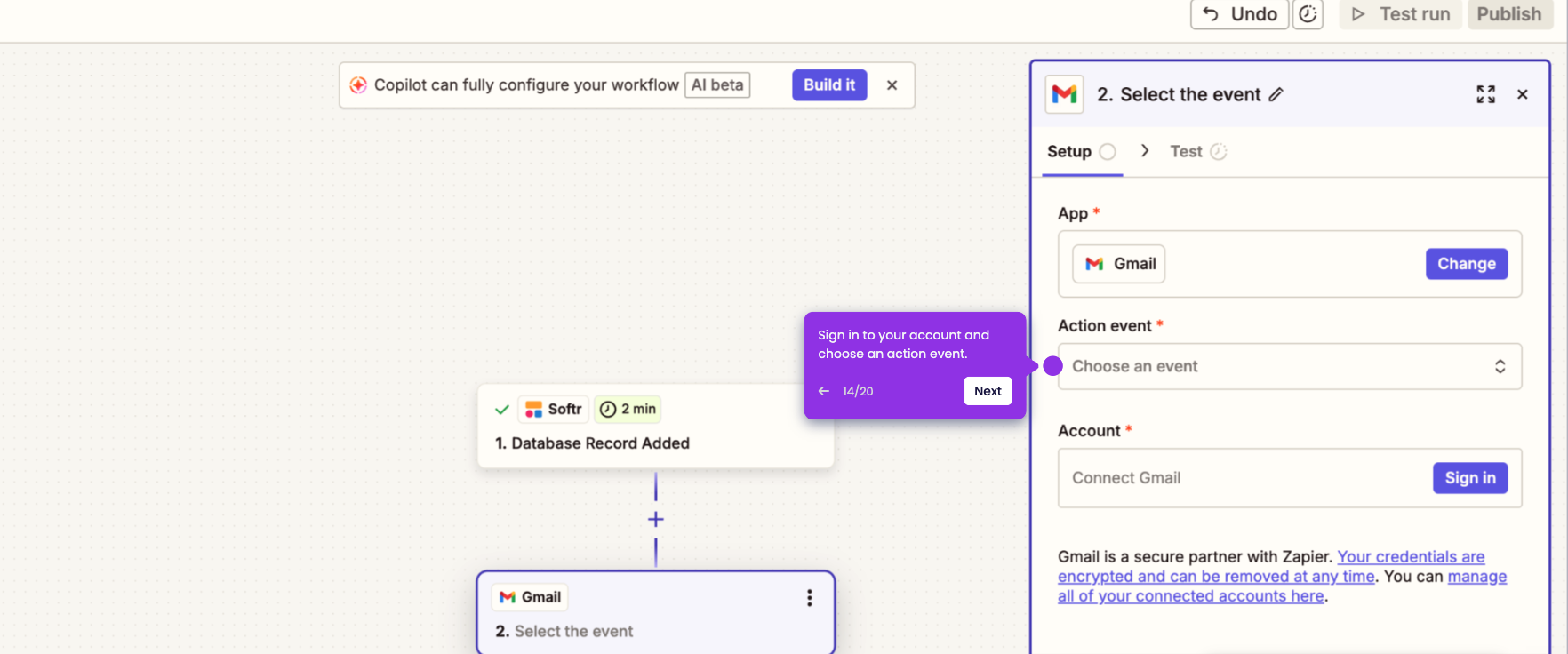
- Select 'Zoom' as your action app.
- Choose and select which action event you want Zoom to perform.
- Pick or customize your desired Zoom action from the available options.
- Sign in to your Zoom account to authorize the connection.
- Grant the required permissions to authorize Zapier to access your Zoom account.
- Click 'Continue' once the Zoom account is connected.
- Choose and select which action event to proceed with in the Zoom step.
- Fill in all the necessary action details for the Zoom step.
- Click 'Continue' to advance to the final testing phase.
- Verify your desired Zoom action event is correct, then click 'Test step' to confirm it works.
- Once testing passes, click 'Publish' to activate your Zap.
- Your Softr app is now successfully integrated with Zoom via Zapier.