These are the step-by-step instructions on how to integrate Softr with Salesforce using Zapier:
- In the Apps editor, go to the left sidebar and click ‘Create.’
- Select 'Zaps' to begin building your automated workflows between your apps.
- Click 'Trigger' to set up the event that will start your automation workflow.
- Click Softr to connect.
- Log in to your Softr account and select a 'Trigger event.' This event will define what action in Softr starts your automated workflow.
- Once done, click 'Continue.'
- Specify which database and table to monitor.
- Once done, click 'Continue' to proceed to Action step.
- Tap 'Test trigger' to verify your trigger works correctly before completing your Zap setup.
- Click 'Continue' to proceed.
- Connect Salesforce as your action app to automatically update CRM records when triggered.
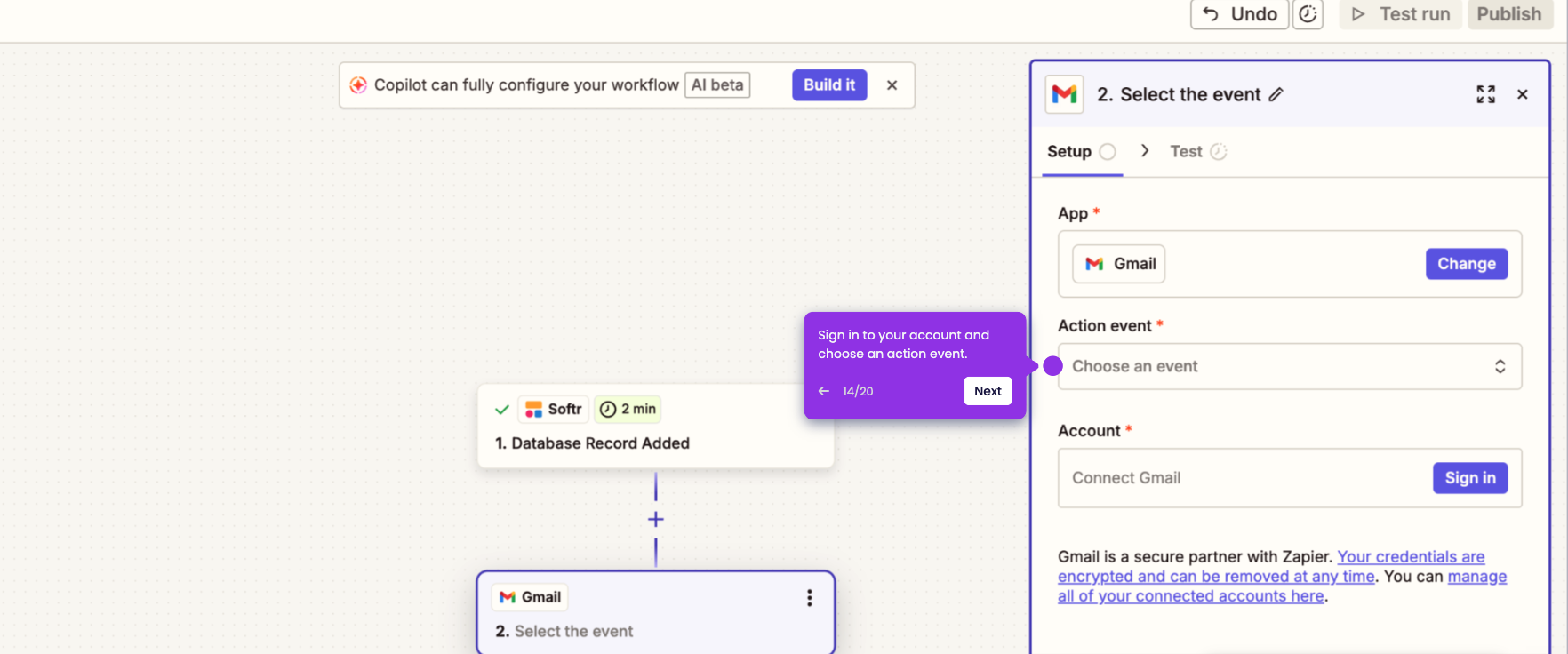
- Log in to your Salesforce account and select an Action event to define what your workflow will do.
- Once done, click 'Continue.'
- Fill in required data to configure.
- Click 'Continue' to proceed.
- Click on ‘Test step’ to verify that your automation is working as expected.
- Once everything is final and runs smoothly, click 'Publish.'
- Softr is now integrated with Salesforce.