Quick summary
This tutorial shows how to integrate Softr with Slack by building a Zap in Zapier that automatically sends a Slack notification whenever a new record is added to a Softr database. It covers every step from creating the Zap to publishing the live automation workflow.
Steps
- Click the '+' button in Zapier to start building a new integration.
- Select 'Zaps' from the available options to build your custom automation.
- Tap the 'Trigger' button to define the event that will start your automation workflow.
- Click 'Softr' to connect it as the trigger app.
- Choose and select your 'Trigger event' from the available options.
- Sign in to your Softr account to access your databases.
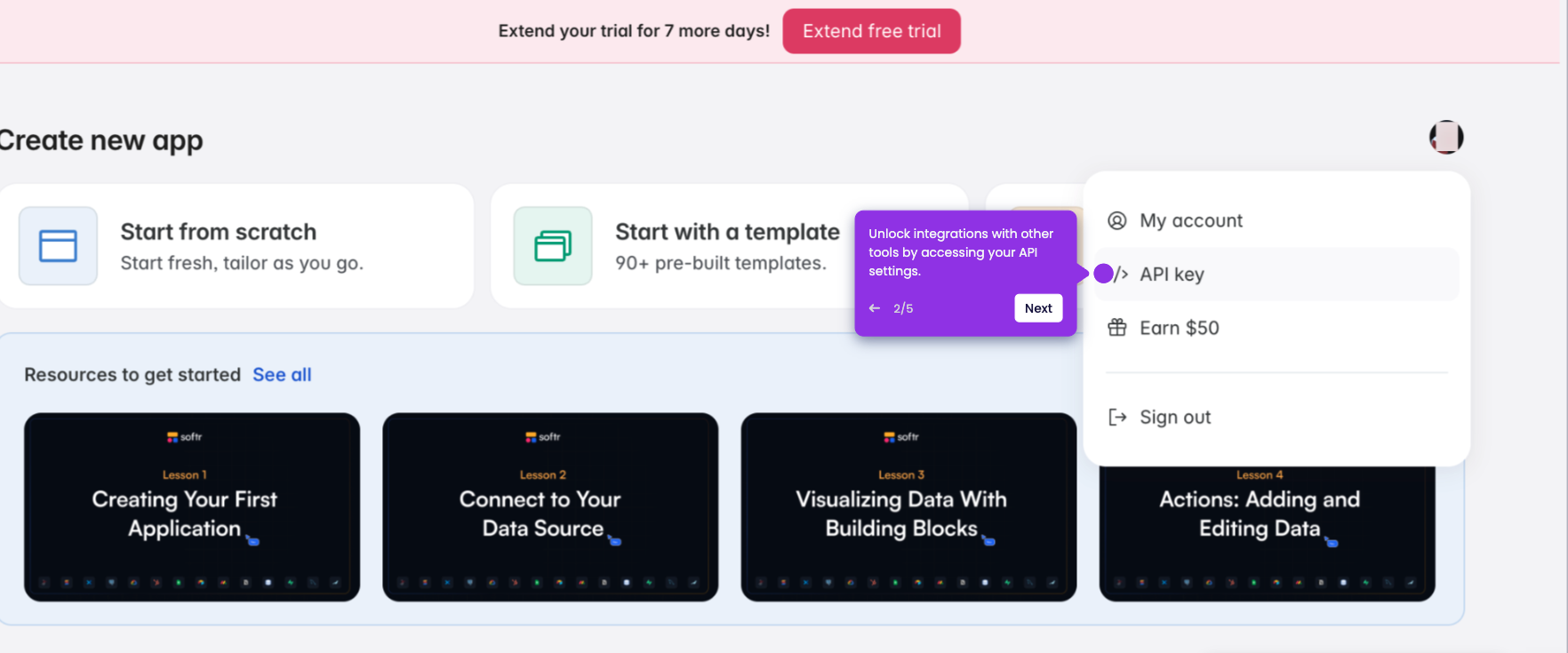
- Enter your Softr API key to authenticate the connection.
- Click 'Yes, Continue to Softr' to confirm the API key and proceed.
- Once all data is filled in, click 'Continue' to move forward.
- Select which database and table to monitor for new records.
- Confirm your database and table selection, then click 'Continue' to proceed.
- Click 'Test trigger' to verify your trigger works correctly.
- Choose your record and click 'Continue with selected record' to proceed.
- Connect Slack as your Action app in the Zap editor.
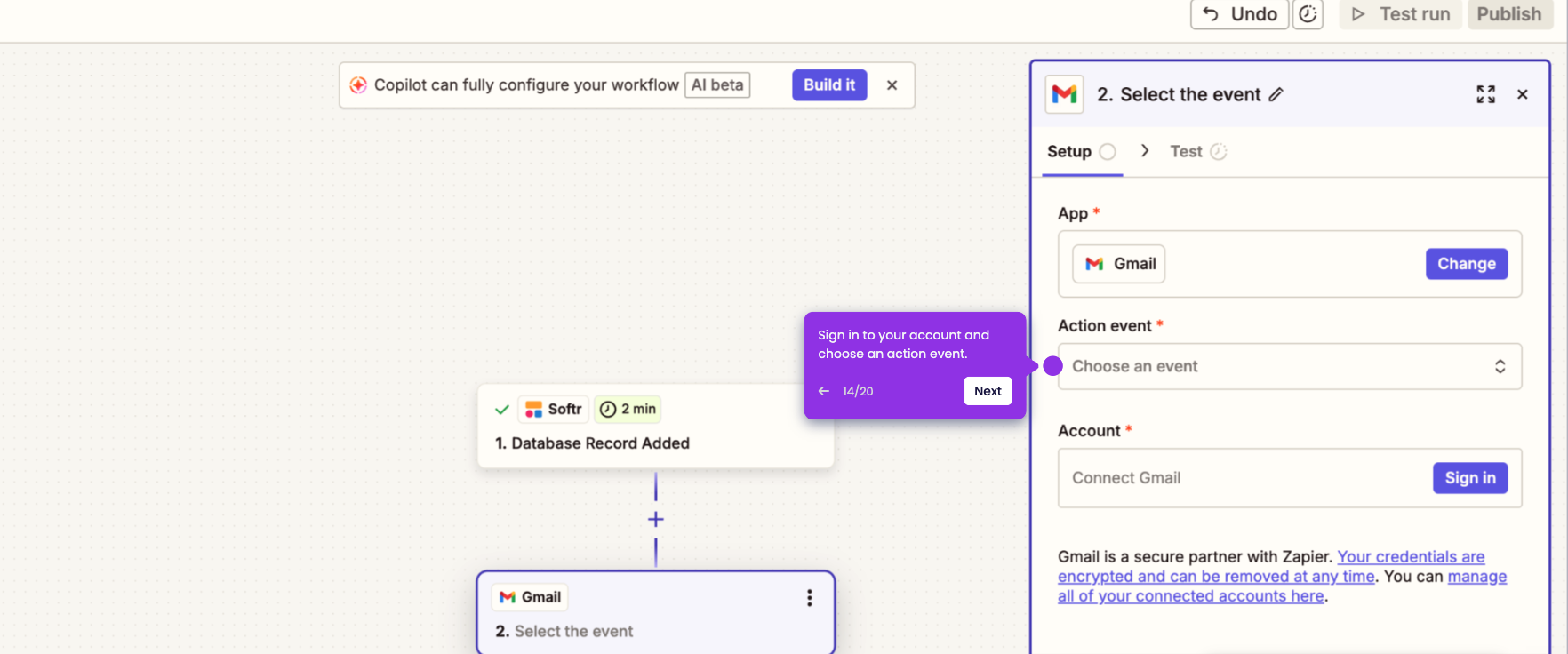
- Choose and select your 'Action event', then log in to your Slack account.
- Allow Zapier to access the required permissions to authorize your Slack account.
- Once authorization is complete, click 'Continue' to proceed.
- Fill in the necessary details required for the Slack action.
- Click 'Continue' to advance to the next step.
- Review how data flows through your automation, then click 'Publish' to go live.
- Your Softr-to-Slack automation is now ready and running.