Quick summary
This tutorial shows how to integrate Softr with Memberstack using a Zapier Zap, automatically syncing new Softr database records to create or update Memberstack members without manual effort.
Steps
- Navigate to Zapier's left sidebar and click the '+' button.
- Click 'Zaps' to start the integration process.
- Click 'Trigger' to define the event that will start your automation workflow.
- Choose 'Softr' as your trigger app.
- Log in to your account and specify which Softr event will kickstart your automation.
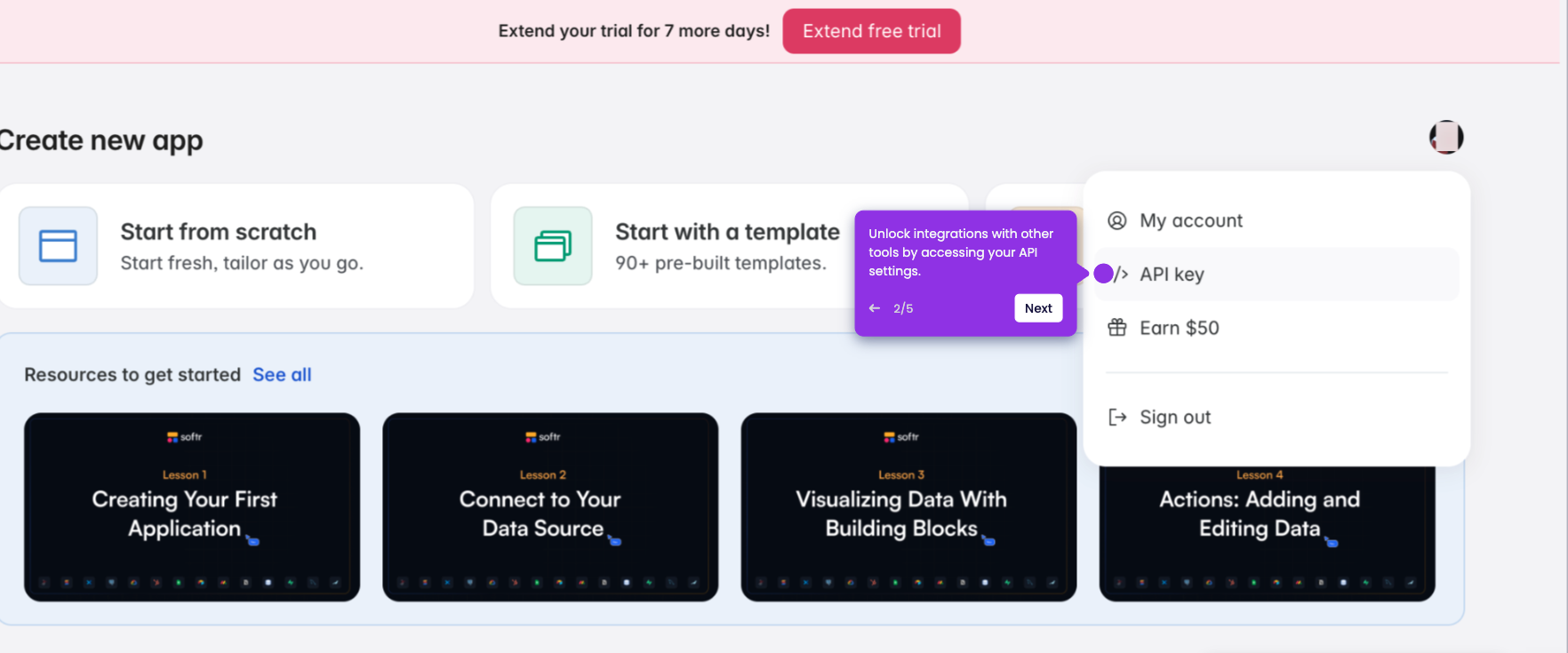
- After logging in, enter your Softr API key to proceed.
- Once filled, click 'Yes, Continue to Softr.'
- Click 'Continue' once your account is logged in and the trigger event has been added.
- Specify which database and table to monitor.
- Click 'Continue' to proceed.
- Click 'Test trigger' to verify that Zapier can detect new records correctly.
- Choose your record and click 'Continue with selected record' to proceed.
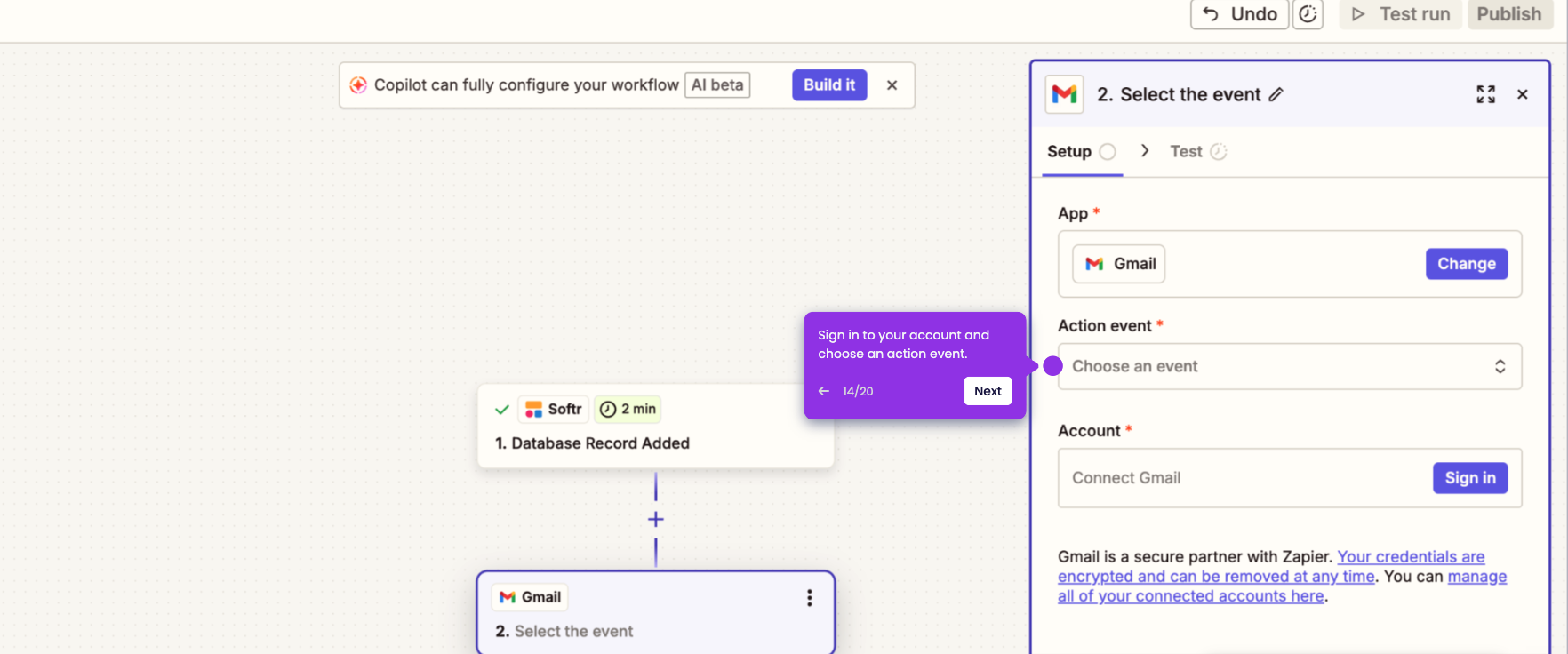
- Choose Memberstack as your Action app.
- Select and choose a 'Trigger event' and log in to your Memberstack account.
- Enter your Memberstack secret key to establish the connection.
- Once connection is established, click 'Continue.'
- Fill in the required Member and Plan details.
- Click 'Continue' to move forward to test your complete automation flow.
- Click 'Publish' once final.
- Softr is now ready and integrated with Memberstack.