Quick summary
This tutorial walks you through integrating Softr with Mailchimp via a Zapier Zap, so that new records in your Softr database automatically trigger email campaign actions in Mailchimp without any manual effort.
Steps
- Click 'Create' to get started in Zapier.
- Select 'Zaps' from the list of options.
- Click the 'Trigger' tab to proceed.
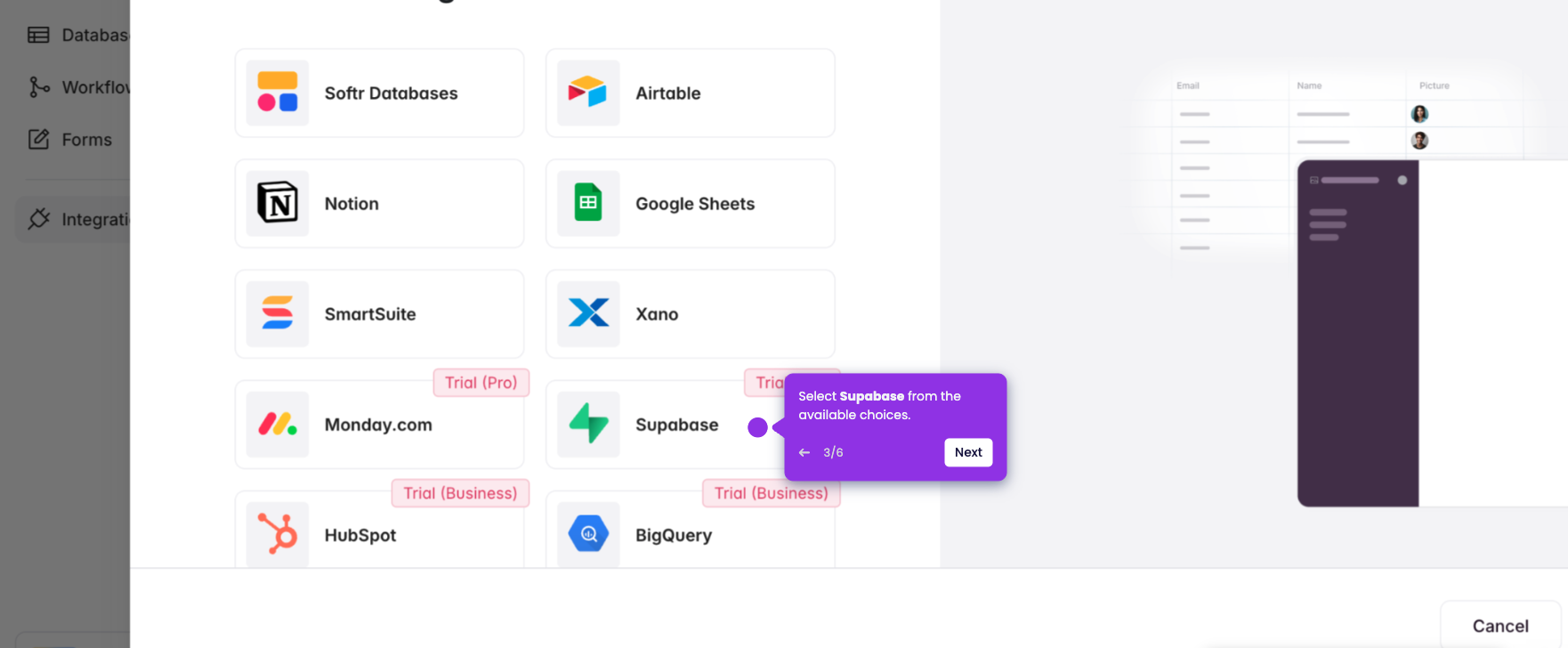
- Choose 'Softr' as your trigger app.
- Specify your preferred 'Trigger Event'.
- Click 'Sign In' to connect your Softr account.
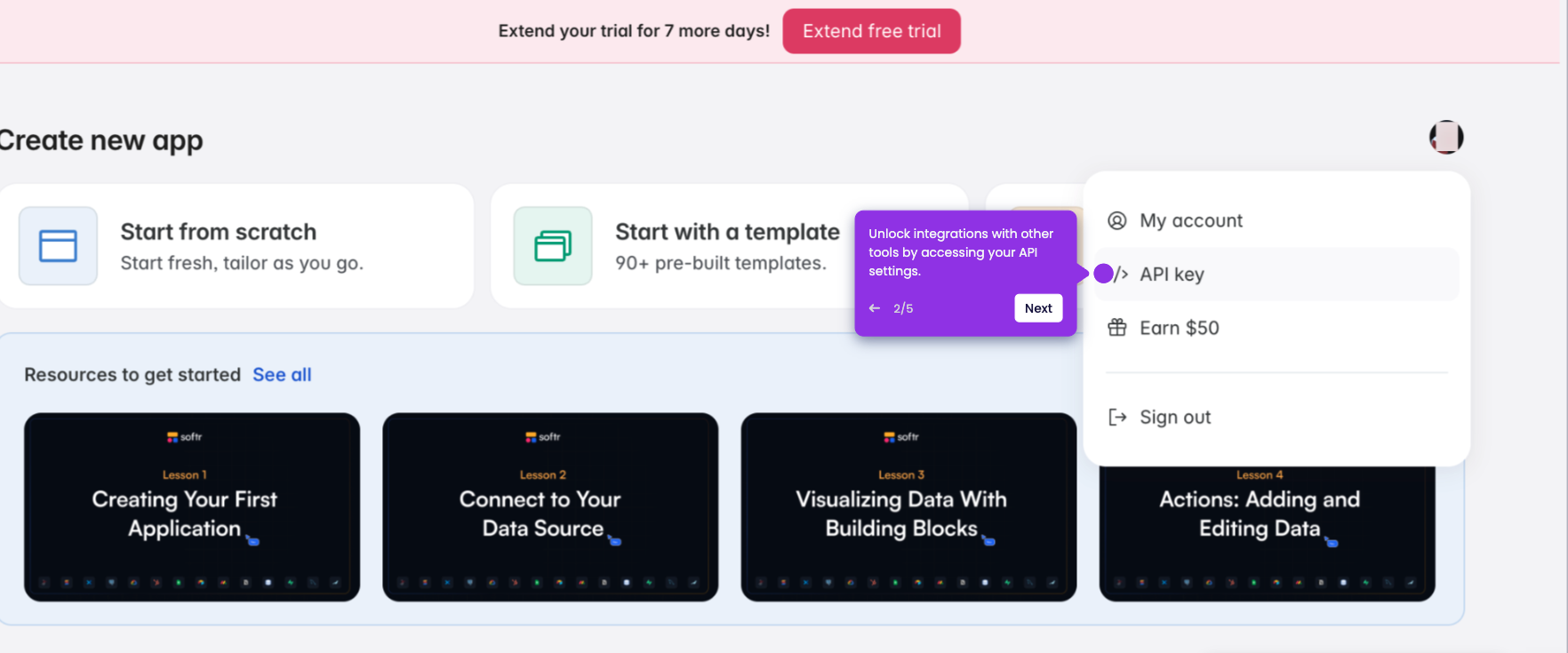
- Provide your Softr API key, then click 'Yes, Continue to Softr'.
- Once all fields are filled, click 'Continue' to proceed.
- Specify which database and table Zapier should monitor for new records.
- Click 'Continue' once your database and table are selected.
- Tap 'Test trigger' to verify the provided data.
- Confirm the sample data and click 'Continue with selected record'.
- Choose 'Mailchimp' as your action app to automate email campaign procedures.
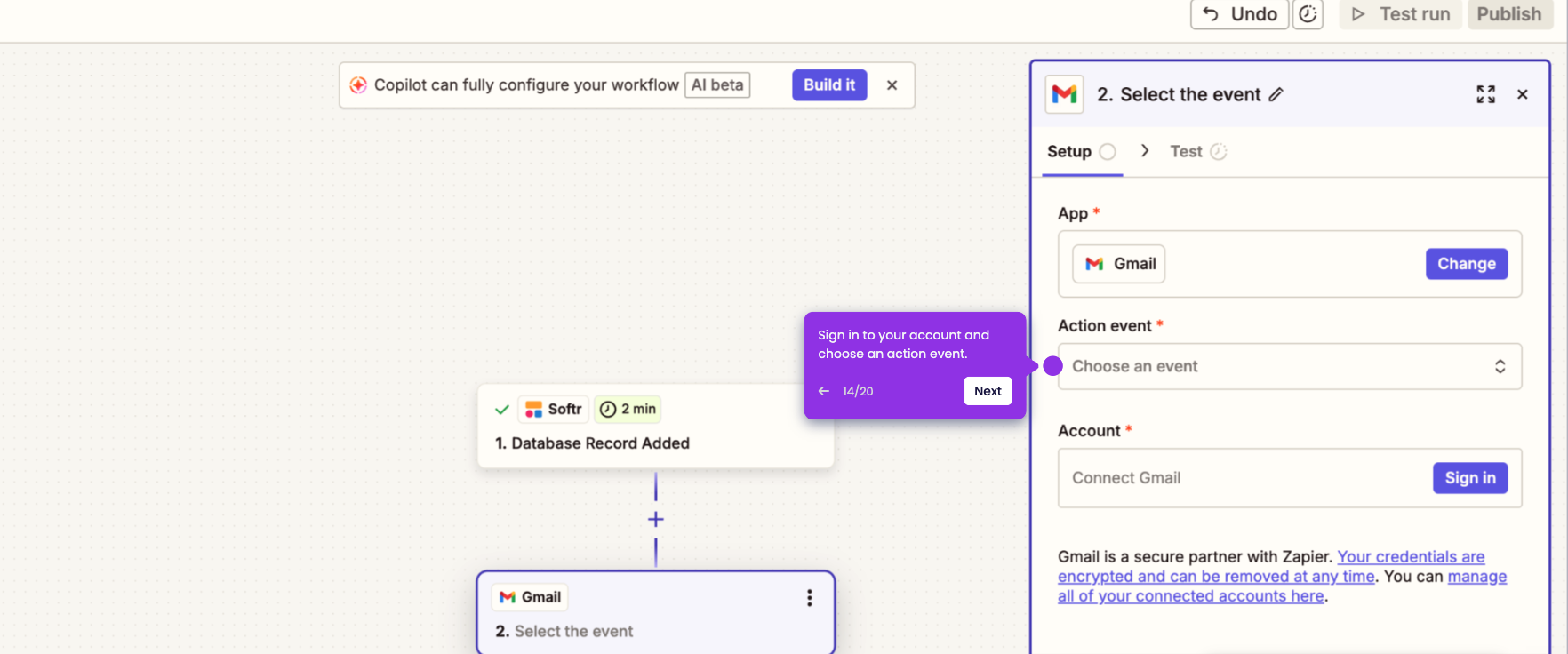
- Choose your preferred 'Action event'.
- Tap 'Sign in' to log in to your Mailchimp account.
- Click 'Allow' to grant the necessary permissions.
- Click 'Continue' once your Mailchimp account is connected.
- Configure all required Mailchimp audience details.
- Tap 'Continue' to proceed to the final step.
- Click 'Publish' to activate your Zap and complete the integration.
- Your Softr is now integrated with Mailchimp.