These are the step-by-step instructions on how to integrate Softr with Google Calendar using Zapier:
- In the Zapier workspace, click 'Create'.
- Select 'Zaps' to begin building your automated workflow between apps.
- Tap the 'Trigger' button to define the event that will start your automation workflow.
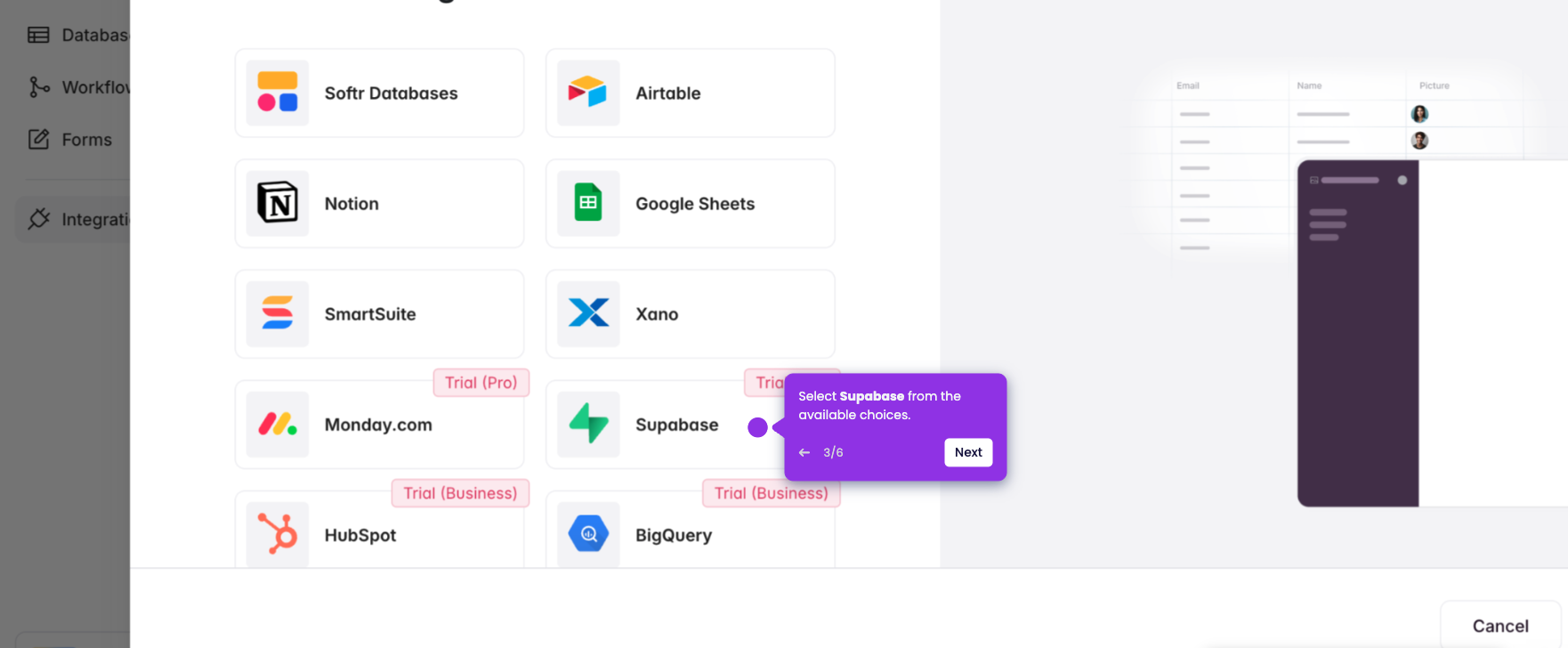
- Select 'Softr' as your trigger app.
- Choose your preferred 'Trigger event.'
- Tap 'Sign in' to connect your Softr account to Zapier.
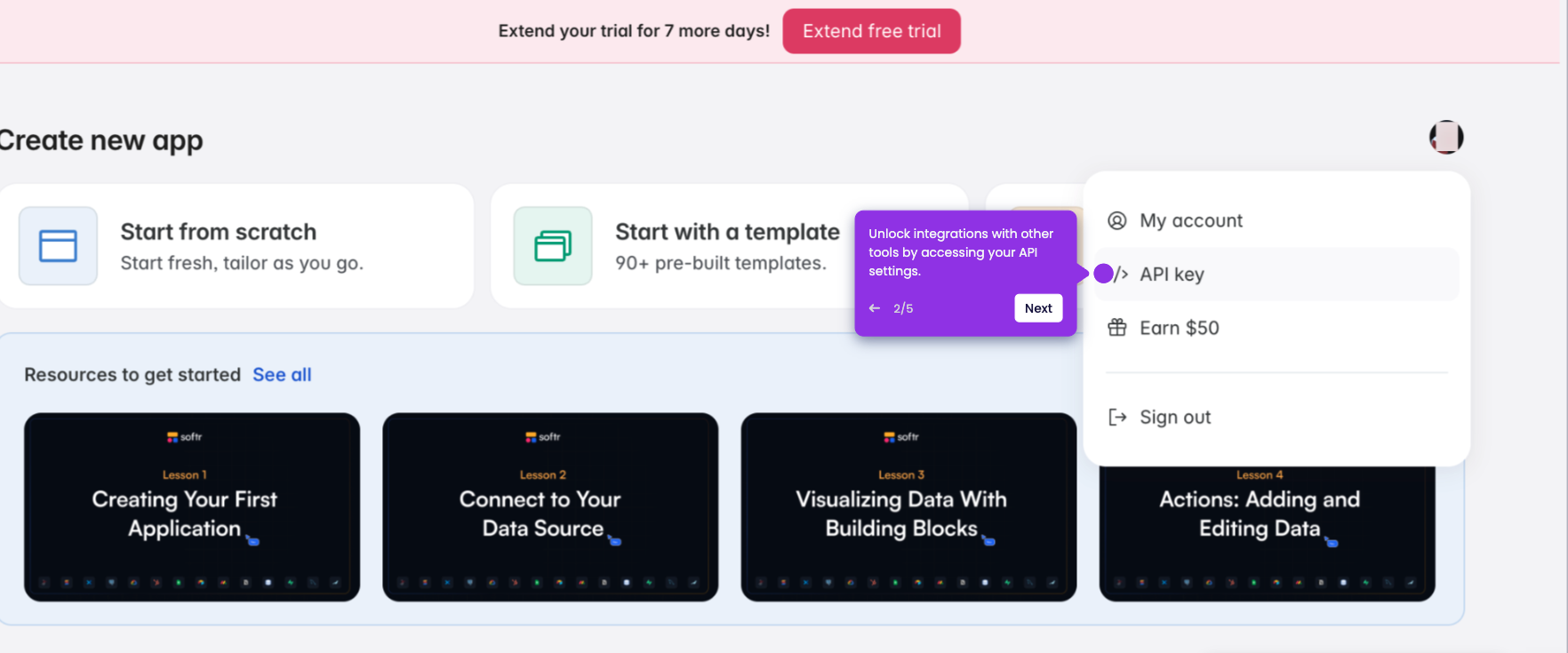
- Enter Softr API key.
- Click 'Yes, continue to Softr' to proceed with the integration.
- Once all fields are filled, click 'Continue' to proceed.
- Specify which database and table Zapier should monitor for new records.
- Once done, click 'Continue'.
- Tap 'Test trigger' to check the provided data.
- Confirm the sample data and click 'Continue with selected record.'
- Choose 'Google Calendar' to automatically create events from new Softr records.
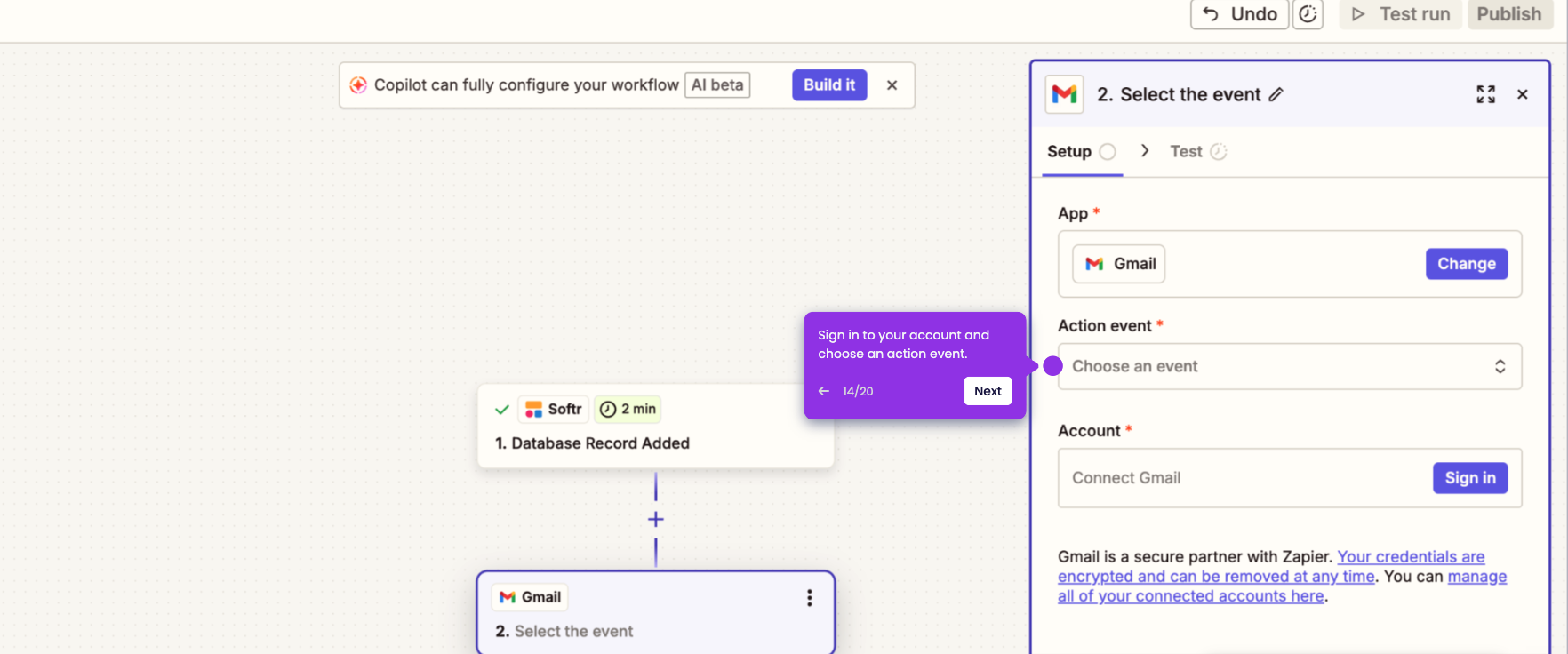
- Choose your preferred 'Action event.'
- Tap 'Sign in' to log in to your Google account.
- Click 'Continue' to proceed.
- Configure the required details.
- Once done, click 'Continue.'
- Proceed with testing to ensure details are matched and correct.
- Finally, click 'Publish'.
- Your Softr is now integrated with Google Calendar.