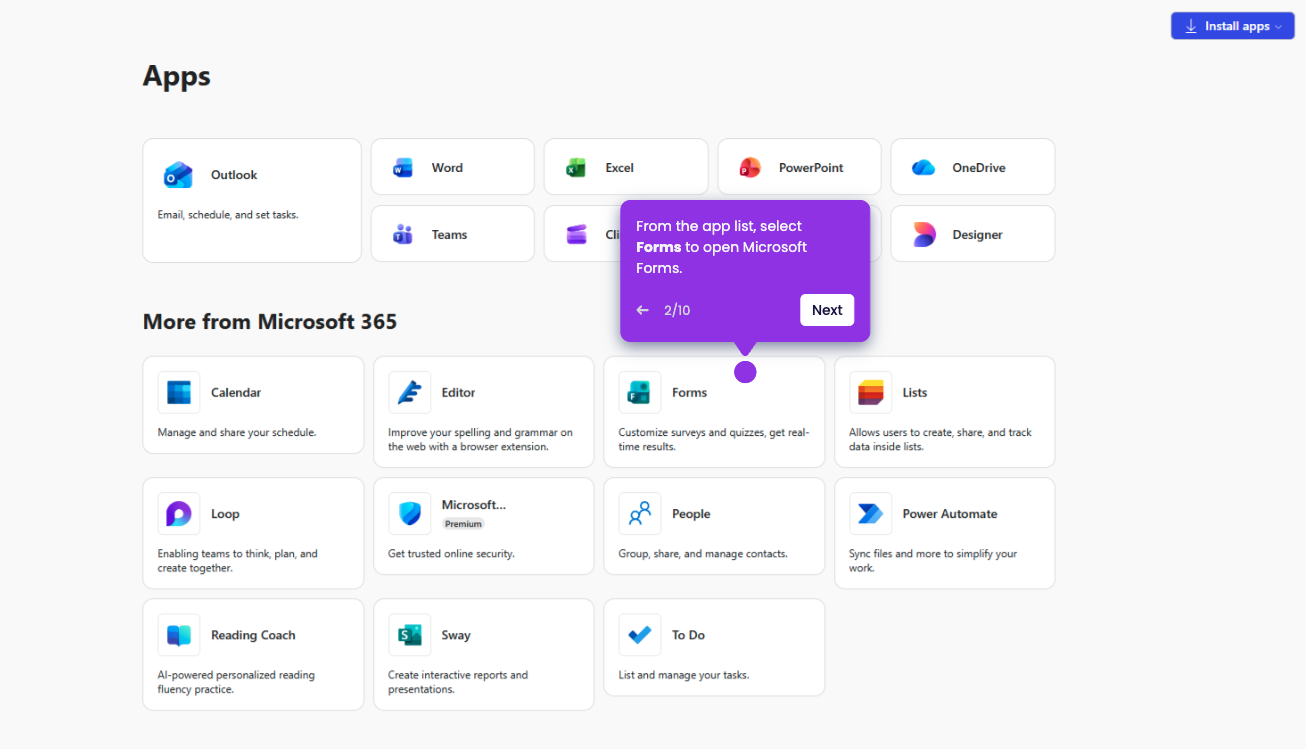
Microsoft Forms lacks a direct native trigger in Zapier, so use Excel Online live sync in OneDrive to capture responses as new rows automatically.
- On your Microsoft 365 main dashboard, click OneDrive.
- Click on Create or upload button to start from scratch.
- From the dropdown menu, select Excel workbook.
- On the Excel tab, click on Insert and choose New Form.
- From the right panel that appears, click on the Open Form button in green.
- Design your survey in a new tab to automatically generate matching columns in your Excel Online sheet.
- Return to your Excel tab to confirm the form has appeared.
- On Zapier's main dashboard, click on Create Zap.
- Click on the Trigger button to see the list of apps available for your automation.
- Search for Microsoft Excel, and choose it as your Trigger app.
- Connect your Apollo Account by clicking on the Sign In button on the right-hand options.
- Select New Row in Table as your Trigger Event.
- Click on the 'Continue' button to finalize your trigger.
- Click Continue to move forward with this sample data.
- Your trigger is ready—now add an action to complete your workflow.