Integrating HeyGen with Zoom allows you to trigger actions in Zoom whenever a video event occurs in HeyGen.
- Log in to your Zapier account and go to your dashboard.
- Click Create Zap to start a new automation.
- Click Trigger App and choose the app you want to use (e.g., Google Sheets).
- Search for and select Heygen as your trigger app.
- Click Sign In to connect your HeyGen account.
- Log in to your Heygen account, and click Authorize Access so Zapier can monitor your video events.
- Click on trigger event, and choose an event from the dropdown list, then click the Continue button to proceed with configuration.
- Fill in the required fields like event type.
- Click the Test trigger to verify if it works.
- Search for and select Zoom as your action app to create meetings automatically.
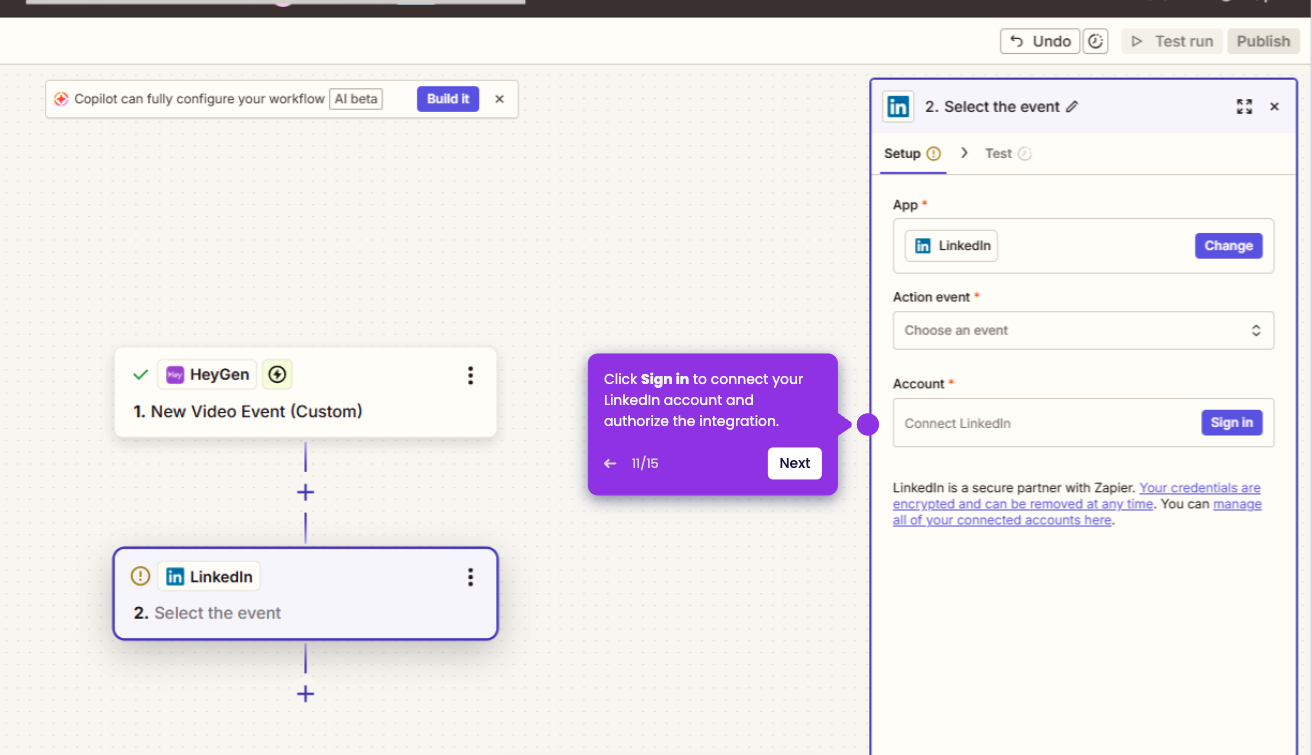
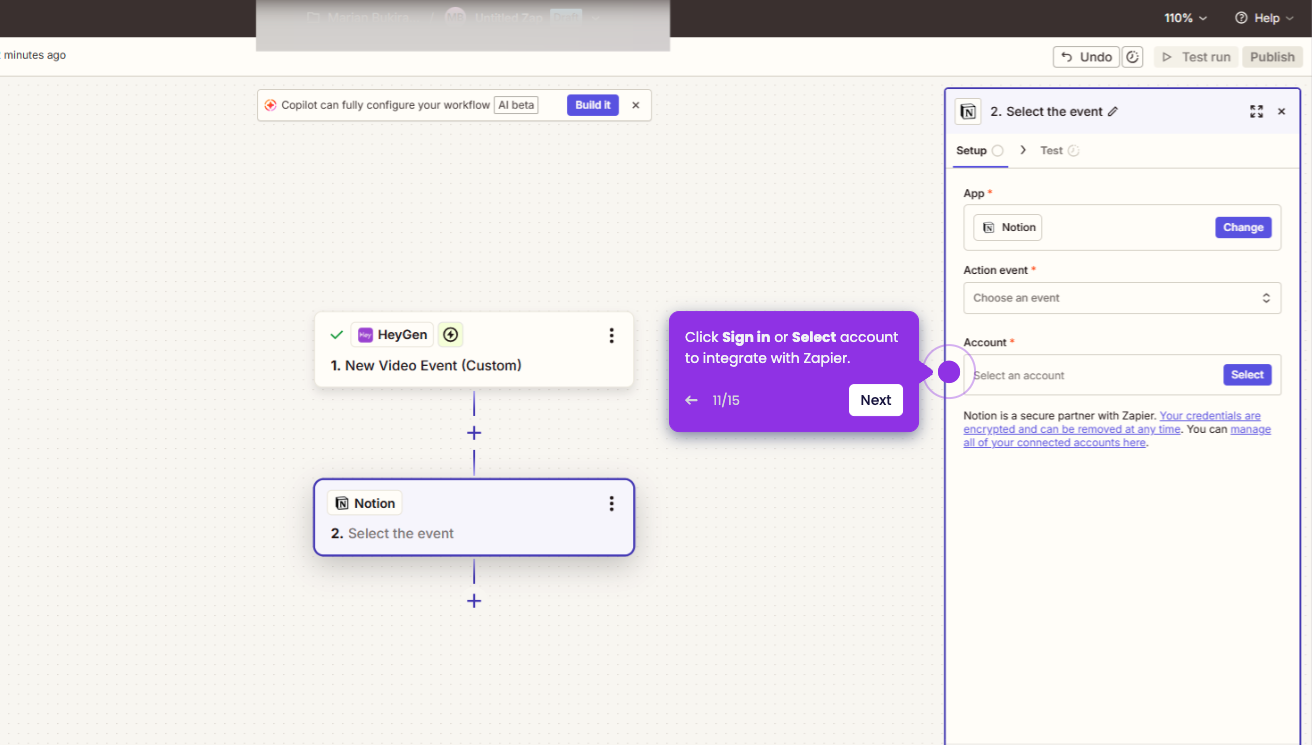
- Click Sign in to connect your Zoom account with Zapier.
- Enter your Zoom credentials to authenticate the connection.
- Click Allow to grant Zapier permission to manage your Zoom meetings.
- Choose Create Meeting as the action event you want to trigger.
- Fill in the required meeting details such as meeting topic, date, time, and duration.
- Click Publish to activate your Zap and start automating.