Dynamics 365 integrates with Outlook using the Dynamics 365 App for Outlook. This add‑in lets you track emails, appointments, and view CRM data directly inside Outlook. Here’s how to do it:
- To start the integration between Dynamics 365 and Outlook you need to access the 'App Settings'.
- Scroll down to 'App Extensions and select 'Partner Apps'.
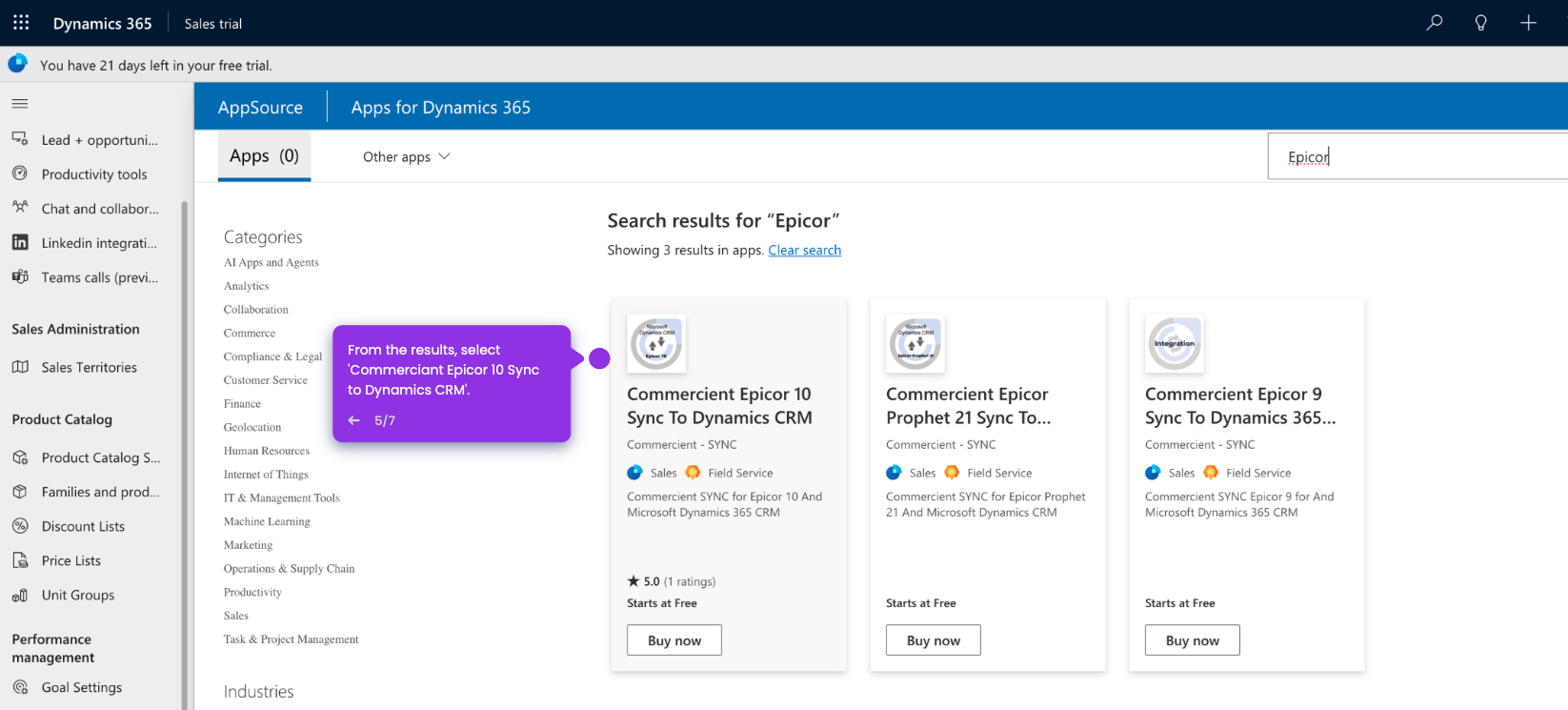
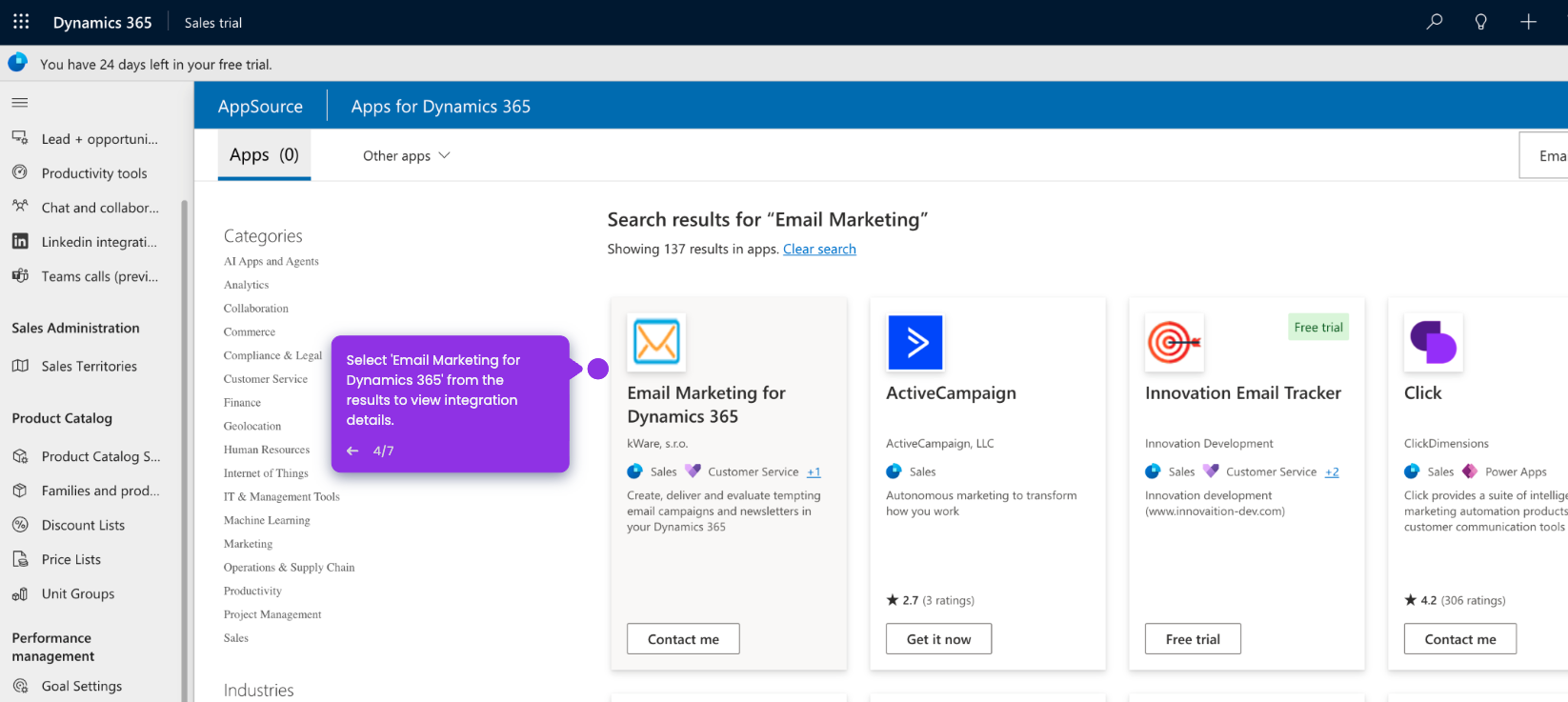
- Browse for Dynamics 365 App for Outlook and click 'Get it now'.
- Select an environment and accept the terms and conditions by clicking the check box.
- Once done, click 'Install'.
- Go to the 'Environments' menu.
- Select 'Sales trial' as your environment if you're in a free trial.
- Navigate to 'Settings' from the menu above.
- Select 'Users + permissions'.
- Then, select 'Users'.
- Choose a user for your outlook
- Click 'Manage user in Dynamics 365'.
- Now, select 'Approve Email'.
- Once you have approved the email, click 'Open Mailbox'.
- Then, finally select 'Test and Enable mailbox' to start integrating Dynamics 365 to Outlook.