Quick summary
This demo shows how to integrate Constant Contact with Google Sheets using a Zapier automation (Zap), so that contact data flows automatically between the two apps without manual exports. In under 20 steps, you can connect both accounts, configure a trigger event, and publish a live Zap that keeps your spreadsheet up to date.
Steps
- Go to the left-side panel and click Create.
- Select Zaps from the list of options.
- Click the Trigger tab to start the integration process.
- Search for Constant Contact and pick it from the recommended matches.
- Specify your preferred Trigger Event.
- Tap Sign In and log into your active Constant Contact account.
- Click Continue to proceed further.
- Tap Test Trigger to run your input.
- Select the record you wish to use, then click Continue With Selected Record.
- Search for Google Sheets and select it as the Action app.
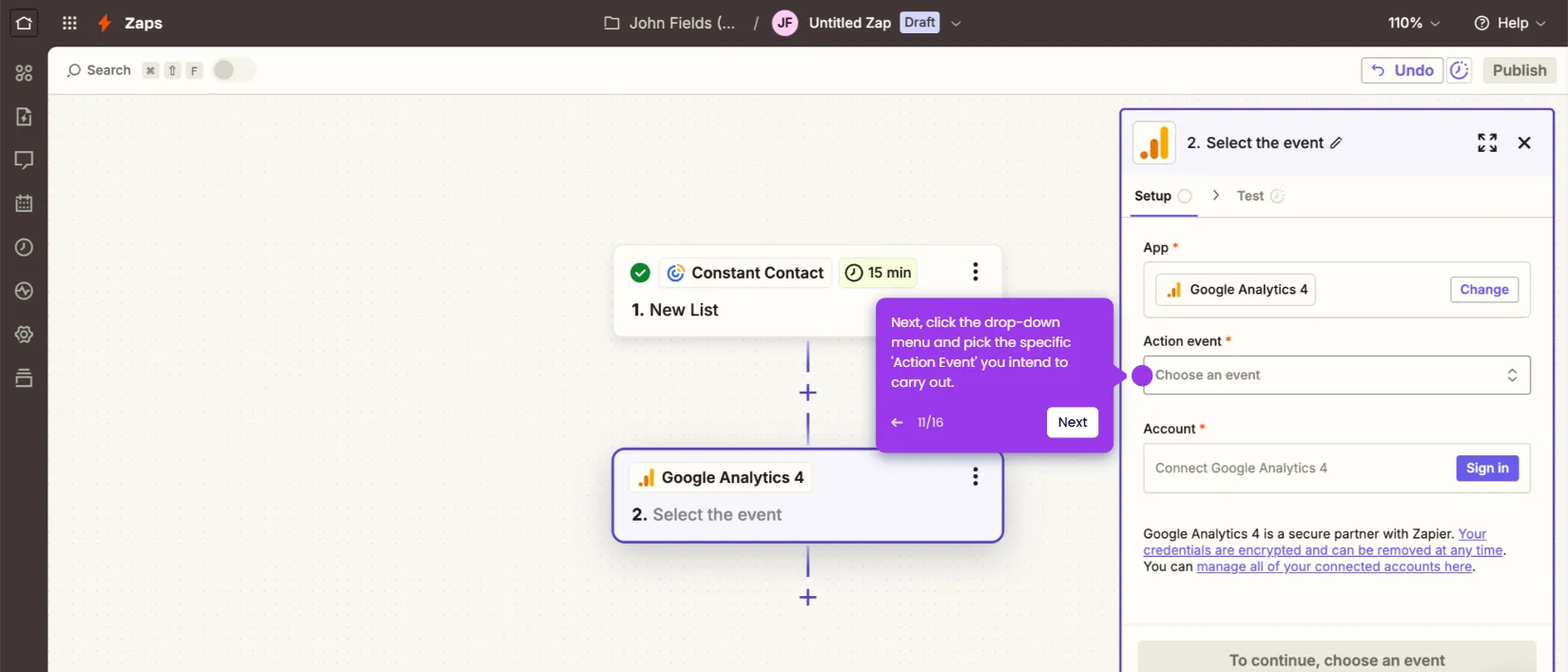
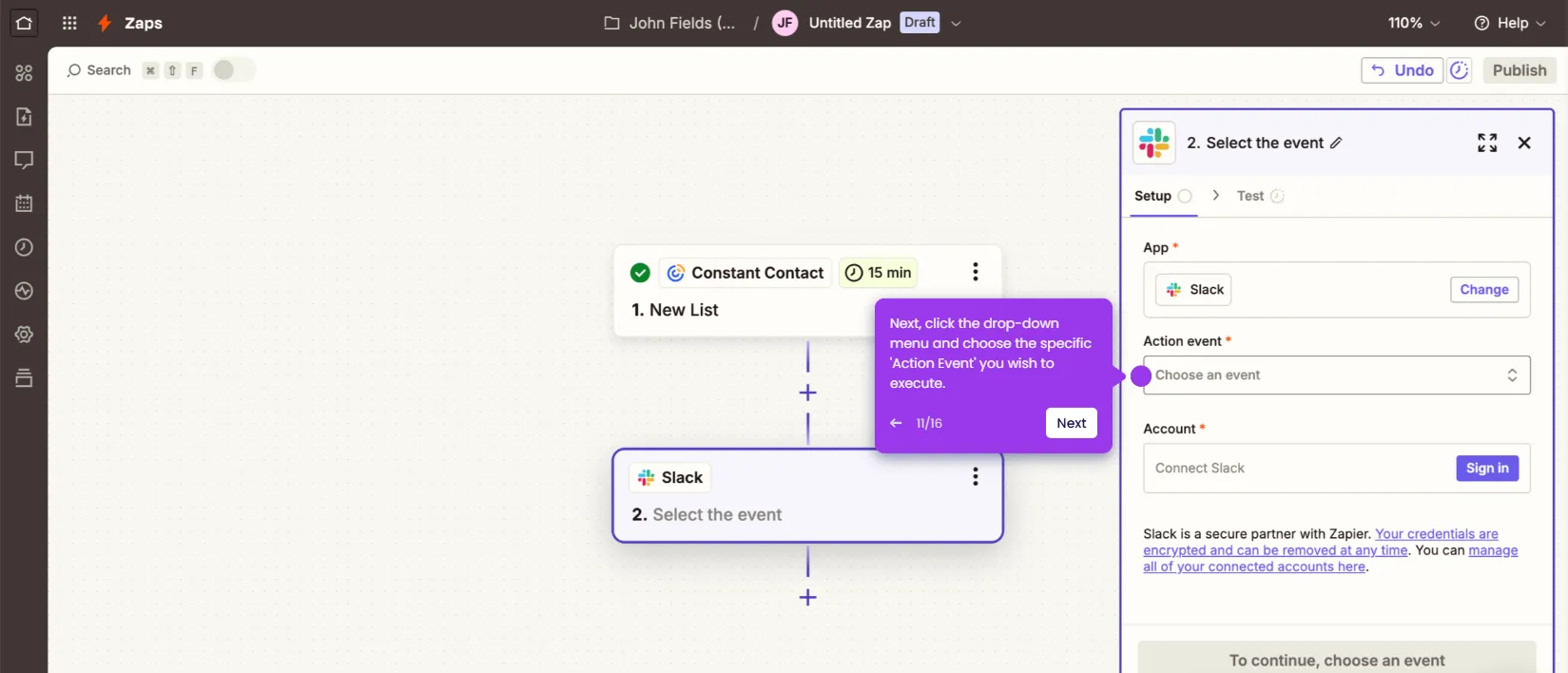
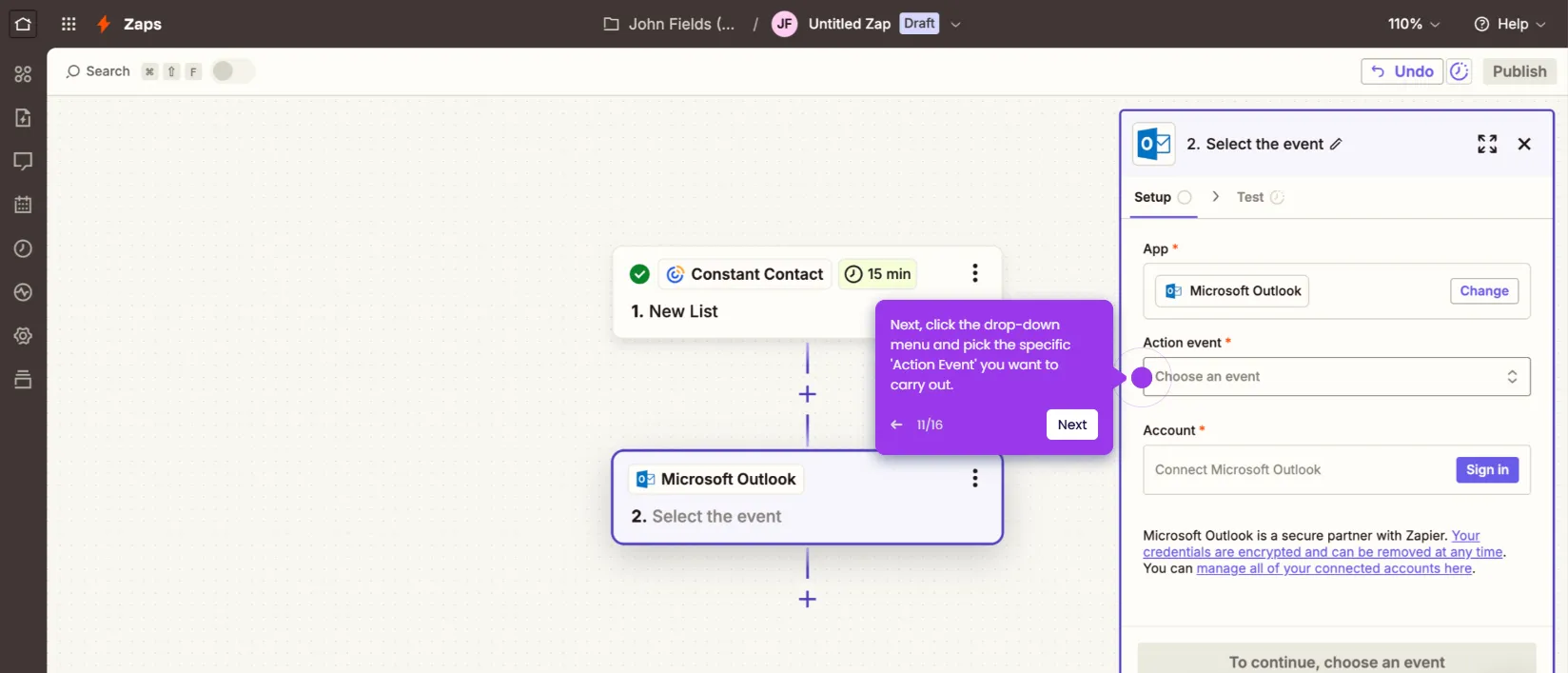
- Click the drop-down menu and pick the specific Action Event you prefer to execute.
- Click Sign In and log into your Google account.
- Click Allow to accept the terms and grant the necessary permission.
- Fill out the input fields with the required information.
- Click Continue to publish the integration.
- Your Constant Contact account is now integrated with Google Sheets and your Zap is live.