Integrating Apollo.io with Zoho CRM using the API method ensures a stable, high-speed connection for syncing leads and company data directly into your CRM modules. Here’s a quick guide on how to do it in simple steps:
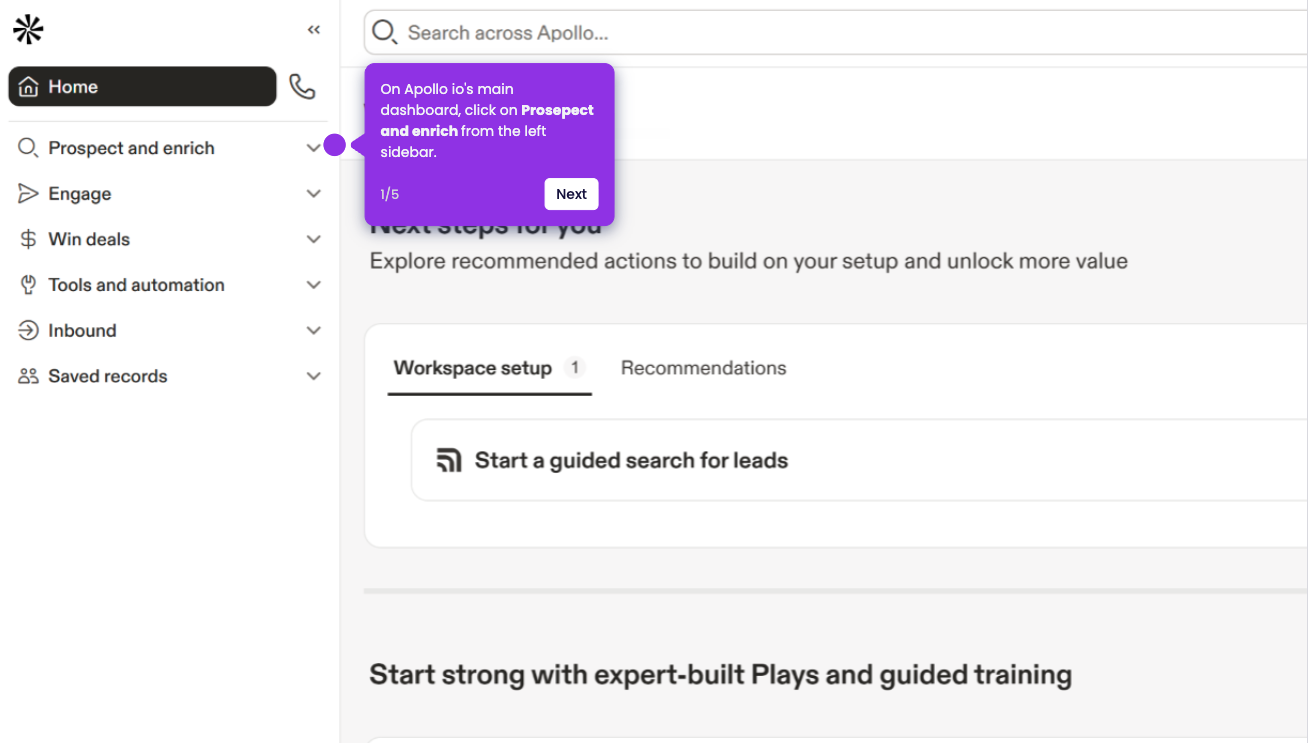
- On Apollo’s main dashboard, click the 'Admin Settings' icon (gear icon) on the bottom-left panel.
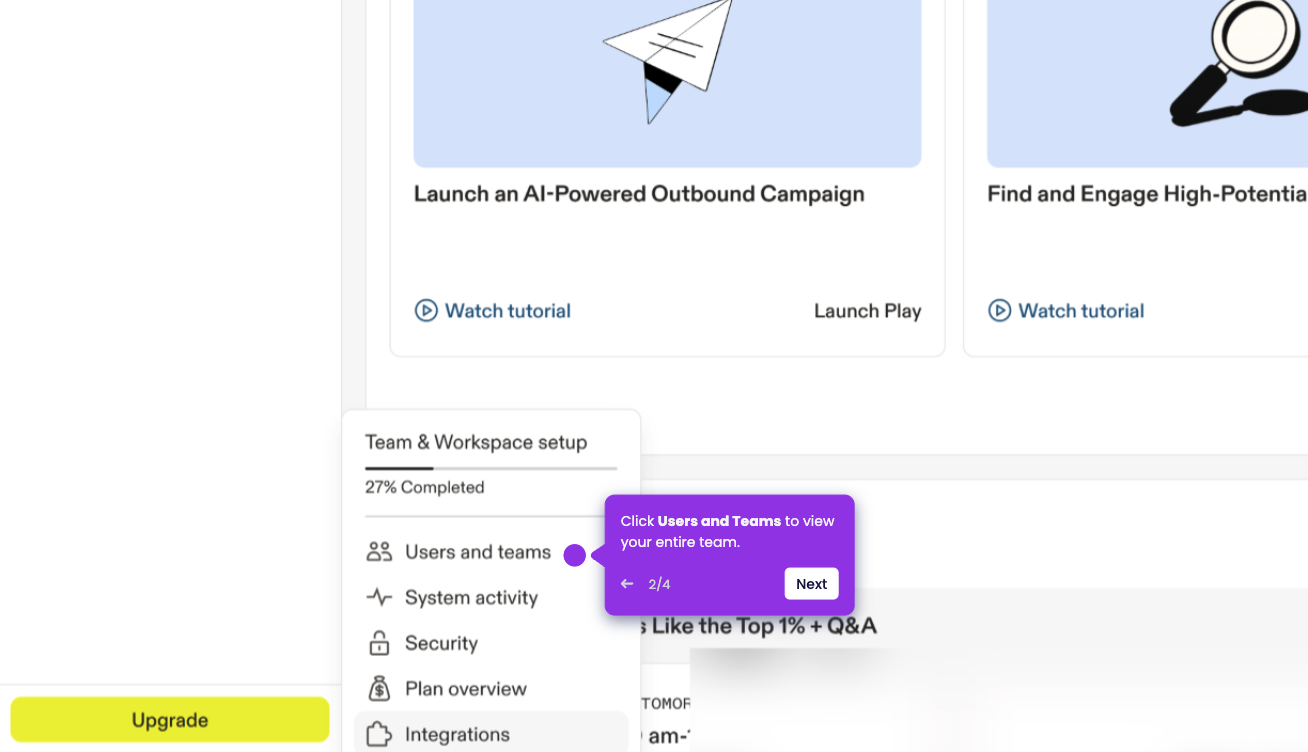
- Select 'Integrations' from the list of options.
- Scroll down to the 'API' section and click 'Connect'.
- From the top-right panel, select API Keys and click 'Create New Key'.
- Copy the API Key immediately (you will need this for the next step).
- Go to your Zoho CRM main dashboard and select Integrations from the left-side panel, click on the Social button from the dropdown list.
- Click on the Let's Get Started button to begin configuring your integration workflow.
- Define your automation trigger by clicking on Create New Brand button.
- Click on the New Action button to define what happens when data is received.
- Choose Apollo from the list of apps available.
- Click the Next button to advance through the configuration wizard.
- Once you're done with the configuration settings, click on the Authorize button.
- Paste your Apollo API Key into the authentication field to link the two platforms, then click the Authorize button.
- You're all set! Your Zoho CRM is now powered by Apollo's live database.