Apollo.io integrates with monday.com via Zapier to automatically create or update items in monday.com boards from new Apollo contacts or accounts. Here's the complete step-by-step guide:
- On the Zapier dashboard, click Create Zap.
- Click Trigger, search for Apollo, and select it as your trigger app.
- Make sure that your Apollo account is signed in. If not, click on the Sign In button.
- In the pop-up window, enter the API Key and Name, then click Continue.
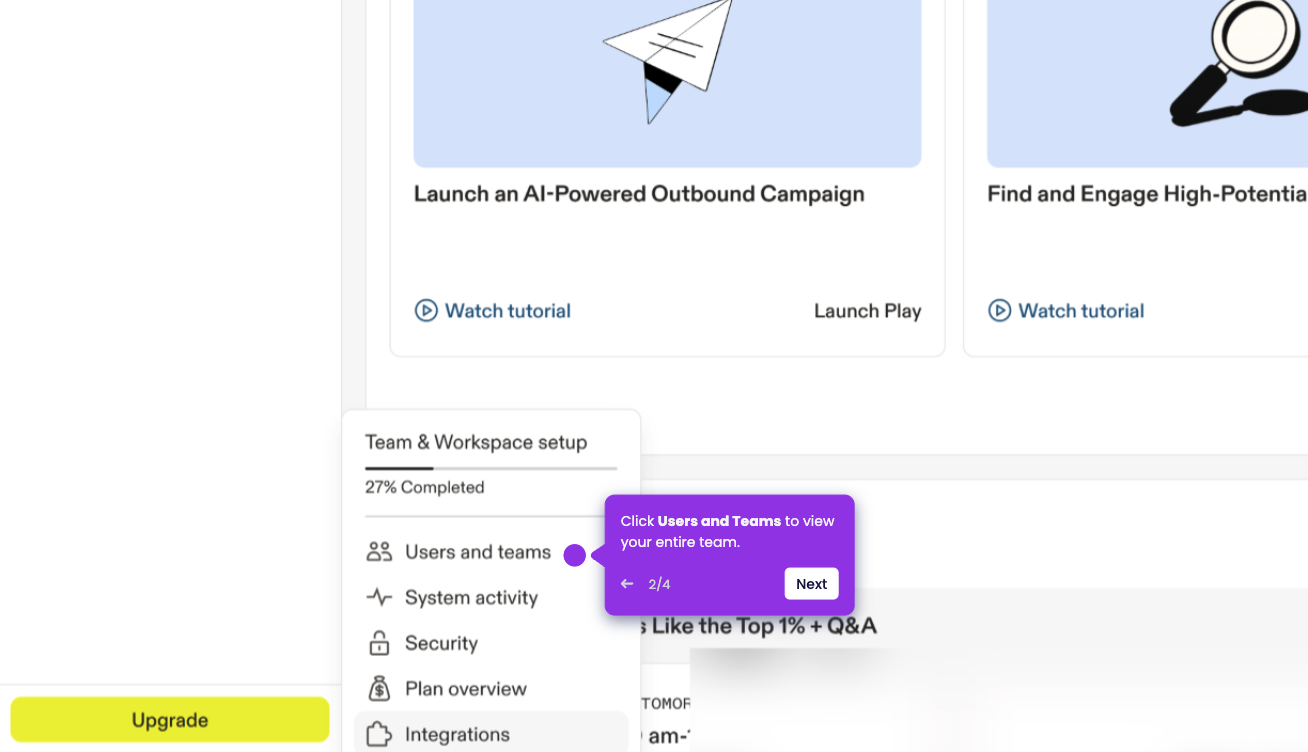
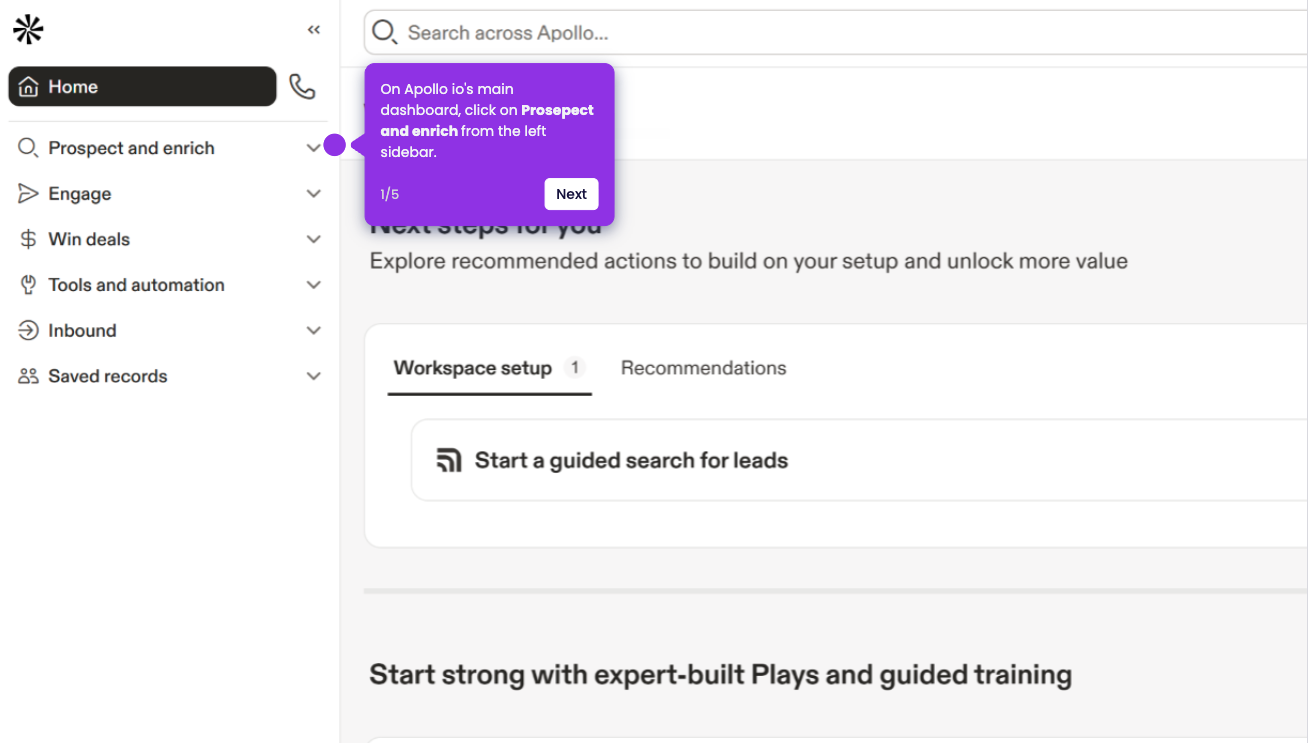
- To get your API Key, go to your Apollo main dashboard, click 'Settings', then select 'Integrations'.
- In the Integrations section, scroll down to locate the API option and click on it.
- Click the '+ Create new key' button in the upper-left corner, personalize your API key, then click the Create API Key button.
- Copy your newly created API Key and paste it into the pop-up window. Click Done.
- Choose a trigger event (e.g., “New Account”), then click Test Trigger to pull in sample data.
- Click Continue with selected record to confirm the trigger is working properly.
- Click Action to define where your data will go.
- Search for and select monday.com as your action app.
- Connect your monday.com account if not linked—click Sign In to authorize.
- Under Action Event, choose “Create Item in a Board” to add Apollo contacts directly to monday.com.
- Map the required fields, click Continue, test if needed, then click Publish to activate your Zap.
- You're all set! Apollo leads will now automatically sync to your monday.com boards.