Apollo.io integrates seamlessly with ActiveCampaign via Zapier, automating contact sync, account updates, and lead workflows between sales and marketing tools. Common flows include adding Apollo contacts to ActiveCampaign lists or triggering campaigns from Apollo engagement. Follow this step-by-step guide:
- On the Zapier dashboard, click Create Zap.
- Click Trigger, search for Apollo, and select it as your trigger app.
- Make sure that your Apollo account is signed in. If not, click on the Sign In button.
- In the pop-up window, enter the API Key and Name, then click Continue.
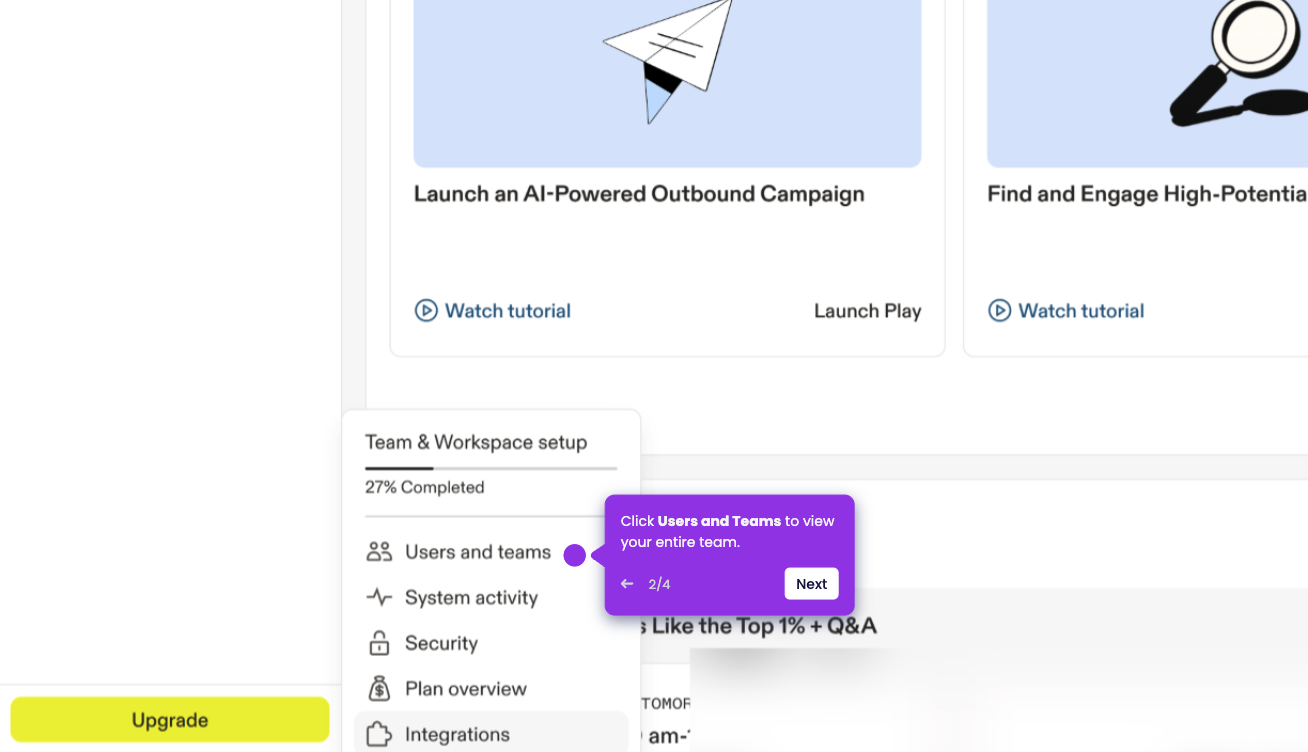
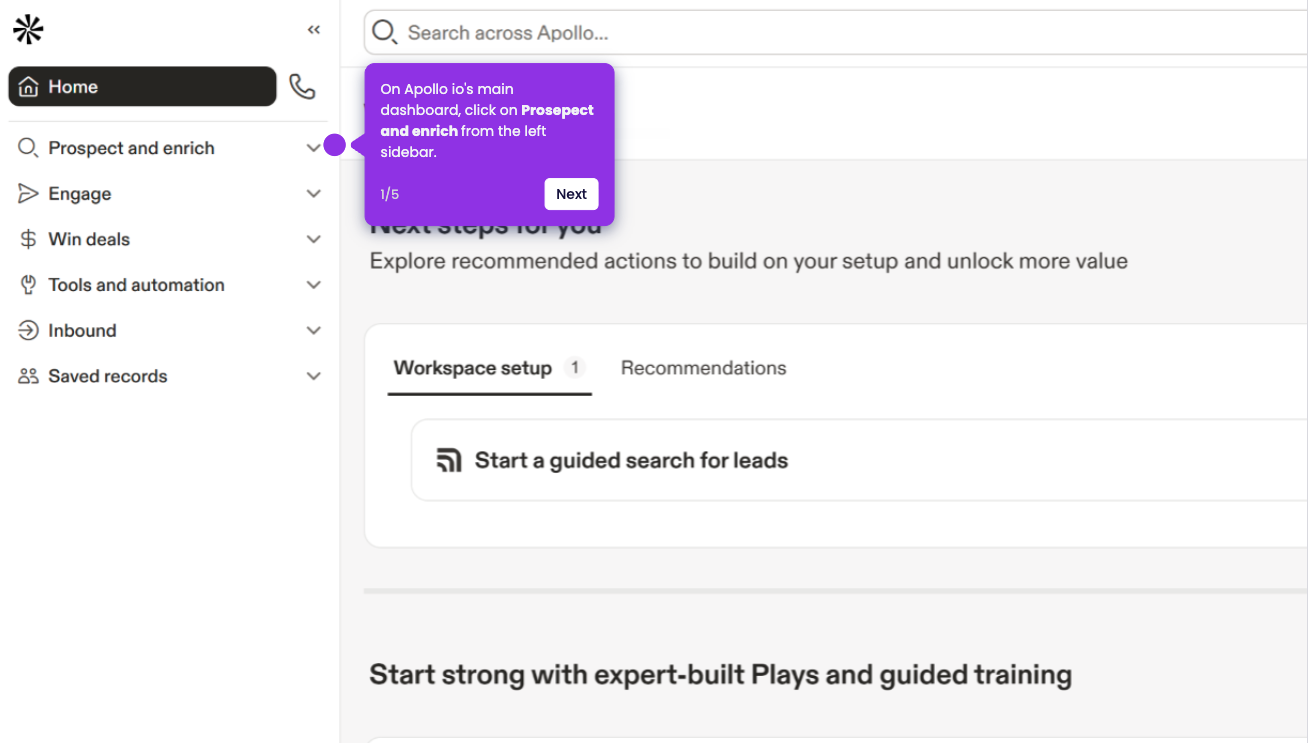
- To get your API Key, go to your Apollo main dashboard, click 'Settings', then select 'Integrations'.
- In the Integrations section, scroll down to locate the API option and click on it.
- Click the '+ Create new key' button in the upper-left corner, personalize your API key, then click the Create API Key button.
- Copy your newly created API Key and paste it into the pop-up window. Click Done.
- Choose a trigger event, such as “Contact Updated” or “New Account”, and click Continue.
- Click Test Trigger to pull in sample data and confirm it works.
- Click Continue with selected record to proceed with the sample data.
- Click Action, then search for and select ActiveCampaign as your action app.
- Make sure your ActiveCampaign account is connected; if not, connect it by clicking on the Sign In button.
- Pick "Create Contact" or "Add to List", then Continue.
- Click 'Publish' to make the automation live.